
If you’ve ever had to deal with a single corrupted PDF, you know the headache. Now imagine you have 50 of them—maybe from a failed hard drive recovery, a buggy batch export, or a dodgy download spree. This guide is for anyone staring at a folder full of broken PDFs who wants to fix them all without clicking each one manually. By the end, you’ll have a repeatable process to scan, repair, and verify multiple PDFs at once using free or low-cost tools. We’ll lean on command-line utilities and simple scripts, so you don’t need to be a programmer—just comfortable copying and pasting commands.
Bulk repair means treating your entire file set with the same fix, but not all PDFs break the same way. Some have a mangled cross-reference table, others have corrupt streams, and a few might just have a bizarre font error. The method below handles the most common issues and leaves you with usable documents. You’ll also learn what to do when the quick batch fix doesn’t cut it—like diving into a complete PDF repair workflow for the outliers.
What You’ll Need
- A Windows, macOS, or Linux computer (commands vary slightly, but qpdf works cross-platform)
- A collection of corrupted PDF files (back them up first!)
- Admin rights to install software (or use a portable version of qpdf)
- A text editor (Notepad, TextEdit, or VS Code) for writing a batch script
- Optional: access to a free online PDF repair service for files that resist offline fixes
Step 1: Assess the Damage – Sort Your Files
Before applying any fix, figure out which files actually need repair. Open a few in a reader like Adobe Acrobat or a browser. If they open fine, they’re not corrupt. But if you get errors like “Unable to read document” or “File is damaged”, set those aside. For bulk work, we’ll put all suspect files in a single folder. Rename them clearly—something like ‘corrupted_001.pdf’—so you can track progress.
Step 2: Download and Install qpdf
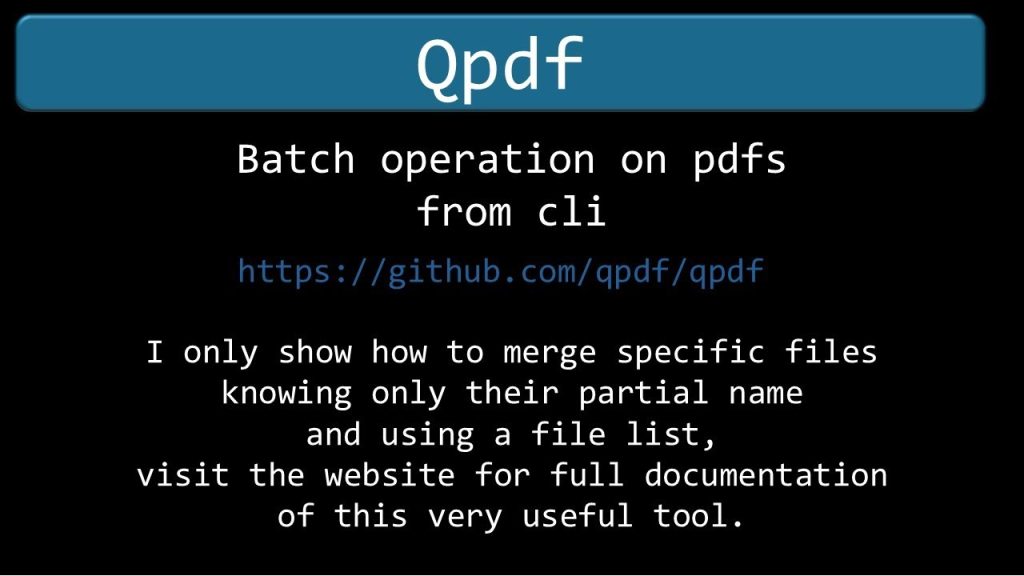
Qpdf is a free, open-source command-line tool that can repair many types of PDF corruption. It’s the workhorse of mass PDF repair. Go to the official qpdf website and download the installer for your OS. On Windows, grab the .exe; on macOS, use Homebrew (brew install qpdf); on Linux, use your package manager (sudo apt install qpdf). Once installed, open a terminal (Command Prompt on Windows) and type ‘qpdf –version’ to confirm it’s ready.
Step 3: Run a Single Repair Test
Before going bulk, test on one file. In your terminal, navigate to the folder with the corrupted PDF (use ‘cd’ command). Then run: qpdf –repair corrupt.pdf repaired.pdf. Replace ‘corrupt.pdf’ and ‘repaired.pdf’ with your actual file names. If the command succeeds, the new PDF should open fine. If you get errors about a broken cross-reference table, check our guide to cross reference table repair pdf for deeper fixes.
Step 4: Build a Batch Repair Script
Now to handle all files at once. Create a batch script (Windows: .bat, macOS/Linux: .sh) that loops through every PDF in the folder and runs qpdf –repair. On Windows, open Notepad and paste: for %%f in (*.pdf) do qpdf –repair “%%f” “%%~nf_repaired.pdf”. Save as ‘repair_all.bat’ in the same folder. Double-click to run. On macOS/Linux, use: for f in *.pdf; do qpdf –repair “$f” “${f%.pdf}_repaired.pdf”; done. Change the script to output to a separate folder if you want to keep originals.
After running, you’ll have a set of files with ‘_repaired’ appended. Check a handful to see if they open. If any still fail, those may need individual attention using a dedicated PDF recovery tool or a free online PDF repair service for a second opinion.
Step 5: Verify and Organize Successfully Repaired PDFs
Don’t assume all repairs succeeded. Write a simple verification script: you can use qpdf –check repaired.pdf on each file. Or manually open a random sample. For critical documents, run a full fix PDF structure check. Once verified, move the good files to a final folder and delete the _repaired suffix. Archive the originals for a week in case you need to retry with different settings.
Common Pitfalls
- Not backing up originals – if qpdf’s repair corrupts something further (rare but possible), you’ll want the original to try another method.
- Assuming all PDFs are repairable – some corruption is too severe for automated tools. For those, you may need to use a specialized PDF recovery tool or recreate the document.
- Overlooking encrypted PDFs – qpdf won’t repair encrypted files unless you have the password. See our guide on how to recover encrypted PDF if that’s your case.
Where to Next
Bulk repair gets you out of a jam, but not every PDF can be saved with a single pass. If you’re still stuck on a few stubborn files, check out our deep dives on specific issues like mass PDF repair for more advanced techniques, or the complete PDF repair workflow for a systematic approach. And if you’re dealing with scanned documents, our guide on repair PDF created by scanner can handle those too.




