
Ever had a PDF that just refuses to open? Or one that opens but shows gibberish? You’re not alone. This workflow is for anyone who deals with corrupted, damaged, or broken PDF files—whether you’re a student, office worker, or IT pro. By the end, you’ll have a proven step-by-step method to diagnose the issue, apply quick fixes, use dedicated tools, and even dig into manual repairs when necessary. No guarantee of 100% success, but you’ll maximize your chances.
We’ll cover free and paid options, online and offline tools, and a systematic path from simplest to most advanced. Let’s turn that broken PDF into something you can actually use.
What You’ll Need
- Your corrupted PDF file (make a backup copy first!)
- A reliable internet connection for online tools
- Adobe Acrobat Reader (free) or Adobe Acrobat Pro (paid trial)
- A dedicated PDF repair tool such as PDF Repair Toolbox or SysTools PDF Repair
- Optional: a hex editor like HxD (for advanced manual repair)
- Optional: access to a second device (to test cross-platform issues)
Step 1: Assess the Damage
Before you try anything, figure out what you’re dealing with. Open the PDF in different viewers: Adobe Acrobat, a web browser, and a mobile app. Note the error messages. Is it a ‘file is damaged’ error, a cross-reference table error, or just garbled text? This diagnosis will guide your next steps. For example, if you need to repair pdf created by scanner, the approach differs from a corrupt form.

Also check the file size. A 0 KB file is usually beyond repair, but a file with wrong size may still be fixable.
Step 2: Try the Quick Fixes
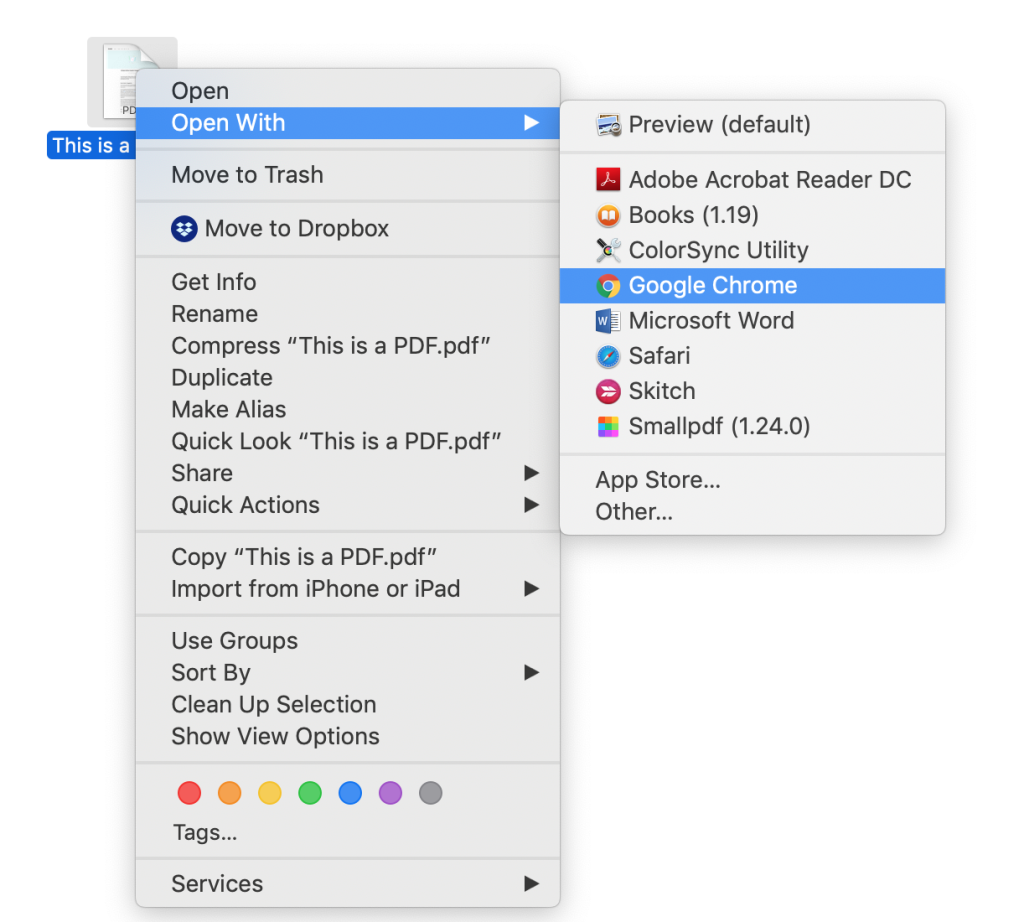
Most simple corruption can be solved without special tools. First, try opening the PDF in a web browser (Chrome, Edge) — they often ignore minor errors. If that works, save a copy from the browser. Next, re-download the file if it came from an email or cloud storage. Sometimes the download itself is corrupted. If you still have issues, use a free online PDF repair service. Services like Smallpdf or iLovePDF can handle basic structural problems. For a comprehensive list of online options, check out our guide to free online pdf repair.
Step 3: Use a Dedicated PDF Repair Tool
If quick fixes fail, bring in a proper tool. Both free and paid tools exist. For severe corruption, try a commercial tool like SysTools PDF Repair or RecoveryFix for PDF. These can rebuild the file structure, fix cross-reference tables, and recover content. Always run a scan first; many tools offer preview before saving. For a step-by-step on using such software, see our article on pdf fix tool.

Step 4: Manual Repair with a Hex Editor (Advanced)
For tech-savvy users, manual hex editing can salvage files when automated tools fail. Open the PDF in a hex editor and inspect the header. A valid PDF starts with ‘%PDF’. If missing, you can add it back. Also check the cross-reference table and trailer. This is tedious but effective for specific errors like a broken cross-reference table. Our separate guide on cross reference table repair pdf dives deeper into that technique.

Be careful: one wrong byte can worsen the damage. Always work on a copy.
Step 5: Validate and Save
After any repair, verify the output. Open the repaired PDF in multiple viewers. Check that all pages, images, and text are intact. If the file still shows errors like a pdf read error repair may be needed again. Use Adobe’s Preflight tool (in Acrobat Pro) to check for remaining issues. Finally, save a clean copy under a new name, and optionally run a syntax check.
Common Pitfalls
- Not making a backup before attempting repairs – one wrong step can make the file unrecoverable.
- Relying on a single tool – different tools handle different corruption types; try at least two.
- Ignoring external resources – sometimes the PDF’s images or fonts are stored externally; if those are corrupt, the PDF itself may need those elements repaired separately.
Where to Next
Now that you have a workflow, you can tackle most PDF corruption issues. For specific scenarios like fixing forms, check our guide on pdf repair for forms. If you’re dealing with scanned documents, our article on repair pdf created by scanner will help. Remember, practice makes perfect – the more PDFs you repair, the more patterns you’ll recognize. Good luck!




