So your PDF signature is acting up – maybe it’s showing ‘invalid’ in Adobe Reader, or the signature box is just blank. This guide is for anyone who needs to get that signature back in working order, whether it’s a digital signature (the fancy encrypted kind) or a scanned image of your hand-drawn John Hancock. By the end, you’ll have a clear plan to either fix the signature or replace it with a valid one.
We’ll cover both scenarios: digital signatures that fail validation and scanned signatures that look garbled or are missing. You don’t need to be a PDF expert – just follow these steps and you’ll be signing like nothing happened.
What You’ll Need
- Your corrupted PDF with the signature issue
- Adobe Acrobat Reader (free) for validation
- Adobe Acrobat Pro (recommended for advanced repair)
- An image editor like GIMP or Photoshop (for scanned signatures)
- Optional: Online PDF repair tool (e.g., Smallpdf, Sejda)
Step 1: Diagnose the Signature Issue
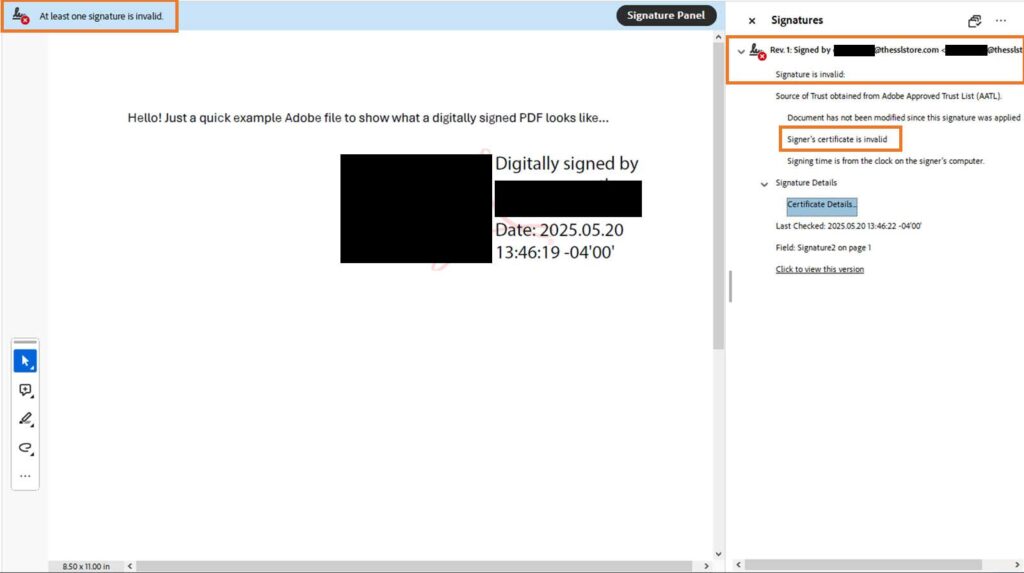
First, figure out what kind of signature you’re dealing with. Open the PDF in Adobe Acrobat Reader. If you see a blue ribbon or a yellow warning triangle next to the signature, it’s a digital signature. If it looks like a pasted image, it’s a scanned signature. This distinction matters because the fixes are very different.
Step 2: Fix a Digital Signature
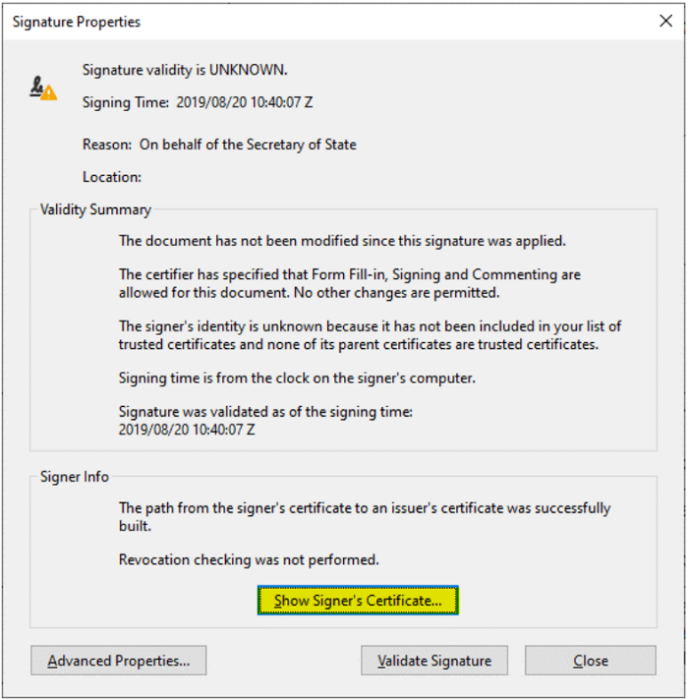
If it’s a digital signature, the issue is often certificate-related. Open the Signature Panel in Acrobat, right-click the signature, and choose ‘Show Signature Properties’. Check if the certificate is trusted or expired. If not trusted, add it to your trusted identities. If expired, you may need to re-sign the document with a valid certificate. For more on handling encrypted files, see our guide on recover an encrypted pdf.
Step 3: Fix a Scanned Signature
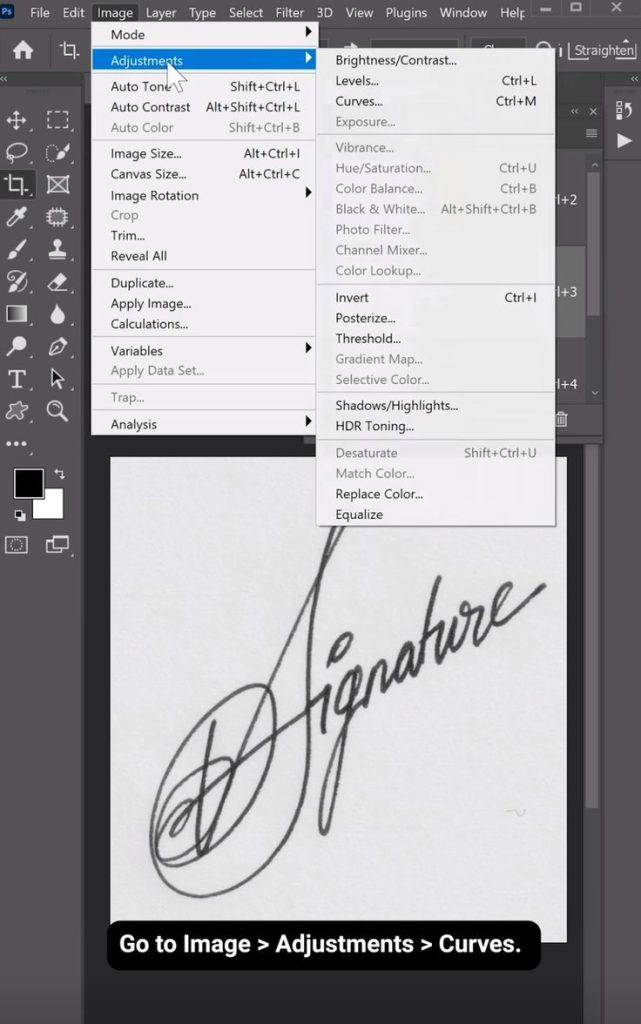
For scanned signatures, the problem is usually image quality. Open the PDF in an image editor (or use Acrobat’s Edit PDF tool), extract the signature image, and enhance the contrast or resolution. Then re-insert it as an image over the old signature. Alternatively, scan a fresh signature and insert that. If you’re working with scanned documents, check out our guide to repair a scanned PDF.
Step 4: Use a PDF Repair Tool
If the above steps don’t work, the PDF itself may be corrupted. Try an online repair tool like Smallpdf’s Repair PDF feature, or use a dedicated tool like Adobe Acrobat’s ‘Save As Other > Optimized PDF’. For severe cases, follow our complete PDF repair workflow for more options. Sometimes the file structure is the culprit – learn how to fix linearized pdf structure.
Common Pitfalls
- Confusing digital and scanned signatures – each requires a different fix.
- Saving changes without a backup – always work on a copy!
- Using an expired or untrusted certificate – renew or trust it first.
Where to Next?
If your signature still isn’t working, you might have a deeper issue with the PDF structure. Check out our guide on fix linearized pdf structure, or if the file is encrypted, learn how to recover an encrypted pdf. For contracts, see our repair contract pdf guide. And if you’re dealing with scanned documents, don’t miss repair a scanned PDF.




