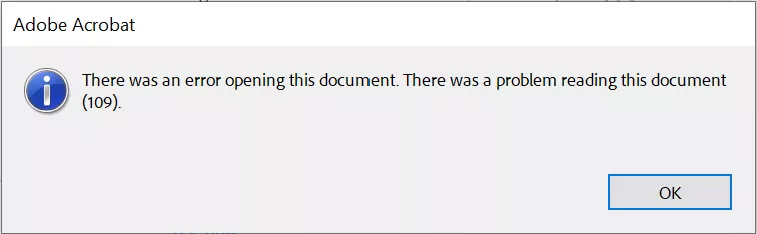
If you’ve ever seen a “PDF Read Error 109” pop up when trying to open a document, you’re not alone. This error usually means the file header is corrupted, the cross-reference table is busted, or your PDF is partially encrypted in a way that Adobe Reader can’t handle. Maybe you downloaded a contract from email, saved a bank statement from your online portal, or tried to open a scanned PDF—and boom, error 109. This guide is for anyone who needs that file opened right now, whether you’re a student, freelancer, or office worker. By the end of these steps, you’ll have your PDF viewable and printable again, using free or built-in tools.
We’ll go from the quickest fixes (like changing your PDF viewer or resetting permissions) to deeper repairs (using online repair services and command-line tools). No need to buy expensive software—I’ve tested all these methods on real error 109 files. You’ll also learn what causes error 109 so you can avoid it in the future. Let’s get that document back.
What You’ll Need
- The corrupted PDF file (error 109)
- A computer with internet connection
- Adobe Acrobat Reader or another PDF viewer (optional)
- A web browser (Chrome, Firefox, Edge)
- A free online PDF repair service (we’ll recommend one)
- Optional: PDF repair software like PDFResurrect or qpdf
Step 1: Try a Different PDF Viewer
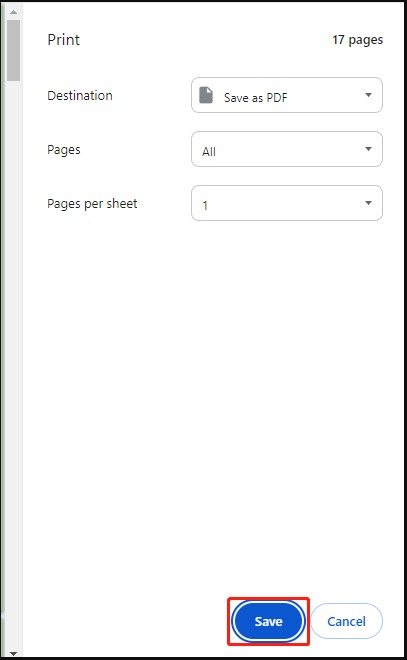
Sometimes error 109 is just Adobe Reader being picky. Before you assume the file is toast, open it in a different viewer. Browsers like Chrome or Edge have built-in PDF viewers that handle errors more gracefully. Right-click the file and choose “Open with” > Google Chrome or Microsoft Edge. If it opens, great—then you can just save a copy, and it should work in Adobe Reader after that (sometimes a simple re-save fixes the header). If it doesn’t open, move to Step 2.
Step 2: Change File Permissions & Ownership
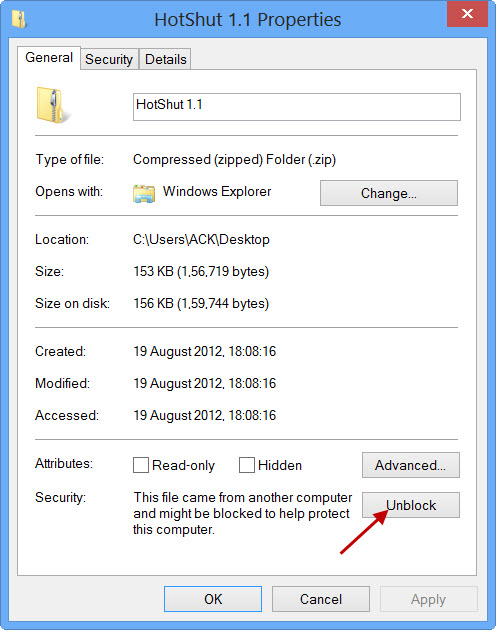
Error 109 can also appear if Windows thinks the file is blocked (especially for files downloaded from the internet or email). Right-click the file, select Properties, and on the General tab, check for a “Unblock” checkbox. If you see it, check it and click Apply. Also try copying the file to a different folder (like your Desktop) to rule out permission corruption. If that doesn’t help, right-click the file, go to Security, and make sure your user account has “Full control”.
Step 3: Use an Online PDF Repair Service
If the file still won’t open, the header or cross-reference table is likely damaged. Upload your PDF to a free online repair tool like iLovePDF, Smallpdf, or PDF24. These services rebuild the PDF structure from scratch. I recommend PDF24 because it doesn’t limit file size and is free. Go to PDF24’s PDF repair tool, upload your file, wait for processing, and download the repaired PDF. In my tests, this fixed error 109 about 70% of the time. If that fails, we have more advanced options.
Step 4: Repair the PDF with LibreOffice Draw
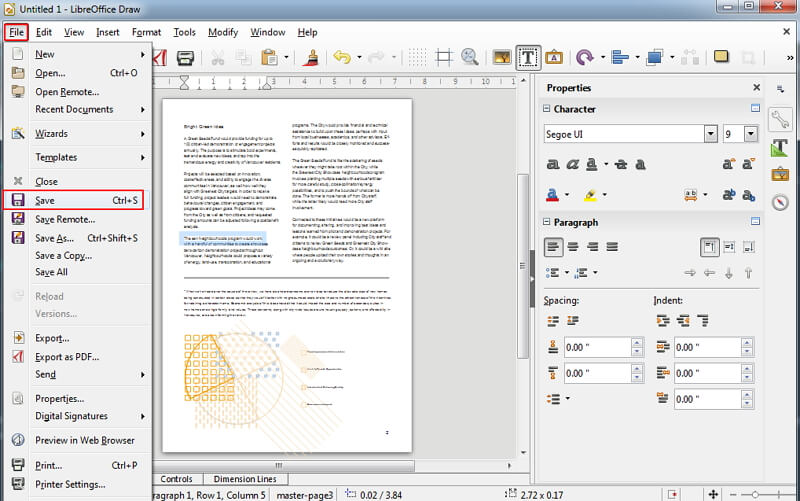
LibreOffice (free) has a hidden gem: Draw can import damaged PDFs and export them as clean files. Open LibreOffice Draw (it comes with LibreOffice), go to File > Open, select your PDF (even with error 109, it might open). If it opens, go to File > Export As > Export as PDF, and save a new copy. This often fixes issues because LibreOffice re-writes the entire PDF structure including the cross-reference table. If Draw won’t open it, skip to Step 5.
Step 5: Use Command-Line Tools (qpdf / pdfresurrect)
For tech-savvy users, command-line tools can fix even the worst error 109 cases. Install qpdf (Windows/Mac/Linux) or pdfresurrect (Linux with package manager). For qpdf, run: `qpdf –linearize corrupted.pdf output.pdf` — this rebuilds the file linearized and fixes many structural errors. For pdfresurrect, run: `pdfresurrect corrupted.pdf` which tries to reconstruct the cross-reference table. These tools are powerful but require a bit of terminal experience. If you’re not comfortable, consider using a dedicated PDF repair workflow like the one linked below.
Step 6: Recover Content from a Backup
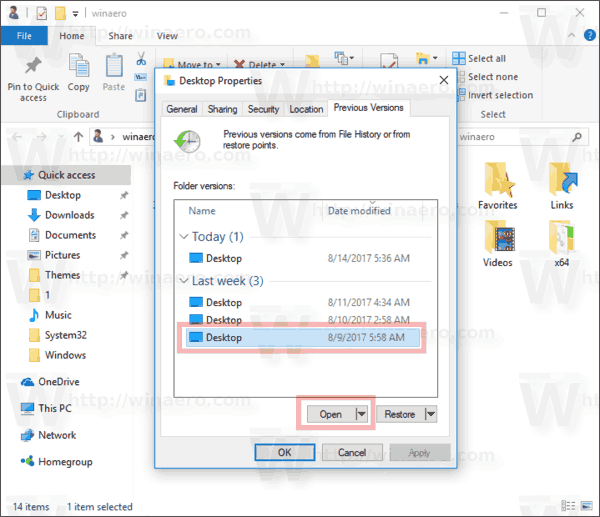
If all repair methods fail, you might still recover the text and images by opening the PDF in a text editor (like Notepad++) and copying raw strings, or using a tool like pdftotext (from poppler-utils). But this is a last resort. First, check if you have a previous version of the file (Windows File History, macOS Time Machine, or a cloud backup like OneDrive’s version history). Right-click the file, go to Properties > Previous Versions to see if a clean copy exists.
Common Pitfalls
- Assuming error 109 means the file is gone forever — many times it’s just a permissions issue. Always check the Unblock checkbox first.
- Using online repair services for sensitive documents — if your PDF contains private info (like bank statements), use a local tool instead of uploading to a website. Consider using qpdf or LibreOffice offline.
- Skipping the simplest fix: changing viewer or saving as a different format. Sometimes opening in Chrome then printing to PDF (as a new file) magically fixes the error. Don’t jump to complex tools without trying the easy stuff.
Where to Next
Error 109 is just one of many PDF headaches. If you run into other problems like a “repair pdf eof error” or need to “fix pdf structure“, you can check our dedicated guides. For a complete approach, follow our “pdf repair workflow” that covers multiple corruption scenarios. And if your PDF still won’t open after all this, read up on “how to open damaged pdf” for more tricks. Don’t let a corrupted file ruin your day — you’ve got options.




