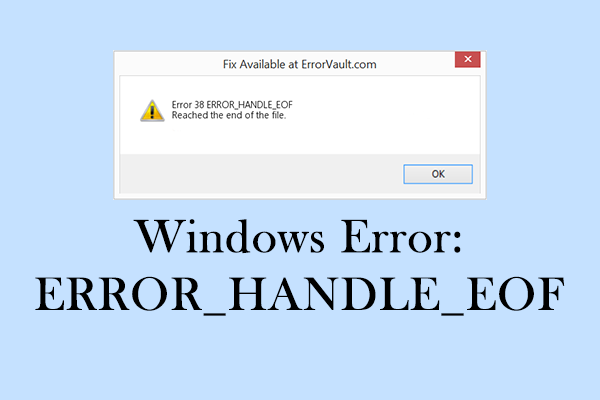
Ever tried to open a PDF and got a cryptic “EOF error” or “End of file” message? It’s frustrating, especially if that PDF contains an important report, invoice, or a scanned document you need right now. This guide is for anyone who’s hit that error and wants a practical, step-by-step way to get their file back. We’ll assume you’re comfortable with basic computer tasks like downloading files and using menu commands. By the end, you’ll have a repaired PDF that opens normally, or at least know your best next move.
We’ll cover five main approaches: making a safe backup first, trying a different PDF reader, using an online repair service (no install), using Adobe Acrobat Pro’s built-in repair, and finally a manual fix with a hex editor. Most people will succeed at step 3 or 4. The last step is for when you’re comfortable with a little technical digging. Let’s jump in.
What You’ll Need
- The corrupted PDF file
- A backup copy (just in case)
- Internet connection (for online tools)
- Optional: Adobe Acrobat Pro (not Reader), or a hex editor like HxD (free)
Step 1: Back Up Your PDF and Identify the Error
Before doing anything, make a copy of the problematic PDF. Right-click the file, select Copy, then paste it in a safe place. This ensures you can always start fresh if a repair attempt makes things worse. Then, try opening the original in your default PDF viewer. Note the exact error message. Does it say “EOF marker not found” or just “Error reading PDF”? This info helps later. If you want to recover any embedded attachments first, check out our guide on how to recover pdf attachment before attempting repairs.
Step 2: Try a Different PDF Reader
Sometimes the EOF error is a software glitch. Try opening the PDF in a different reader. For example, if you usually use Adobe Reader, try a browser like Chrome or Edge, or download a lightweight reader like SumatraPDF. If it opens, save a fresh copy from that program (File > Save As). This new copy might be free of the error. If it still fails, move to the next step. If you’re dealing with a specific type of file, like a bank statement, our guide to repair bank statement pdf has additional tips.
Step 3: Use an Online PDF Repair Tool
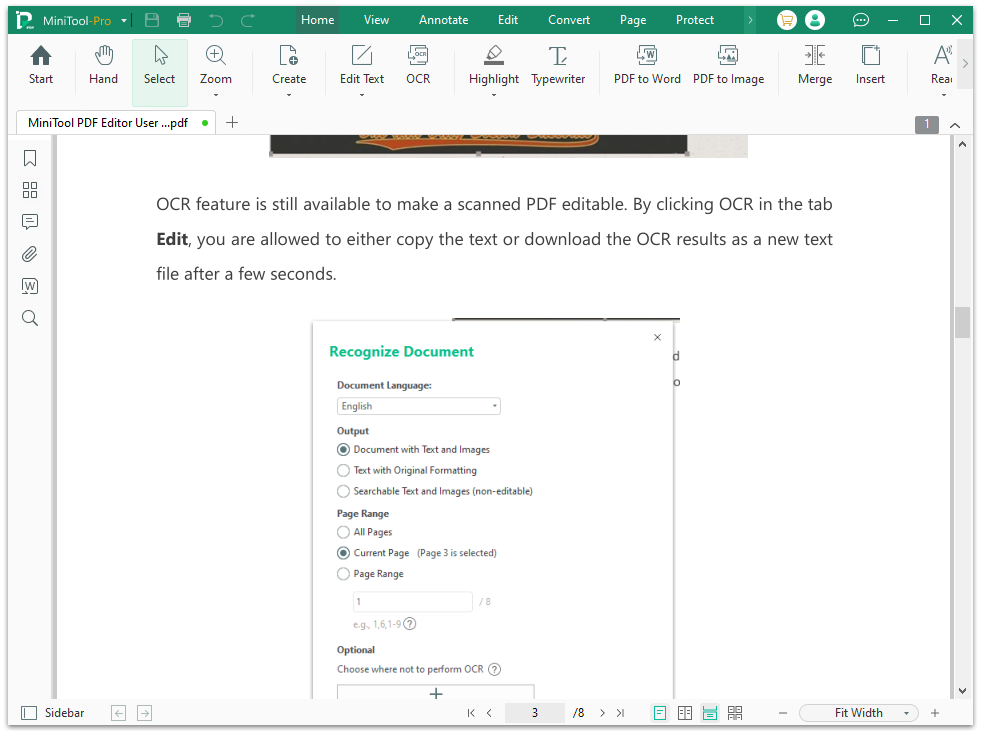
Online tools can fix many EOF errors without installing anything. Go to a reputable service like iLovePDF, Smallpdf, or PDF24. Upload your PDF, choose the repair option, and wait a few seconds. Download the repaired file. Test it by opening it in your preferred reader. If it works, great! If not, try a different online tool. For multiple corrupted files, consider our bulk pdf repair guide for efficient processing.
Step 4: Repair with Adobe Acrobat Pro
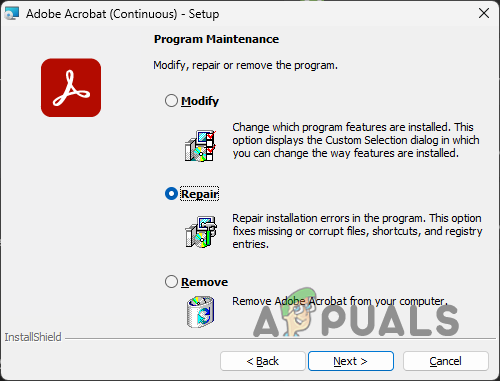
If you have Adobe Acrobat Pro (not the free Reader), it has a powerful repair feature. Open Acrobat Pro, go to File > Open and select the corrupted PDF. Acrobat may automatically try to repair the file upon opening. If that doesn’t work, go to Tools > Protect & Standardize > Create, then choose “Optimize Scanned Pages” or simply re-save the file as a new PDF (File > Save As Other > Reduced Size PDF). Sometimes this rebuilds the structure and fixes the EOF error. For more structural fixes, see how to fix pdf structure.
Step 5: Manual Hex Editor Fix (Advanced)
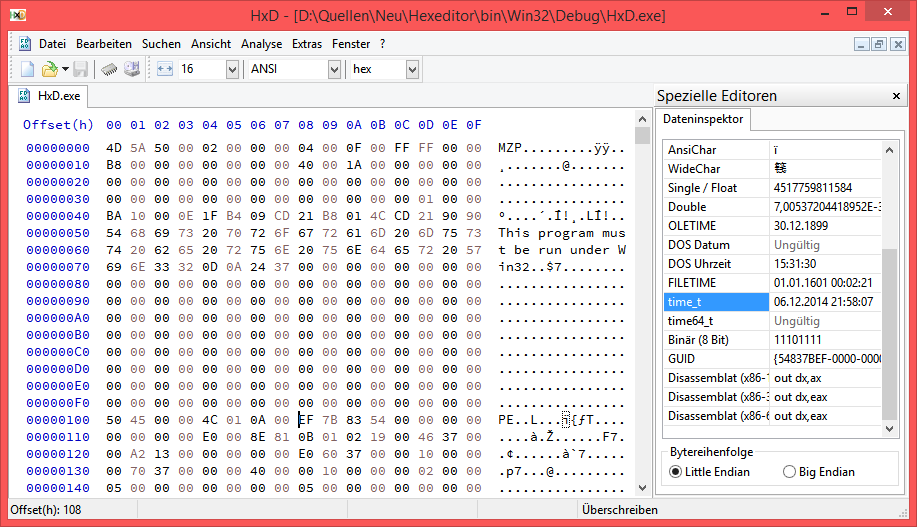
If all else fails and you’re comfortable with technical steps, you can try a manual fix. Download a hex editor like HxD (free for Windows). Open the corrupted PDF in the editor. Look for the end of the file: a properly formatted PDF ends with “%%EOF” on its own line. If it’s missing or truncated, you can add it manually. Scroll to the very end of the file, type a new line with “%%EOF” (without quotes), and save. Then try opening the PDF. This simple addition can sometimes resolve the error. For more on this approach, check our guide on how to open damaged pdf.
Common Pitfalls
- Not making a backup first: If you overwrite the original with a bad repair, you lose everything. Always duplicate the file.
- Using a sketchy online tool: Some free repair sites may not be secure. Stick with well-known services like Smallpdf or PDF24.
- Forgetting to check the file type: An “EOF error” can also occur if the file isn’t really a PDF (e.g., a renamed .exe). Verify the file extension and try opening it in a text editor to see if it starts with “%PDF”.
Where to Next
Once your PDF is back, consider optimizing it to prevent future errors. If you frequently deal with corrupted files, learning about pdf repair workflow can save you time. Also, if your PDF still refuses to open, it might be an issue with the reader itself — our guide on pdf not opening in adobe reader covers common fixes. Good luck, and remember: the EOF error is often easier to fix than it looks!




