Ever downloaded an important PDF from an email or a website, only to find it’s missing, won’t open, or shows up garbled? You’re not alone. This guide is for anyone who needs to recover a PDF attachment that seems lost or corrupted — whether it’s from Gmail, Outlook, a browser download, or even a USB drive. By the end, you’ll have a clear step-by-step process to get your PDF back and readable.
We’ll cover checking your email and download folders, using built-in tools, and trying dedicated recovery software. Most steps work on Windows and Mac, and we’ll point out any differences. No advanced tech skills required.
What You’ll Need
- A computer or phone with internet access
- The original email, download link, or device where the attachment was received
- A PDF viewer (like Adobe Acrobat Reader) or web browser
- (Optional) A third-party PDF recovery tool if the file is corrupted
Step 1: Check Your Email’s Download Folder or Browser Downloads
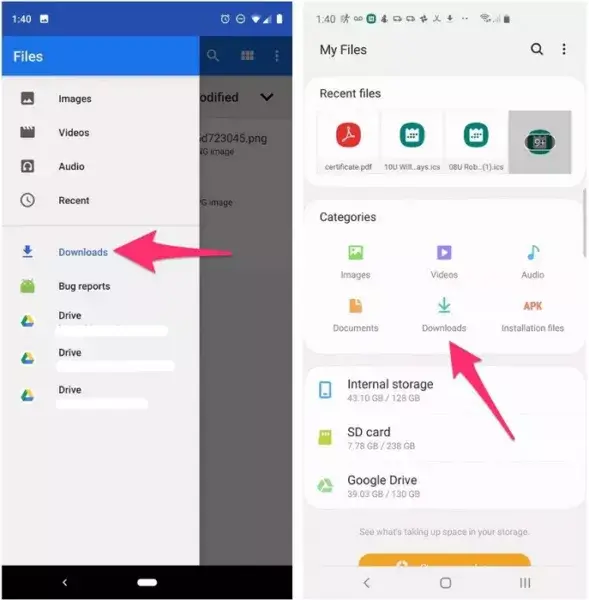
Start with the simplest possibility: the attachment might be saved but not where you think. In Gmail, click the download arrow next to the attachment, then check your Downloads folder (Ctrl+J on Windows, Cmd+Shift+J on Mac). In Outlook, right-click the attachment and select “Save As.” For browser downloads, look for the download icon (usually a downward arrow) in the top-right corner.
Step 2: Recover the Attachment from Email or Cloud Storage
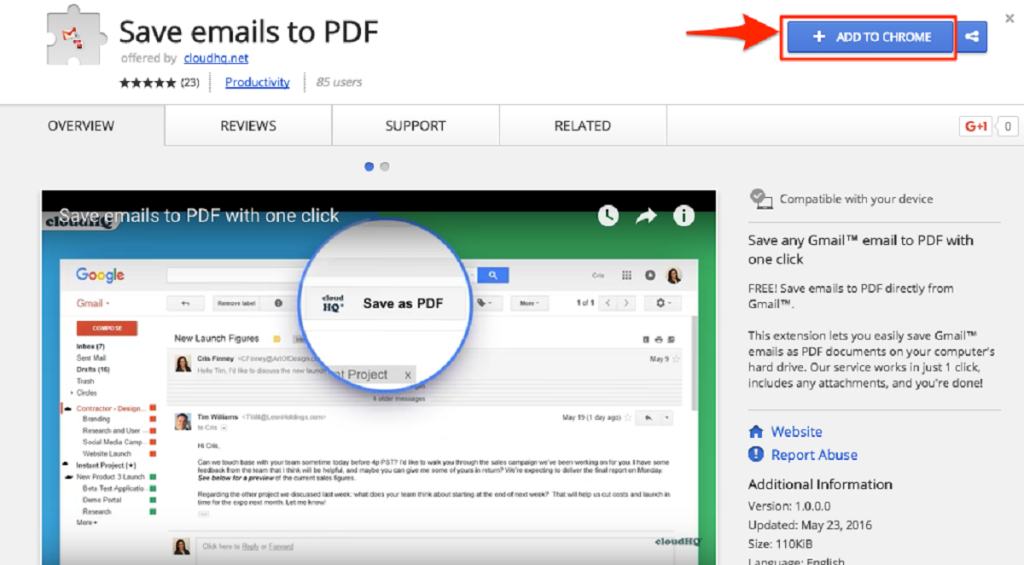
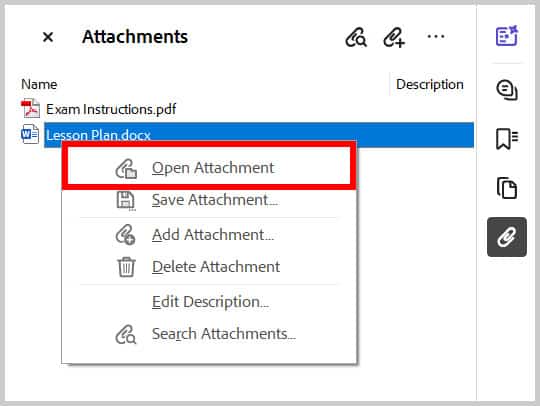
If the attachment isn’t in your local folder, re-download it. Open the original email, click the attachment to preview it, then save it again. For cloud services like Google Drive or Dropbox, download the file directly from the cloud. If the file appears corrupted (e.g., says “cannot open” or shows gibberish), move to Step 3.
Step 3: Try Repairing the PDF with Built-In Tools
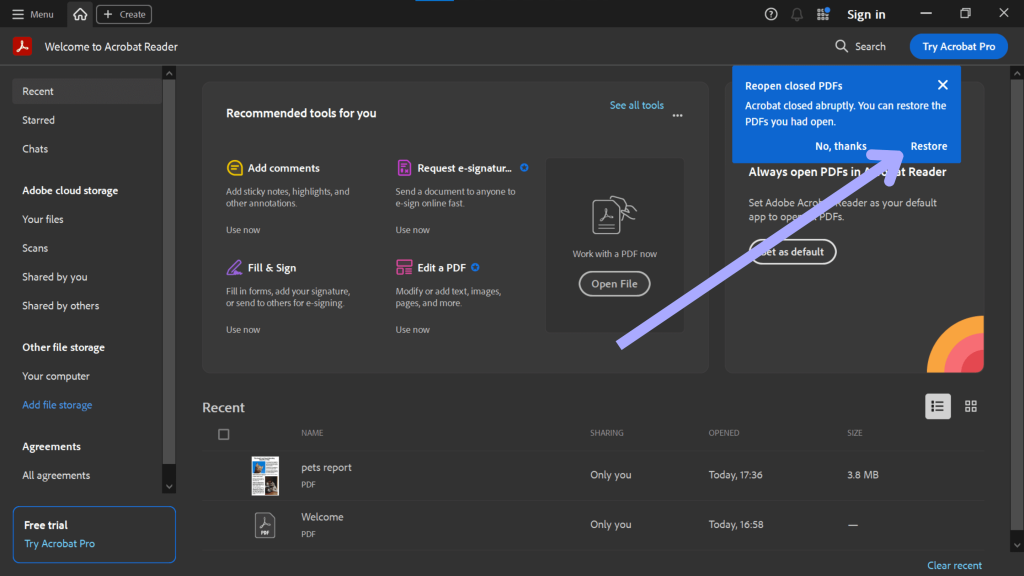
Some PDF readers can fix minor corruption. Open Adobe Acrobat Reader, go to File > Open, select the corrupted PDF, and see if it repairs itself. Alternatively, try opening the PDF in a web browser (drag it into Chrome or Edge) — browsers often render damaged PDFs that standalone readers can’t. If that works, save a copy from the browser.
Step 4: Use a Dedicated PDF Recovery Tool
If the file is still broken, use a dedicated pdf recovery tool like Stellar Repair for PDF or SysInfo PDF Repair. These tools scan the file structure and attempt to rebuild it. Many offer a free trial that recovers the first few pages. Download and run the tool, load your corrupted PDF, and hit “Repair.” Save the output as a new file.
Common Pitfalls
- **Forgetting to check spam or trash:** Attachments from unknown senders might land in spam. Always check those folders before panicking.
- **Using the wrong file extension:** Sometimes downloads save as .dat or .part instead of .pdf. Rename the file to .pdf and try opening it.
- **Assuming re-downloading fixes corruption:** If the original file on the server is corrupted, re-downloading won’t help. You’ll need a recovery tool.
Where to Next
Now that you’ve recovered your PDF attachment, you might run into other issues. If you’re dealing with a PDF that still won’t open, check out our guide on how to open damaged pdf. For problems with specific sources, like a USB drive, see our post on recover pdf from usb. And if your PDF is failing to launch in Adobe Reader, the fix for pdf not opening in adobe reader can help. Keep these resources handy for future hiccups.




