We’ve all been there: you double-click a PDF you desperately need, and instead of your document, you see a cryptic error message, a blank white page, or a file that your reader claims is damaged. It’s frustrating, especially when that PDF is a work report, an invoice, or a study guide. But don’t panic—corrupted PDFs can often be fixed. This guide walks you through several free and easy methods to recover your file. By the end, you’ll have a working PDF (or at least know for sure it’s beyond help).
These steps are designed for beginners. You don’t need any special skills or expensive software. All you need is your corrupted PDF, a computer with internet access, and a little patience. We’ll cover everything from quick fixes like trying a different viewer to more advanced recovery using dedicated tools. Let’s get started.
What You’ll Need
- The corrupted PDF file (make a copy before you try anything)
- A computer with an internet connection
- A web browser (Chrome, Firefox, Edge) or Adobe Acrobat Reader (free)
- Optional: A dedicated PDF repair tool (free or trial versions are fine)
Step 1: Try Opening the PDF in a Different Viewer
Sometimes the PDF isn’t actually corrupted—your reader is just having a bad day. Before you dive into repairs, try opening the file in a different application. If you normally use Adobe Acrobat Reader, try Chrome, Firefox, or Edge (they all have built-in PDF viewers). Alternatively, upload the file to Google Drive or Dropbox and preview it there. If it opens fine, the problem was your reader, not the file. If not, move to Step 2.
Step 2: Use an Online PDF Repair Tool
Online tools are the quickest way to fix a mildly corrupted PDF. They work by re-parsing the file structure and salvaging readable content. For a reliable option, check out the list of best online pdf repair tools. Most are free for small files. Simply upload your PDF, wait a few seconds, and download the repaired version. Be aware that uploading sensitive documents to a third-party server may have privacy implications—if your file contains confidential info, skip to Step 3 or 4.
Step 3: Repair the PDF Using Adobe Acrobat
If you have Adobe Acrobat Pro (the paid version, not just Reader), it includes a handy repair feature. Open Acrobat, go to File > Open, select your corrupted PDF, and Acrobat will automatically try to fix any issues. Alternatively, you can go to Tools > Action Wizard > Create New Action, then add the ‘Repair PDF’ step. For users on Windows, there’s also a dedicated free pdf repair for windows tool from Adobe that works similarly. This method is great because it runs locally, so your data stays private.
Step 4: Try a Dedicated PDF Repair Software
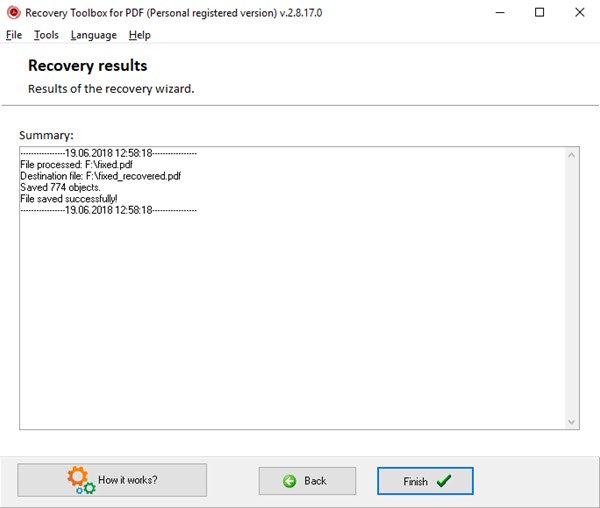
When online tools and Acrobat fail, a dedicated PDF repair utility can often save the day. Programs like PDF Repair Kit, SysTools PDF Repair, or RecoveryToolbox for PDF offer more advanced algorithms. Many have free trials that let you see what’s recoverable before you pay. Run the software, point it to your file, and let it work. After the scan, you can usually preview the repaired content and save it. If you’re dealing with a PDF that only partially loads, these tools are especially good at repair partially corrupted pdf files.
Step 5: Recover from Backup or Use a PDF Recovery API
Before giving up, check if you have a backup of the PDF—maybe in a cloud service, an email attachment, or an earlier version on your computer. Version history in Google Drive, OneDrive, or Dropbox can sometimes retrieve a previous copy. If you’re a developer or need to automate recovery for many files, you can use a pdf recovery api (programmatic approach) to batch-repair PDFs. But for most people, the manual methods above will work.
Common Pitfalls
- Uploading confidential documents to free online repair sites without checking their privacy policy. Always read the fine print or stick to desktop tools.
- Overwriting your original corrupted file with a failed repair attempt. Always work on a copy, not the original, so you can try other methods if one fails.
- Ignoring simple fixes like restarting your computer or updating your PDF reader. Sometimes a fresh start is all that’s needed.
Where to Next
If your PDF still won’t open after these steps, it may be too damaged to recover fully. But you can still try more advanced techniques like rebuilding the PDF from scratch using a text editor (for the brave) or using the repair pdf pages feature in some tools. For multiple corrupted files, consider bulk pdf repair software to handle them all at once. Good luck!




