Ever tried to open a PDF only to see garbled text, missing images, or a blank page? Don’t panic—corrupted PDF pages are fixable. Whether it’s a crucial report, an invoice, or a scanned document, this guide will walk you through the most effective methods to repair broken pages. By the end, you’ll have a clean, readable PDF without losing your important data.
This guide is for anyone—no technical skills needed. You’ll learn how to use free online tools, Adobe Acrobat, dedicated repair software, and even manual extraction. We’ll keep it casual and practical. Let’s get those pages back in shape!
What You’ll Need
- The corrupted PDF file (obviously)
- Internet connection (for online tools)
- Optional: Adobe Acrobat Pro (trial or full version)
- Optional: Dedicated PDF repair software (like PDF Repair Toolbox)
- A backup of your original file (always a good idea)
Step 1: Use an Online PDF Repair Tool
If your PDF has minor corruption, an online tool is the quickest fix. Services like Smallpdf, iLovePDF, or the free PDF repair for Windows tool can handle basic issues. Just upload your file, let the tool work its magic, and download the repaired version. This works great for corrupted images or text that doesn’t render properly.
Step 2: Use Adobe Acrobat Pro
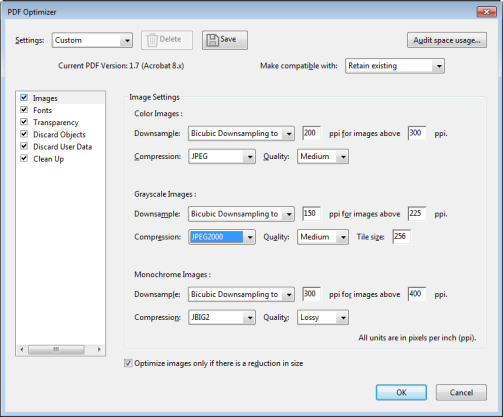
Adobe Acrobat Pro has a built-in PDF repair feature. Open the file, go to File > Save As Other > Optimized PDF, then click ‘Analyze and Fix’. Alternatively, try File > Export To and re-save as a new PDF. This method often repairs structural damage. If you’re dealing with a PDF EOF error, Acrobat can usually fix it.
Step 3: Use a Dedicated PDF Repair Software
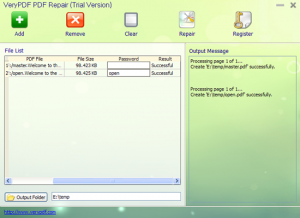
For stubborn corruption, dedicated tools like PDF Repair Toolbox or SysTools PDF Repair can handle severely broken files. These programs scan the entire file, reconstruct damaged objects, and recover text, images, and metadata. They’re especially good if you have a partially corrupted PDF that online tools can’t fix. Many offer free trials.
Step 4: Manually Extract Pages
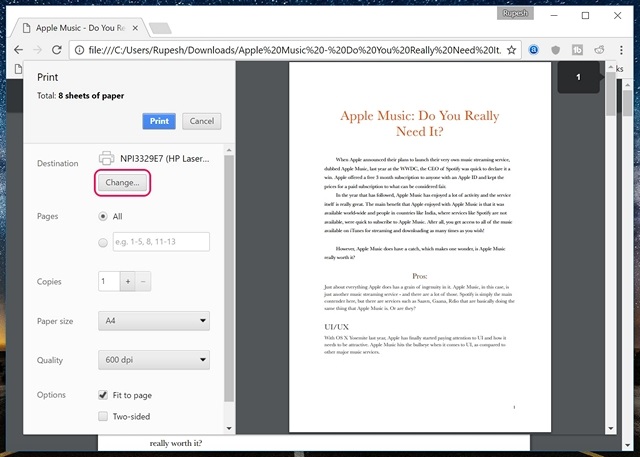
If all else fails, manually extract the usable pages. Open the PDF in a viewer that tolerates errors (like Chrome’s built-in PDF viewer), then print to PDF only the pages that work. You can also use a tool like PDFsam to split the file by page ranges. For bulk PDF repair, this is time-consuming but reliable.
Common Pitfalls
- Not backing up the original file before repair—if the repair makes things worse, you’ll lose the original.
- Using overly aggressive compression settings in Adobe Acrobat that degrade quality further.
- Assuming online tools can fix severe corruption—they’re for light damage only; for deep corruption, use desktop software.
Where to Next
Got a specific issue? Check out our guides on repairing a repair locked PDF, dealing with a PDF EOF error, or handling a partially corrupted PDF. If you have multiple files to fix, our bulk PDF repair guide has you covered. And for Windows users, don’t miss free PDF repair for Windows tools. Happy fixing!




