
So you clicked a PDF link in Chrome and got… nothing. Or maybe a blank page, a download that doesn’t work, or some cryptic error. You’re not alone — this happens more often than you’d think. This guide is for anyone who’s stuck with a PDF that won’t open in Chrome, whether it’s a single file or every PDF. By the end, you’ll know exactly how to fix the Chrome PDF viewer and get your documents back.
We’ll walk through five simple steps: checking Chrome’s PDF settings, disabling pesky extensions, clearing browser data, updating Chrome, and finally resetting everything. Each step is tested and works on Windows, Mac, and Linux. Along the way, I’ll share links to deeper guides if you need to repair a corrupted file or handle something more stubborn.
What You’ll Need
- A computer with Google Chrome installed (any version)
- A PDF file that refuses to open (or a test PDF if you just want to be safe)
- An internet connection (for updating Chrome and downloading repair tools)
- Optionally, another browser like Firefox or Edge to test if the PDF works elsewhere
Step 1: Check Chrome’s PDF Viewer Settings

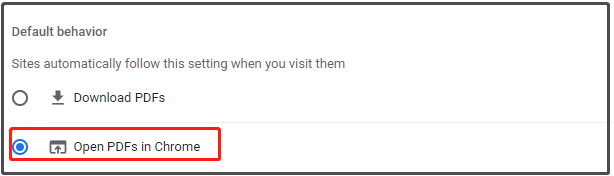
Chrome has a built-in PDF viewer that can sometimes get turned off. Let’s make sure it’s enabled. Type chrome://settings/content/pdfDocuments in the address bar and press Enter. You’ll see a setting called ‘Download PDF files instead of automatically opening them in Chrome.’ Make sure this toggle is off. If it’s on, Chrome will download the PDF instead of showing it inline. Turn it off and then try opening your PDF again.
Step 2: Disable Problematic Extensions

Extensions can mess with Chrome’s PDF viewer. Common culprits are Adobe Acrobat, Kami, or any ‘PDF editor’ extension. Type chrome://extensions in the address bar. Look through your list and disable any extension that has ‘PDF’ or ‘document’ in its name. Don’t delete them yet — just toggle them off. Then reload your PDF page. If it works, you’ve found the problem. You can enable them one by one to find the exact troublemaker.
Step 3: Clear Browsing Data

Sometimes corrupted cache or cookies cause PDF issues. Go to chrome://settings/clearBrowserData. Choose ‘All time’ as the time range, check ‘Cookies and other site data’ and ‘Cached images and files’, then click ‘Clear data’. This won’t affect your saved passwords or autofill unless you check those boxes. After clearing, restart Chrome and try the PDF again.
Step 4: Update Google Chrome
An outdated Chrome can have bugs that affect PDF rendering. Type chrome://settings/help in the address bar. Chrome will automatically check for updates and install them if available. Wait for the update to finish, then click ‘Relaunch’ to restart with the latest version. If you don’t see a relaunch button, you’re already up to date.
Step 5: Reset Chrome Settings (Last Resort)
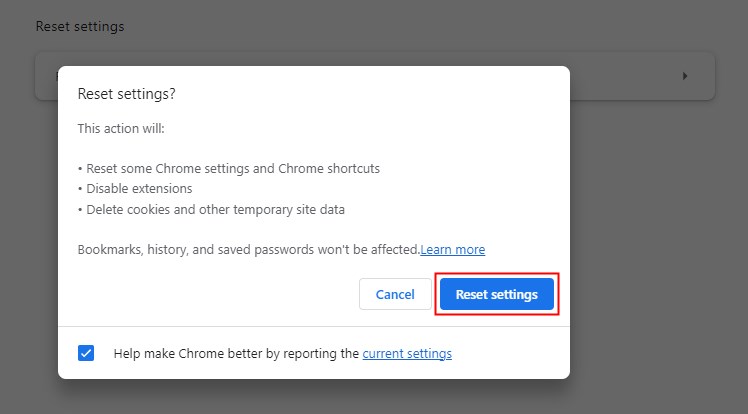
If nothing above worked, you can reset Chrome to its default settings. This disables extensions, clears temporary data, and resets preferences — but keeps your bookmarks, history, and passwords. Go to chrome://settings/reset and click ‘Restore settings to their original defaults’. Confirm in the pop-up. After reset, test your PDF. This usually fixes even the most stubborn Chrome PDF issues.
Common Pitfalls
- Not restarting Chrome after each step. Many changes take effect only after a browser restart. Always close all Chrome windows and reopen before testing.
- Forgetting to check if the PDF itself is corrupted. If the PDF won’t open in any browser or tool, it might be damaged. In that case, check out our guides on how to repair PDF pages or try a free PDF repair for Windows to fix the file itself.
- Overlooking hardware acceleration. In rare cases, Chrome’s hardware acceleration can interfere with PDF rendering. To disable it, go to
chrome://settings/systemand turn off ‘Use hardware acceleration when available’. Relaunch Chrome and test again.
Where to Next?
If your PDF still won’t open, the file itself might be the problem. Head over to our dedicated guide for repair PDF for Chrome tips, or try the comprehensive PDF file not opening fix for more advanced solutions. You may also need to repair a locked PDF if it’s password-protected or encrypted. For batch repairs, check out free PDF repair for Windows utilities. With these resources, you’ll never be stuck with a broken PDF again.




