If your PDF won’t open in Chrome or shows garbled text, you’re not alone. This guide is for anyone who uses Chrome as their default PDF viewer and hits a corrupted file. By the end, you’ll have a fixed PDF you can download and use normally.
We’ll cover quick browser tricks, online repair services, and when to switch to dedicated software. No technical skills required—just follow the steps.
What You’ll Need
- Google Chrome (latest version)
- Corrupted PDF file
- Stable internet connection
- Optional: a PDF repair tool like Adobe Acrobat or an online service
Step 1: Try the Built-in PDF Viewer First
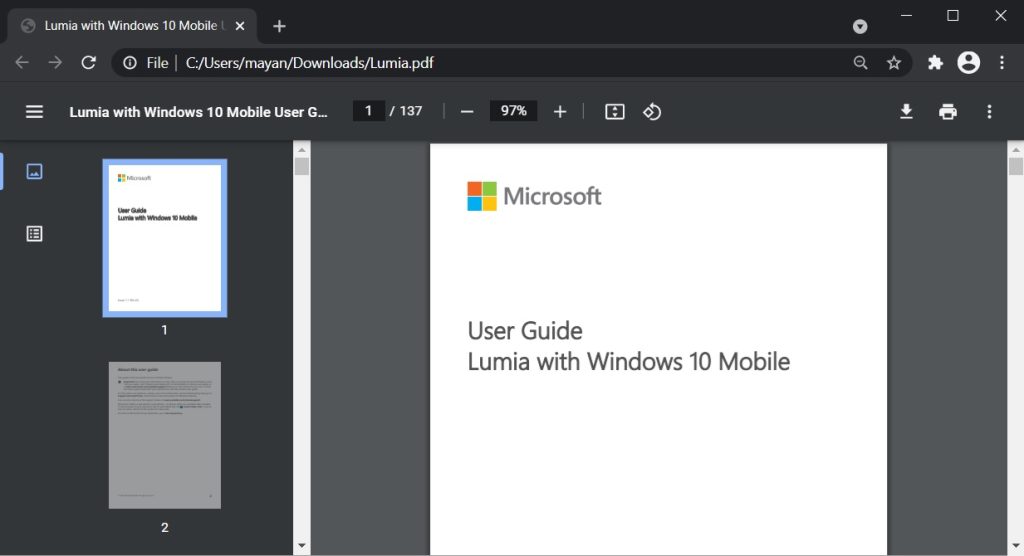
Chrome’s internal PDF viewer often recovers minor corruption. Drag your PDF into a new tab or right-click and open with Chrome. If it works, save it via the download button or Ctrl+S. If it fails, move on.
Step 2: Clear Chrome’s PDF Cache
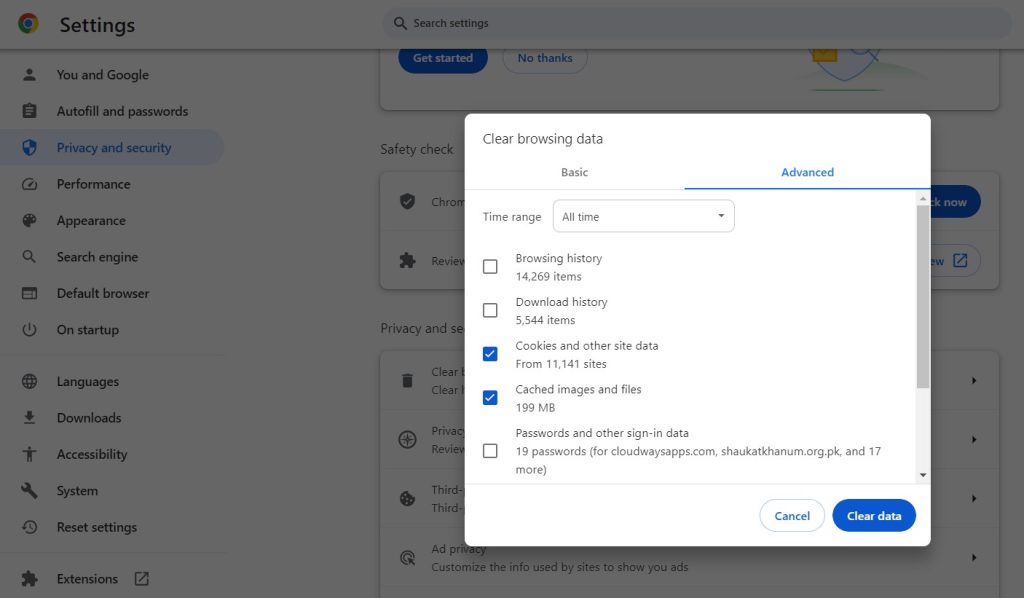
Sometimes a cached version causes issues. Go to chrome://settings/clearBrowserData, select ‘Cached images and files’, and clear data. Then try opening the PDF again.
Step 3: Use an Online PDF Repair Service
If Chrome can’t fix it, try a free online repair tool. Upload the file to a trusted service (e.g., pdfrepairs.click). It will attempt to rebuild the PDF structure. Download the repaired file. This method is ideal for a quick fix and aligns with a complete pdf repair workflow.
Step 4: Recover Text via ‘Save as Text’
If the PDF is partially broken, right-click the PDF page in Chrome and select ‘Save as’ or use the print function to save as a PDF (File > Print > Save as PDF). This can reconstruct a readable copy. For severe cases, you might need to repair partially corrupted pdf using dedicated software.
Step 5: Download the PDF from a Different Source
The corruption might be from a bad download. Delete the file and re-download it from the original source. Use Chrome’s download manager to pause and resume, which sometimes fixes incomplete transfers. If you’re dealing with many files, consider a bulk pdf repair approach.
Step 6: Disable Chrome’s Built-in PDF Viewer
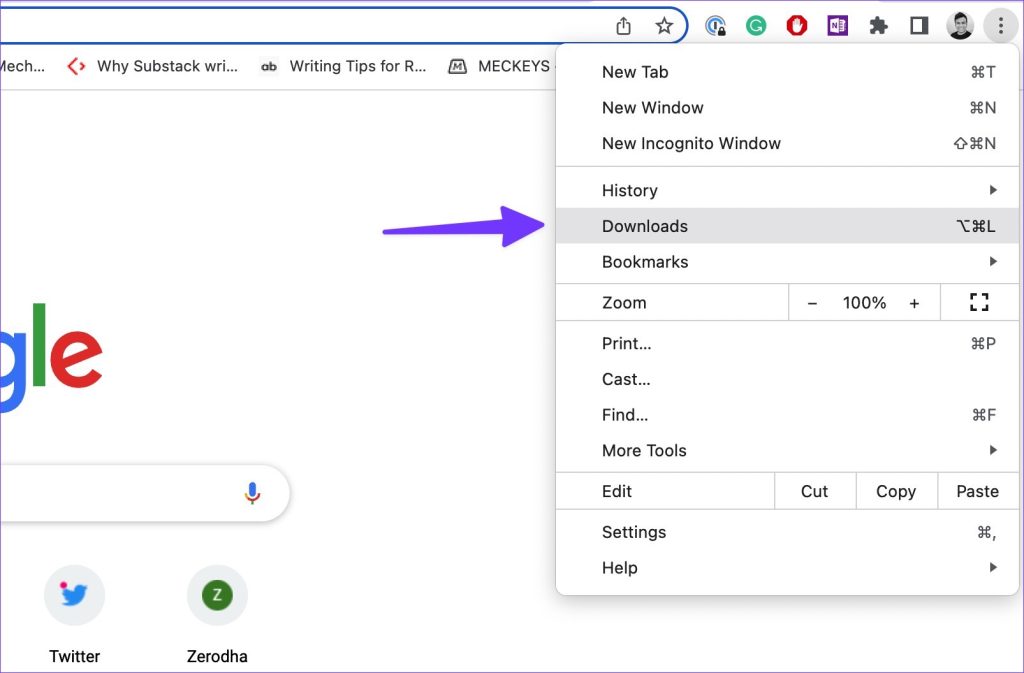
Sometimes the viewer itself is glitchy. Go to chrome://settings/content/pdfDocuments and turn off ‘Download PDF files instead of automatically opening them in Chrome’. Then download the PDF and open it with another viewer like Adobe Reader. This can help if the issue is viewer-related. If the file still fails, you may need to fix pdf structure with a tool.

Step 7: Use a Dedicated PDF Repair Tool
If all else fails, download a tool like Adobe Acrobat Pro or a free alternative. These can reconstruct corrupted files at a deeper level. For forms, specialized pdf repair for forms tools exist. Follow the software instructions—often just open the file and let it auto-repair.
Common Pitfalls
- Saving a repaired file without checking all pages—some content might still be missing.
- Using an untrusted online service that uploads your file to public servers—always use a reputable site.
- Forgetting to update Chrome—older versions have more bugs with PDF rendering.
Always keep a backup of the original corrupted file before attempting repairs. That way you can try different methods without losing the source.
PDFRepairs.Click Team
Where to Next
Now you know how to repair a PDF in Chrome. If you frequently deal with broken files, check out our complete pdf repair workflow for advanced strategies. Or, if you’re handling many documents, our bulk pdf repair guide will save you time. Happy fixing!




