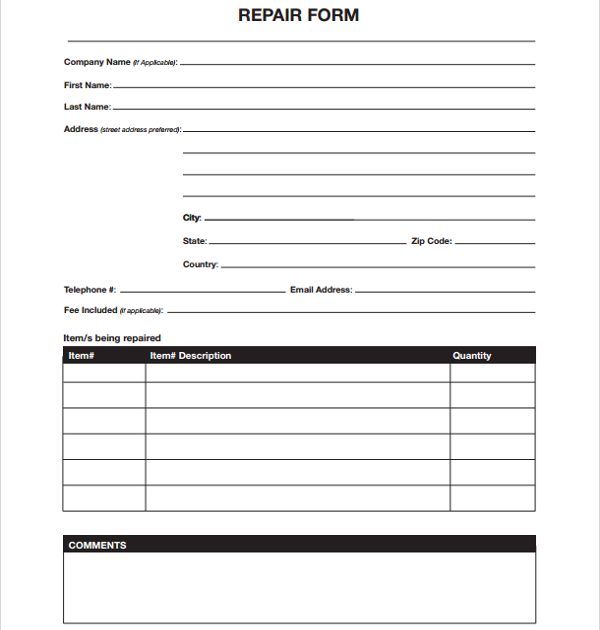
Hey there! So you’ve got a PDF form that’s acting up—maybe it won’t open, or the fields are all scrambled, or it just throws an error every time you try to fill it out. I’ve been there, and it’s frustrating, especially when you need to submit that form yesterday. This guide is for anyone dealing with a corrupted PDF form, whether it’s a tax document, an application, or a work order. By the end, you’ll have a repaired form that you can actually use, with all your data intact.
We’ll walk through several methods, from quick fixes using free tools to more robust repairs with professional software. No need to be a tech wizard—I’ll keep things straightforward. Along the way, I’ll point you to related topics like repairing scanned PDF documents or using a free online PDF repair service if that’s more your speed. Ready? Let’s get that form working again.
What You’ll Need
- The corrupted PDF form file (make a backup first!)
- A PDF reader like Adobe Acrobat Reader or Foxit Reader (to test if the file opens elsewhere)
- A PDF repair tool—I’ll mention both free online options and desktop software
- Optional: Adobe Acrobat Pro (if you have it, its built-in repair is great)
- A stable internet connection if you’re using online services
Step 1: Check the Damage
Before you dive into repairs, see how bad the corruption is. Try opening the form in a different PDF viewer—maybe it’s just a glitch with your usual app. If it opens but looks weird, note what’s wrong: missing fields, garbled text, or blank pages. If it won’t open at all, you’ll need a stronger fix. This step saves time and helps you choose the right method later. If opening a damaged PDF is new to you, check out our guide on that.
Step 2: Try a Quick Online Repair
If the form is only mildly corrupted, a free online PDF repair tool might do the trick. Head to a reputable site (avoid shady ones—security matters, especially for forms with personal data). Upload your file, let it process, and download the repaired version. This works best for simple issues like minor header corruption. I’ve used this method for quick fixes, and it’s saved me more than once. For a deeper dive, see our post on free online PDF repair.
Step 3: Use Adobe Acrobat Pro’s Built-in Repair
If you have Adobe Acrobat Pro, it has a powerful repair feature. Open the file (even if it errors, try File > Open). Then go to Tools > Protect > Advanced Options > Repair PDF. This reconstructs the file structure. It’s especially good for fixing form fields that aren’t working. After repair, save as a new file to avoid overwriting the original. This method can also help fix PDF structure issues more broadly.
Step 4: Use a Dedicated PDF Recovery Tool
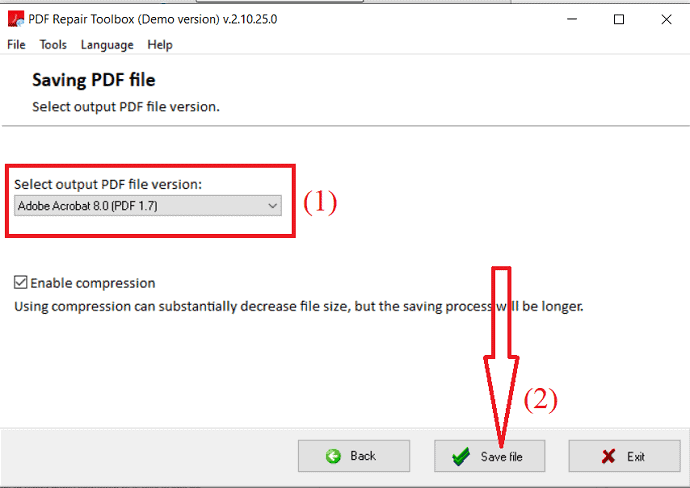
When the form is badly corrupted, desktop software like a PDF recovery tool is your best bet. Programs like Stellar Repair for PDF or SysTools PDF Repair can scan the file and extract whatever data is salvageable. They’ll rebuild the form structure or at least output a readable PDF. This is more thorough than online tools and works for severe corruption. I recommend trying this if Steps 2 and 3 fail.
Step 5: Salvage Content with a PDF Extractor
If all else fails and you still need the data, use a PDF extractor tool to pull the text and images out of the corrupted file. Some PDF recovery tools include this feature, or you can use a dedicated extractor. You’ll lose the form structure, but you can at least see what was filled in. Then recreate the form in a new document. This is a last resort, but it’s better than nothing.
Common Pitfalls
- Not making a backup first. If the repair fails, you could lose the original file permanently. Always copy before tampering.
- Using free online tools for sensitive data. Your form might contain personal info—think twice before uploading to a random site. Use a trusted desktop tool instead.
- Ignoring form field errors. Even if the PDF opens, double-check that all fields are functional. A repaired form might look fine but have broken checkboxes or text inputs.
Where to Next
Great job! You’ve fixed your PDF form. If you run into other issues—like a form that was scanned and needs OCR, check out our guide on repairing scanned PDF documents. For general PDF corruption that isn’t form-specific, the PDF recovery tool article has more advanced techniques. And if you ever need to fix PDF structure from scratch, we’ve got you covered. Happy filling!




