
Ever tried opening a PDF that’s hundreds of megabytes, only to have your computer freeze or the file refuse to load? Huge PDFs are a pain, whether they’re scanned documents, high-res presentations, or bloated forms. This guide is for you – the frustrated office worker, student, or anyone dealing with monstrous PDFs. By the end, you’ll know how to shrink, repair, and optimize those files without losing your mind.
We’ll cover free tools built into your OS, online compressors, and pro tricks for Adobe Acrobat. Plus, we’ll show you how to spot and fix hidden corruption that often plagues large PDFs. No fancy jargon, just practical steps tested on real files.
What You’ll Need
- A computer (Windows, Mac, or Linux)
- Your huge PDF file
- Optional: Adobe Acrobat Pro (for advanced compression)
- Optional: A free online PDF compressor (like Smallpdf or ILovePDF)
- A backup of the original file (just in case)
Step 1: Check the File Size and Source
First, see how big your PDF actually is. Right-click the file and select Properties (Windows) or Get Info (Mac). If it’s over 50 MB, you’re in huge territory. Also, note where it came from – scanned pages, a design app, or a downloaded report? This hints at the best fix.
Step 2: Compress with Built-In Tools
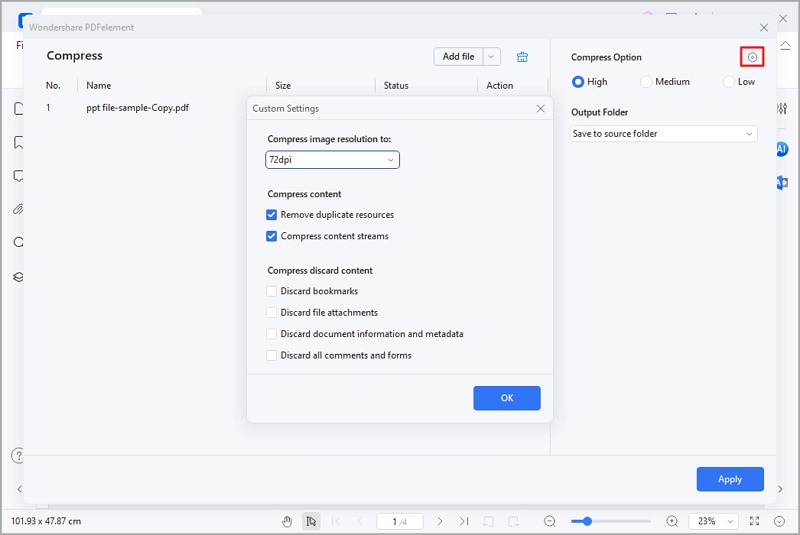
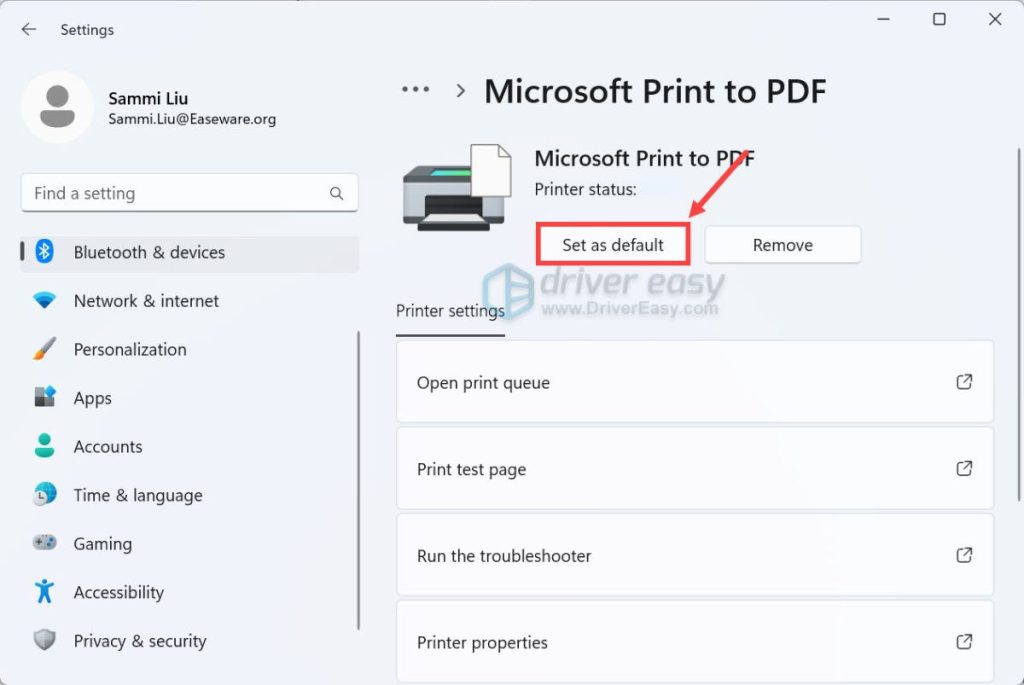
Windows users can open the PDF in Microsoft Print to PDF: go to File > Print, choose "Microsoft Print to PDF" as the printer, and then click Print. This re-encodes the file, often slashing size by half. On Mac, open in Preview, go to File > Export, select Quartz Filter > Reduce File Size. Boom – instant shrink.
Step 3: Use an Online Compressor
If the built-in tools aren’t enough, try a free online service like Smallpdf or ILovePDF. Upload your file (they handle up to 100 MB on free plans) and hit compress. They’ll strip out metadata, lower image quality, and optimize fonts. Just be careful with sensitive documents – read their privacy policy first.

Step 4: Advanced Compression in Adobe Acrobat
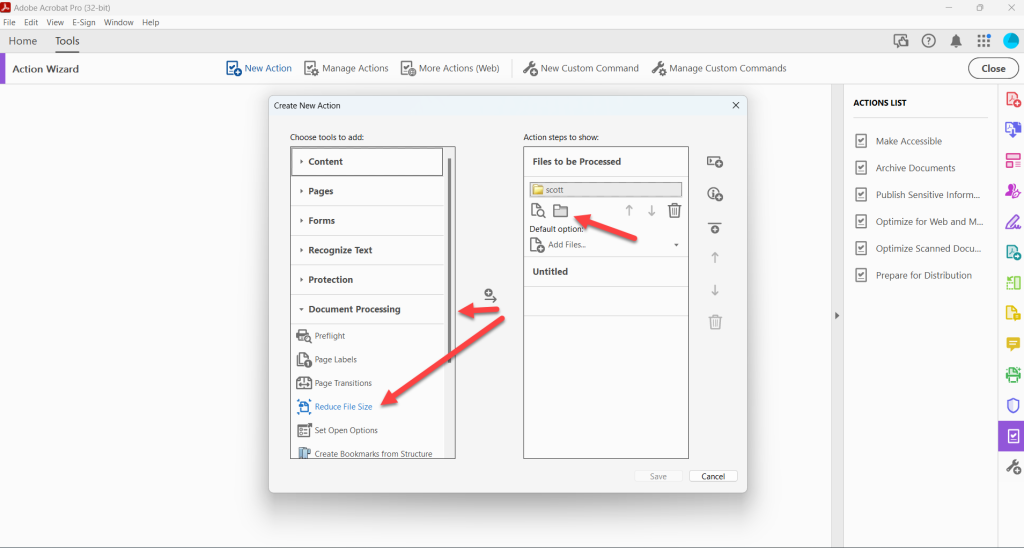
If you have Adobe Acrobat Pro, you’re golden. Open the PDF, go to Tools > Optimize PDF (or choose Advanced Optimization in older versions). You can reduce image resolution, discard hidden layers, and flatten forms. Save as a copy to keep the original. This is especially useful if you’re dealing with a scanned document – you can use the "repair tool for Chrome" or "repair PDF for Adobe Acrobat" guides if issues arise.

Step 5: Repair Hidden Corruption
Sometimes huge PDFs are also corrupt – blank pages, error messages, or freezing. Use a dedicated repair tool. Our "bulk PDF repair" method works on multiple files, and the "PDF repair workflow" walks you through systematic fixes. If only part of the PDF is broken, check out how to "repair partially corrupted PDF" for targeted recovery.
Common Pitfalls
- Over-compressing: Squeezing too hard makes the PDF unreadable. Always preview after compression.
- Ignoring backups: If you don’t save a copy of the original, you might lose data forever.
- Using unreliable online tools: Some sites upload your data to insecure servers or limit you to one file per day. Stick with well-known services.
Where to Next
Now that your PDF is manageable, explore more fixes: learn how to recover a lost attachment or fix a linearized PDF. Remember, a healthy PDF isn’t just small – it’s corruption-free. Happy optimizing!




