
If you’re a Windows user and you’ve got a PDF that’s refusing to open, showing gibberish, or throwing errors, you’re in the right place. This guide is for you — no subscription fees, no sketchy software, just real free methods that actually work. By the end, you’ll have a fully usable PDF file extracted from that corrupted mess, using tools you probably already have or can grab for free.
We’ll cover five hands-on steps: trying a different reader, using the built-in Print to PDF trick, running an online repair tool, installing a free desktop app, and converting as a last resort. Plus, I’ll point you to related resources like a PDF file not opening fix guide and a complete PDF repair workflow if you want to dive deeper.
What You’ll Need
- A Windows PC (10 or 11 work best)
- The corrupted PDF file
- Internet access (for online tools and downloads)
- About 15 minutes of patience
Step 1: Try a Different PDF Reader
Before you overcomplicate things, test your file in another reader. Sometimes the issue is with Adobe Reader itself, not the PDF. Try opening it in Microsoft Edge (built-in), Chrome, Firefox, or SumatraPDF. If it opens fine, you just need to update or reinstall your default reader. For more tips, check out the PDF file not opening fix guide.

Still broken? Move on to Step 2.
Step 2: Use the Microsoft Print to PDF Trick
This clever workaround re-creates the PDF by printing it to a new file. Open the corrupted PDF in any viewer that can read at least part of it. Hit Ctrl+P, choose “Microsoft Print to PDF” as the printer, and save the new file. This often bypasses minor corruption. It works surprisingly well for repairing a partially corrupted PDF.
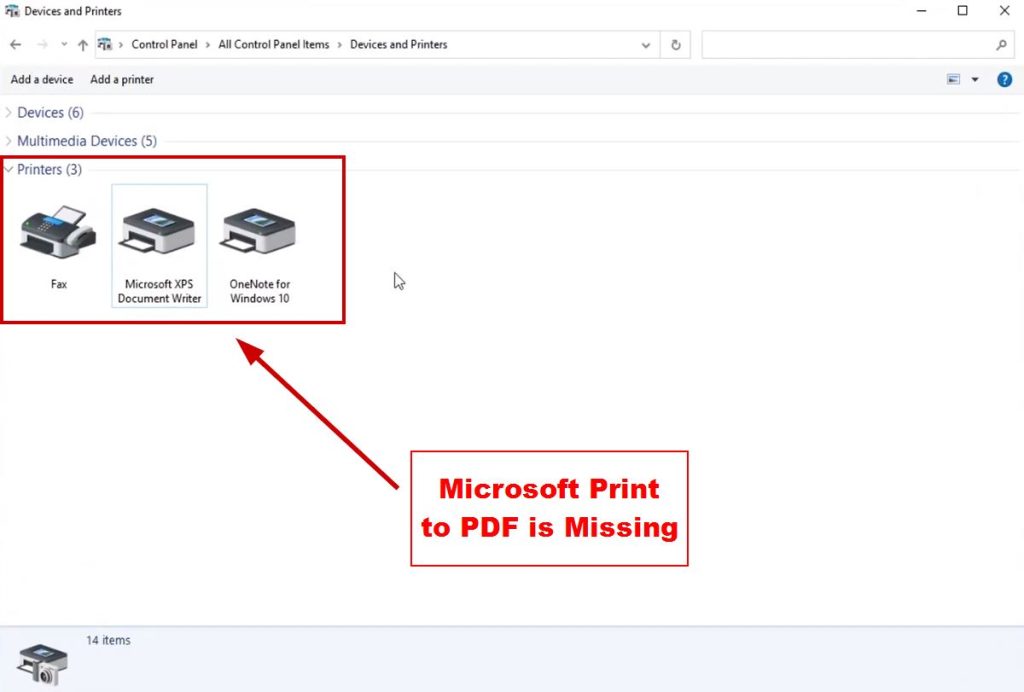
If the file won’t open at all, try an online repair tool instead.
Step 3: Use a Free Online PDF Repair Tool
Sites like iLovePDF, Smallpdf, or PDF24 offer free repair services (with file size limits). Upload your PDF, run the repair, and download the fixed version. Be cautious with sensitive documents — consider using a desktop app for privacy. For browser-based repairs, see the guide on repairing a PDF in Chrome.
No luck? Let’s try a dedicated free app.
Step 4: Download and Use PDF-XChange Editor (Free)
PDF-XChange Editor has a powerful free version that can handle many corruption issues. Install it, open the PDF, and go to the “Document” tab → “Repair PDF”. It often recovers text and images that other tools miss. This is a key part of any complete PDF repair workflow.

Still frustrating? One more trick.
Step 5: Convert to Another Format and Back
Use a free converter (like LibreOffice or online tools) to save the PDF as an image (PNG/JPG) or Word document. Then convert that back to PDF. You’ll lose interactive elements, but the content will be readable. This is a solid last resort. For advanced issues, the official Adobe Acrobat repair steps might help.

Common Pitfalls
- Overwriting the original file: Always work on a copy until you’re sure the fix is good.
- Ignoring file size: Huge PDFs may time out online — use a desktop app instead.
- Not checking for missing fonts or images: Some repairs only recover text, leaving visuals broken.
Where to Next
Hopefully one of these free methods got your PDF back in action. If you deal with corrupted files often, bookmark the complete PDF repair workflow for a system-wide approach. And if you run into a locked or password-protected file, check out our repair locked PDF guide. Happy reading!




