Ever tapped a PDF on your iPhone only to get a blank screen or a ‘File Damaged’ error? It’s frustrating, especially when that document is important. This guide is for anyone who needs to get a corrupt PDF working on iOS, whether it came from an email, a download, or a file transfer. By the end, you’ll have several practical methods to try—starting with quick free options and moving up to more advanced tools if needed.
We’ll cover built-in iOS features, free apps, and even a web-based tool you can use right from your phone. No technical expertise required. Most fixes take less than five minutes. Let’s get that PDF back in shape.
What You’ll Need
- Your iPhone or iPad with iOS 14 or later
- Internet connection (for some steps)
- A few minutes of patience
- Optional: a computer (Mac or PC) for alternative methods
Step 1: Try Opening in a Different iOS App
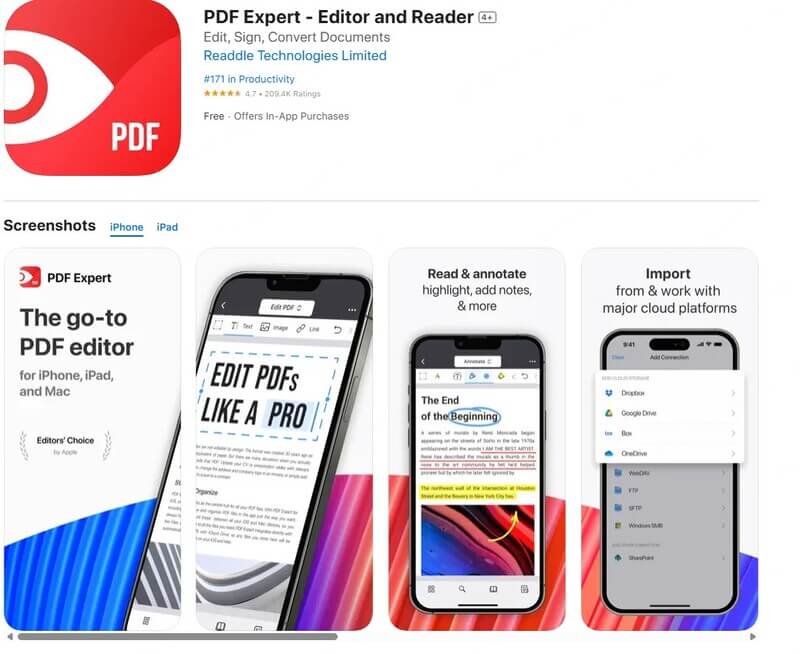
Sometimes the problem isn’t the PDF itself—it’s the app you’re using. Start by opening the file in another app like Apple’s Files app, Mail (if it was an attachment), or a third-party reader such as Adobe Acrobat Reader or PDF Expert. Download a free PDF reader from the App Store if you don’t have one. Swipe to share the PDF and tap ‘Copy to [app name]’.
Step 2: Use Quick Look (Preview) in Files
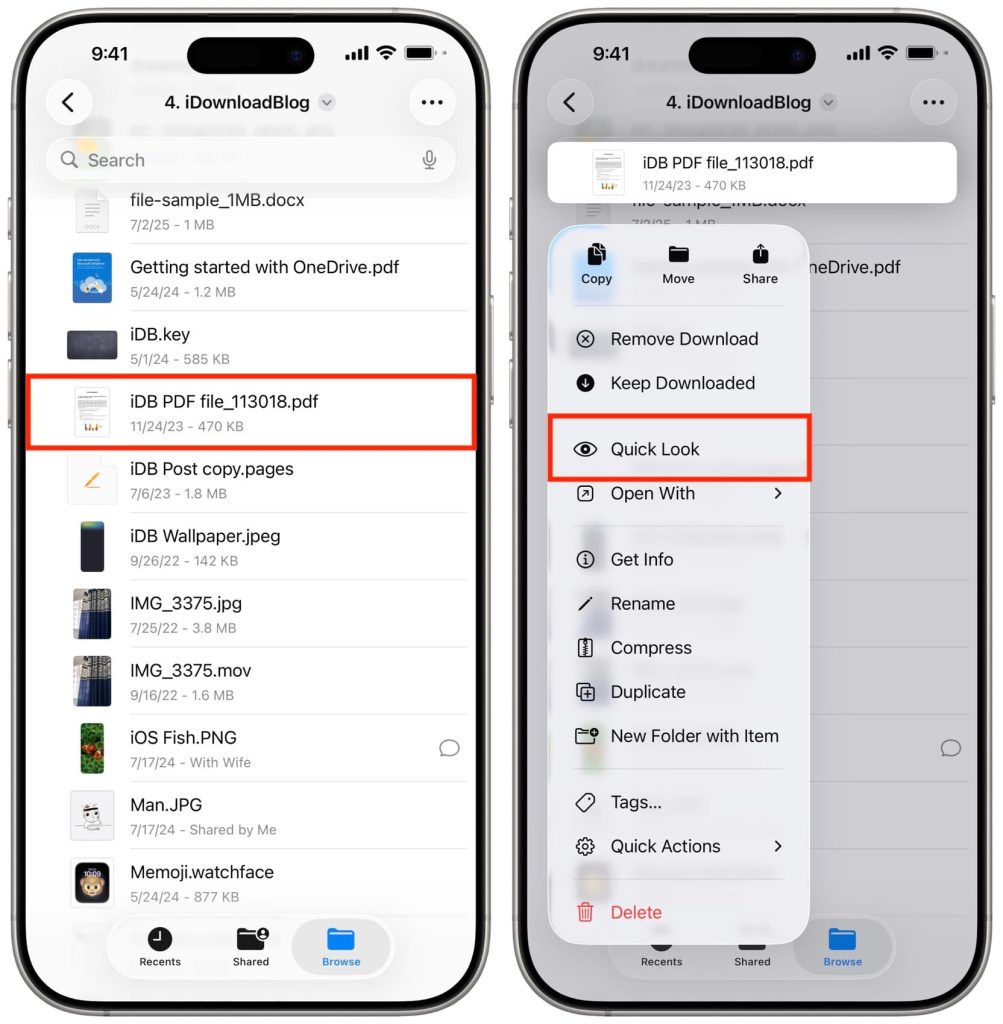
iOS has a built-in preview feature called Quick Look. Open the Files app, locate your PDF, and tap it. Quick Look will attempt to render the file without opening a full application. If it works, you can then share or save a copy. To force a re-render, long-press the file and choose ‘Quick Look’ again. This simple trick fixes many minor corruptions.
Step 3: Repair Using an Online Service
If local apps fail, try an online PDF repair tool. On your iPhone, open Safari and go to a reliable service like Smallpdf or ilovepdf. Upload your PDF, let the server fix it, and download the repaired version. This works great for files that are only slightly damaged. For a list of trusted sites, check out our separate guide on online PDF repair—it walks you through the process step by step.
Step 4: Use a Dedicated iOS PDF Repair App
For stubborn corruption, a dedicated app can work wonders. Search the App Store for ‘PDF repair’ or ‘PDF fix’. Apps like PDF Repair Tool or Recover PDF offer free scans and often recover content. Install one, import your file, and follow the on-screen instructions. Most let you preview the result before paying for a fix. This method is similar to a corrupted PDF repair guide but tailored for mobile.

Step 5: Transfer to a Computer for Advanced Repair
If your PDF is severely damaged, iOS tools might not cut it. Transfer the file to a Mac or PC using AirDrop, iCloud Drive, or a USB cable. Then use professional software like Adobe Acrobat Pro or a free tool like PDFsam. If you don’t have Acrobat, our guide on how to fix a PDF without Acrobat covers several good alternatives. For a comprehensive approach, see our complete PDF repair solution that handles even the toughest cases.
Common Pitfalls
- **Saving over the original:** Always work on a copy. If you save a repaired version over the original, you might lose the chance to try other methods.
- **Email attachment issues:** PDFs sent as email attachments sometimes get truncated. Before blaming the file, ask the sender to resend it. Our guide on repairing a PDF email attachment explains how to handle this scenario.
- **Assuming all online services are safe:** Some free online PDF repair sites may not respect your privacy. For sensitive documents, use a reputable paid service or an offline app.
Where to Next
Got your PDF working again? Great! If you still have issues, check out other fixes like recovering a PDF that got corrupted during network transfer or extracting images from a damaged PDF. Remember, most PDF problems can be solved with the right tool and a little patience. Happy reading!




