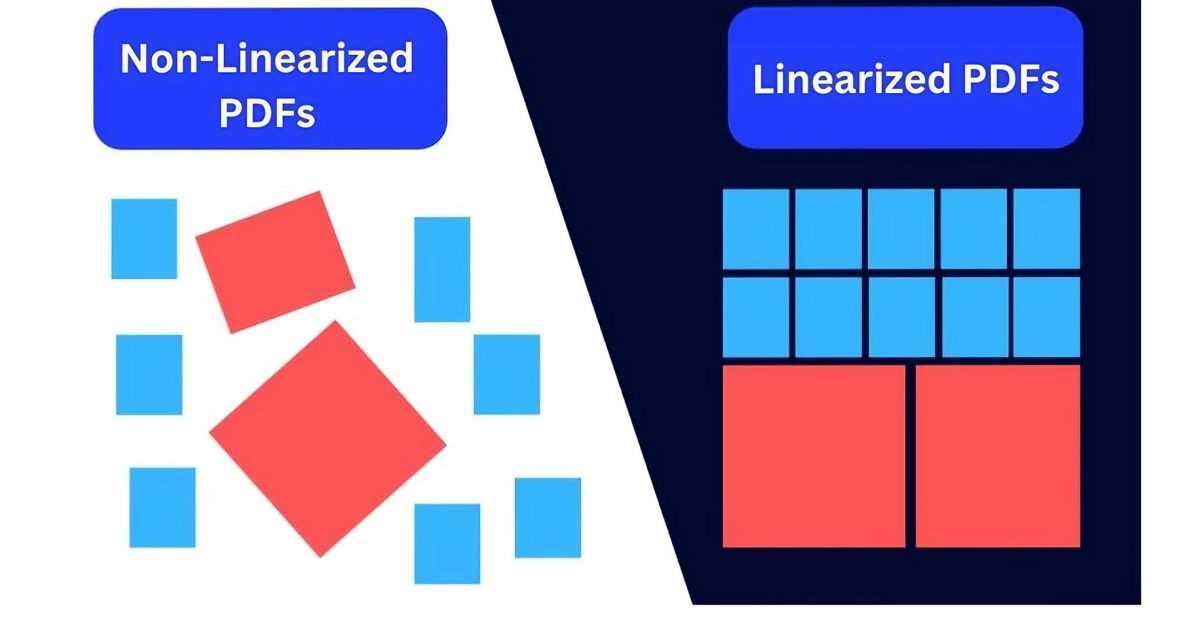
If you’ve ever tried to open a PDF on a slow connection and it loaded page by page instead of all at once, you’ve seen a linearized (or “web-optimized”) PDF in action. Linearization organizes the file so a browser can display the first page before the whole thing downloads. But when that structure gets corrupted — maybe after a crash or a bad network transfer — the PDF can become unreadable or behave weirdly. This guide is for anyone who has a linearized PDF that won’t open, shows garbage, or loads incorrectly. By the end, you’ll have a working, re-linearized file that behaves like it should.
We’ll walk through several methods, starting with the easiest (using a free online tool) and moving to more powerful command-line options if you need them. You don’t need any special skills — just a computer and a few minutes. Let’s get that PDF back in shape.
What You’ll Need
- The broken linearized PDF file
- A computer with internet access (for online tools) or a local environment (for command-line tools)
- Optional: A hex editor (like HxD or Hex Fiend) for manual repairs
- Optional: The qpdf tool installed on your system (free, available for Windows/Mac/Linux)
Step 1: Confirm the PDF is Linearized
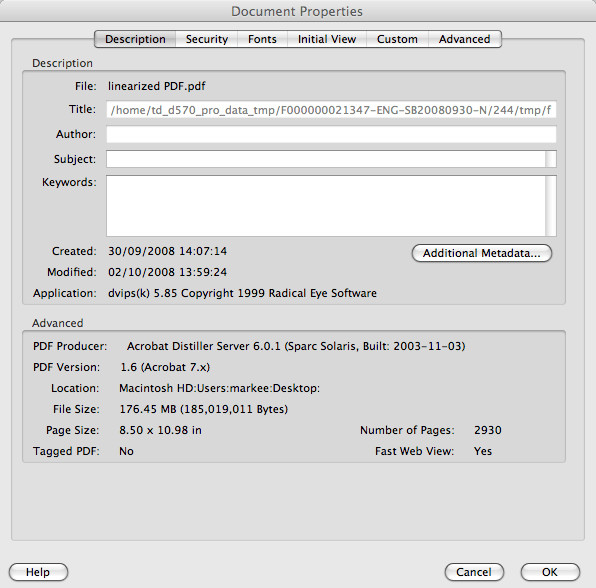
Before fixing, let’s make sure you’re dealing with a linearized PDF. Open the file in a text editor (like Notepad) or a hex viewer. Look near the top for the string “/Linearized” followed by a number. If you see it, your file is linearized. If not, the problem might be something else, and you can try a general pdf file repair solution first.
Step 2: Repair Using qpdf (Command Line)
qpdf is a free, powerful tool that can re-linearize a PDF and fix many structural issues. Download and install it from the official site. Then open a terminal (Command Prompt on Windows, Terminal on Mac/Linux) and navigate to the folder with your PDF.
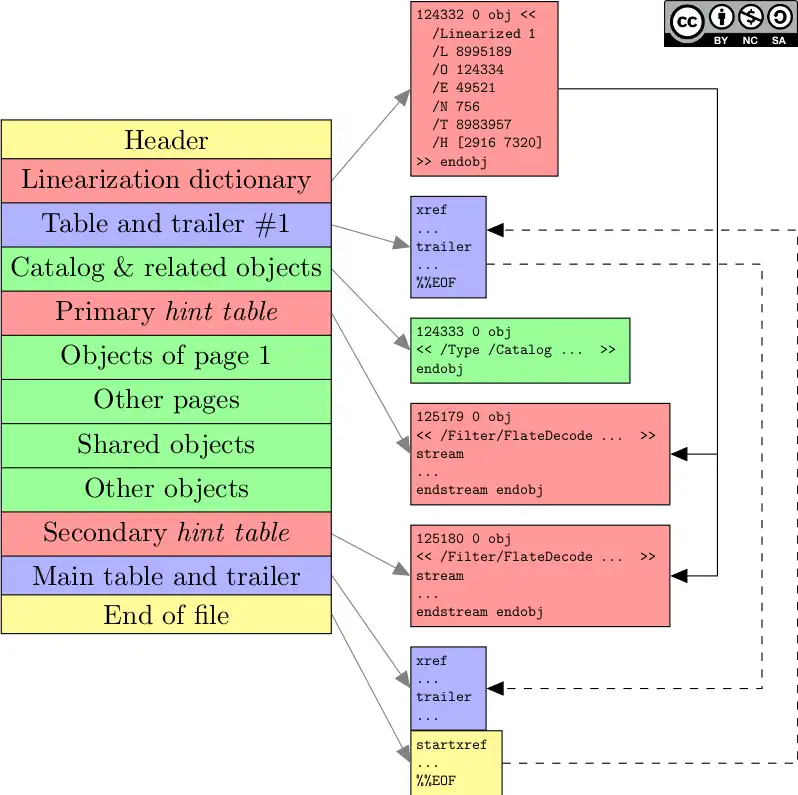
Run this command: qpdf --linearize broken.pdf fixed.pdf. Replace “broken.pdf” with your file’s name and “fixed.pdf” with what you want to call the output. qpdf will rewrite the file, repairing the linearization table and other internal references. This usually fixes issues caused by a crash or bad transfer — similar to what you’d do with a repair pdf after crash approach.
Step 3: Repair Using an Online Tool
If you prefer not to install software, use a free online PDF repair service that supports linearized files. Upload your broken PDF, let the service process it, and download the repaired version. Many online tools also fix other corruption, like what you’d see after a network issue (see our fix pdf after network transfer guide).
Step 4: Verify the Repair
Open the repaired PDF in a viewer (Adobe Acrobat, browser, etc.). Check that all pages load correctly and that the “fast web view” feature works (in Acrobat, enable “Save As > Optimized PDF > Web View”). If the file still has problems, the corruption may be deeper or non-linearized — try a more general corrupted pdf repair method.
Common Pitfalls
- Not backing up the original PDF first. Always keep the original until you confirm the repair works.
- Assuming every online tool handles linearization correctly. Some only fix basic corruption and may strip the linearization. Check the output file’s properties.
- Overlooking that the PDF might be encrypted or password-protected. Linearization repair often requires an unprotected file. Remove protection first.
Where to Next?
Now that you’ve repaired your linearized PDF, you might run into other issues with damaged files. If the problem was caused by an incomplete download, check our recover incomplete pdf guide. Or if you need to extract images from a damaged PDF, we have a guide for that too. For everyday maintenance, keep qpdf on hand — it’s a lifesaver for quick fixes.




