Ever spent an hour downloading an important PDF, only to find it won’t open because the download got cut short? You’re not alone. Incomplete PDFs happen all the time due to bad internet connections, server timeouts, or accidental cancellations. But here’s the good news: you can often recover or repair that partial file without starting over. This guide is for anyone who’s stuck with a PDF that shows only a blank page, loads halfway, or throws an error like “The file is damaged.” By the end, you’ll know several practical methods to salvage your data—using nothing but your browser, free online tools, or simple command-line tricks.
We’ll cover five strategies, from the easiest browser fix to more advanced recovery with Ghostscript. You don’t need to be a tech wizard—just follow the steps. You’ll likely get back at least the text content, and in many cases the full file. Let’s dive in.
What You’ll Need
- The incomplete PDF file (save it even if it won’t open)
- A web browser (Chrome, Firefox, or Edge)
- Internet connection for online tools
- Optional: Adobe Acrobat Reader or a PDF editor like Foxit
- Optional: Ghostscript if you’re comfortable with command line
Step 1: Try Opening in a Browser First
Before you try anything fancy, drag the PDF into an empty browser tab. Browsers like Chrome and Firefox have built-in PDF viewers that often handle incomplete files better than Adobe Acrobat. If the PDF shows any content, you can immediately save a working copy by clicking the download icon or pressing Ctrl+S (Cmd+S on Mac).

If the browser displays an error like “Failed to load PDF,” move to the next step.
Step 2: Resume the Download Using Your Browser
Sometimes the download just wasn’t finished. In Chrome, open your downloads list (Ctrl+J). Right-click the incomplete entry and select “Resume.” If the server supports resuming, the download will pick up where it left off. This works best if you haven’t closed the browser since the download started.

For Firefox, go to Downloads (Ctrl+J) and look for the paused icon. Click it to resume. Edge works similarly. If resuming fails, you’ll need to recover what you already have.
Step 3: Use an Online PDF Repair Tool
Several free online tools can fix a corrupted or incomplete PDF. Upload your partial file and let them work. One reliable option is ilovepdf.com’s “Repair PDF” tool. Another is smallpdf.com. After processing, download the repaired file. For more options, check our guide on online corrupted pdf recovery.
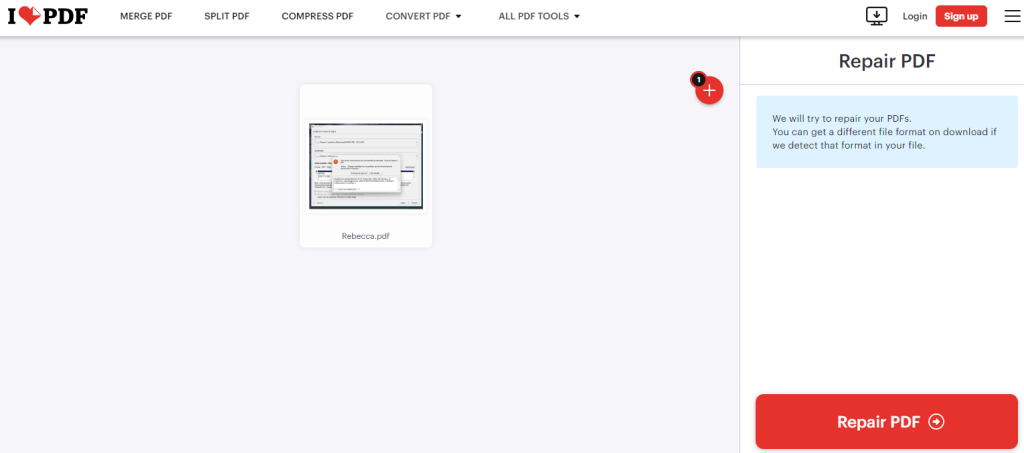
These tools often recover text and images, but may lose formatting or empty pages. That’s okay—you’ll at least have the content.
Step 4: Extract Content with a Word Processor
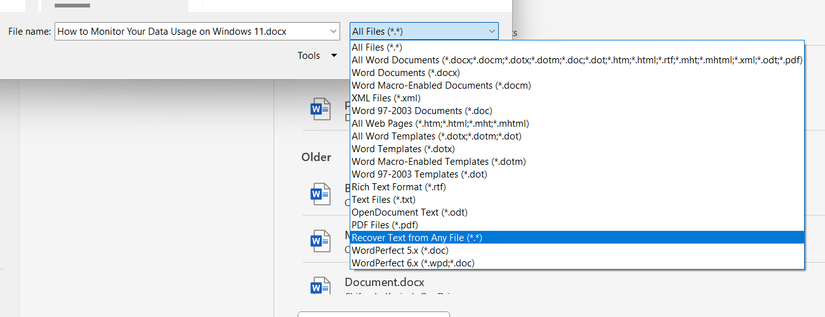
If online repair fails, try opening the PDF in Microsoft Word or Google Docs. Word can convert PDF files to editable documents—even partial ones. In Word, go to File > Open, select the PDF, and choose “OK.” Google Docs: upload the PDF and open it as a Google Doc. This extracts any readable text, though images may be missing. This is a great fix pdf without software technique.
Step 5: Advanced Recovery with Ghostscript (Command Line)
For tech-savvy users, Ghostscript can reconstruct the PDF by ignoring errors. Download Ghostscript from ghostscript.com. Open a terminal or command prompt and run:
gswin64c -o repaired.pdf -sDEVICE=pdfwrite -dPDFSETTINGS=/printer -dCompressPages=false corrupt.pdf
Ghostscript output
Replace ‘corrupt.pdf’ with your file’s name. This creates ‘repaired.pdf’ that may open. For a detailed walkthrough, see our guide on repair pdf after crash.
Common Pitfalls
- Using a paid tool when free ones work: Don’t pay for PDF repair unless absolutely necessary. Free online tools and browser tricks handle most cases.
- Overwriting the original file: Always work on a copy. Keep the incomplete original in case you need to try a different method.
- Ignoring the root cause: If downloads keep failing, check your internet speed or use a download manager that supports resuming. Also see our guide on fix pdf download error.
Where to Next
Now you’ve rescued your incomplete PDF. If the file is still not usable, you might need to request a fresh download from the source. For more PDF repair tips, explore our tutorials on repair pdf on mac and other common issues.




