
So you’ve got a corrupted PDF that won’t open, shows garbled text, or throws error messages. Before you panic, know this: many PDF issues are fixable with free online tools, no tech skills required. I’ll walk you through the whole process step by step. By the end, you’ll have a working PDF recovered from that damaged file.
Corruption can happen for all sorts of reasons — incomplete downloads, hard drive errors, or even a PDF that got messed up during email transfer. Online repair tools can rebuild the file structure, fix missing parts, and get your content back. This guide covers the most common scenarios and shows you exactly what to do.
What You’ll Need
- A corrupted PDF file (the one you want to fix)
- A computer or smartphone with internet access
- A modern web browser (Chrome, Firefox, or Edge)
- An email address (some tools send repaired files via email)
- About 10 minutes of your time
That’s it! No software to install, no credit card needed. Let’s get started.
Step 1: Identify the Problem
First, try opening your PDF normally. Note the error message — is it “File is damaged and cannot be repaired”? “There was an error opening this document”? Or does it open but show weird characters? Different errors can point to different types of corruption, but the steps below work for most cases. Write down the error if any, but don’t worry too much.
Step 2: Choose a Reliable Online PDF Repair Tool
There are plenty of free online PDF repair services. I recommend sticking with well-known options like iLovePDF, Smallpdf, or PDF24. These are trustworthy, don’t watermark your repaired files, and work on any device. For this guide, I’ll use iLovePDF as an example, but the steps are similar for all.
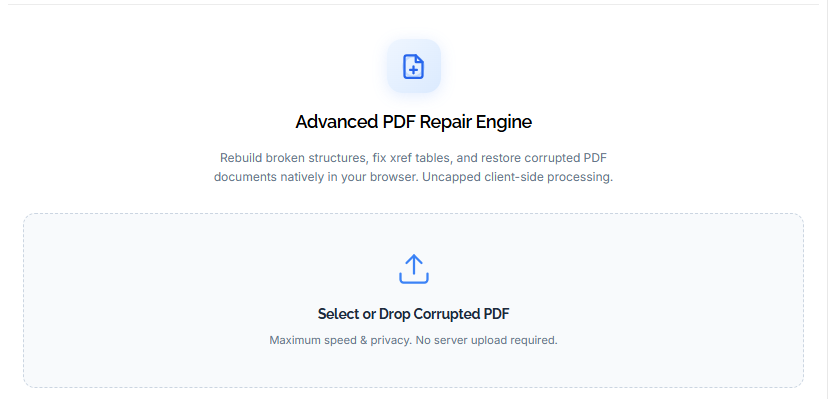
Step 3: Upload Your Corrupted File
Go to the repair tool’s website (e.g., ilovepdf.com/repair-pdf). Click the big button that says “Choose file” or “Select PDF file.” Find your corrupted PDF on your computer or phone and select it. The file will start uploading — for large files, this may take a minute. Make sure you have a stable internet connection.

Step 4: Run the Repair
After the upload completes, click the “Repair PDF” button (or similar). The tool will process the file, trying to reconstruct any damaged parts. You’ll see a progress bar or spinner. This usually takes a few seconds to a couple of minutes, depending on the file size and corruption severity.
Step 5: Download the Repaired PDF
Once the repair finishes, you’ll see a download button. Click it to save the repaired file to your device. Most tools also offer an option to email the file if you prefer. Name it something different (like “repaired_document.pdf”) so you don’t overwrite the original corrupted file.
Step 6: Verify the Result
Open the repaired PDF with your usual PDF reader (Adobe Acrobat, Chrome, etc.). Scroll through all pages to make sure the content is intact — text, images, links, and formatting should be there. If some elements are missing, you can try another tool from the list. Don’t delete the original corrupted file until you’re satisfied.
Common Pitfalls
- Tool can’t handle large files: Some free tools have a file size limit (e.g., 100 MB). If your PDF is bigger, try splitting it first or use a desktop tool like PDFtk. For more on that, check out our pdf recovery guide.
- Privacy concerns with sensitive files: Online tools process your file on their servers. For confidential documents (bank statements, legal papers), consider a desktop-based repair instead. Our safe pdf repair online guide covers trustworthy services.
- Not all corruption is fixable: Severe corruption may not be recoverable by any tool. If the repair fails, try easy pdf repair online from another provider, or consider that the file might be lost. Always keep backups.
Remember that online repair tools are convenient but not perfect. For persistent issues, you can also try several tools in sequence — sometimes one catches what another misses.
Where to Next
Now that your PDF is working again, you might want to explore other repair tricks. Check out our guides on fix pdf errors online for common error-specific fixes, or secure pdf repair online if you’re worried about privacy. And if you often deal with damaged PDFs, the ultimate pdf recovery is a must-read.




