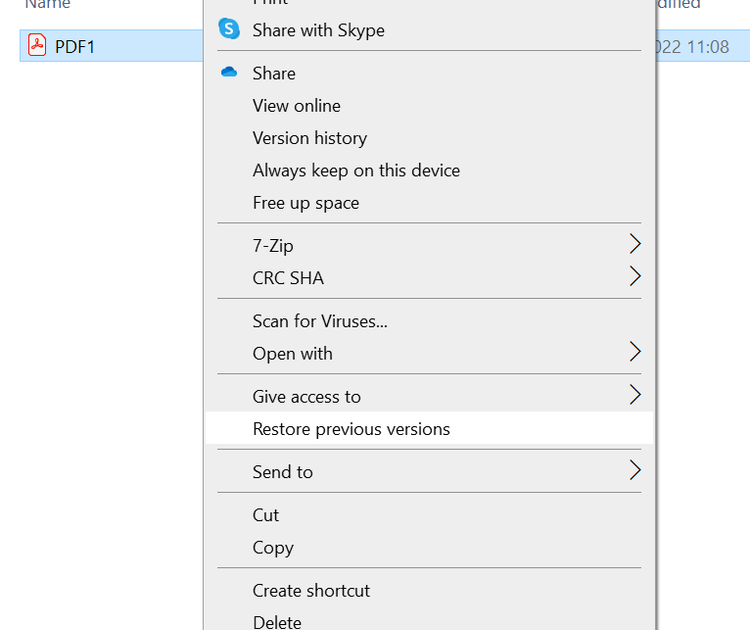
If you’ve ever opened a PDF and seen an error like “This file is damaged – the header is missing” or “PDF header damaged, cannot open”, you know the panic. Don’t worry—this is one of the most common PDF issues, and it’s usually fixable. This guide is for anyone who’s hit that error, whether you’re a student, office worker, or casual user. By the end, you’ll have a working PDF again, using free tools and a few simple steps.
We’ll cover three methods: using a hex editor for a manual fix, using an online tool for a quick automatic repair, and using command-line software like PDFtk for batch processing. No advanced skills required—just follow along.
What You’ll Need
- A corrupted PDF file with a header error (backup the original first)
- A text or hex editor (Notepad++ with HEX plugin or HxD for Windows, Hex Fiend for Mac, or any hex editor online)
- An internet connection if you plan to use an online repair tool
- PDFtk (optional, for command-line repair)
- Basic familiarity with opening files and copy-pasting
Step 1: Identify the Damage
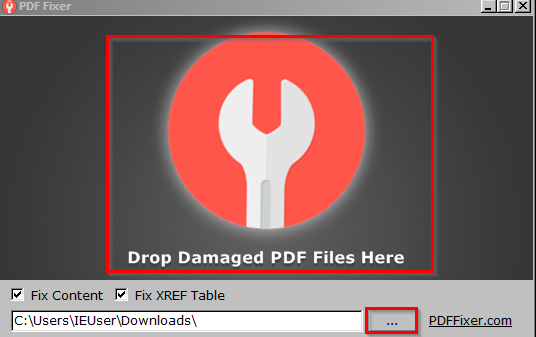
Before repairing, you need to know what’s wrong. Open the PDF in a hex editor. A valid PDF header starts with “%PDF-1.x” (where x is a number like 4, 5, 6, or 7). If you see garbage characters, a missing “%PDF”, or a different version number, the header is damaged. Sometimes the entire first line is blank or replaced by text from another file. Make a note of the correct version if you can determine it from the file’s properties or from the rest of the file.
Step 2: Back Up the Original File
Always work on a copy. Copy the damaged PDF and rename it something like “original_backup.pdf”. Then duplicate it again and work on the duplicate. If you make a mistake, you can revert.
Step 3: Fix the Header with a Hex Editor
Open the duplicate PDF in your hex editor. Ensure you’re viewing in hex mode (showing hexadecimal bytes). Look at the very first bytes. If the header is missing, type the correct header at the very beginning. For example, type “%PDF-1.4” (without quotes). Make sure it’s exactly in the first bytes, and if the file starts with other data, delete that data first. Save the file and try to open it. If it opens, you’re done. If not, double-check the version number—it must match the version used in the rest of the file (you can find it later in the file after the header).
Sometimes the header might be there but corrupted (e.g., “%PDF-1.3” changed to “%PDF-1.9”). Fix it to the correct version. For a beginner, using an online tool is easier. That’s our next step.
Step 4: Use an Online Repair Tool
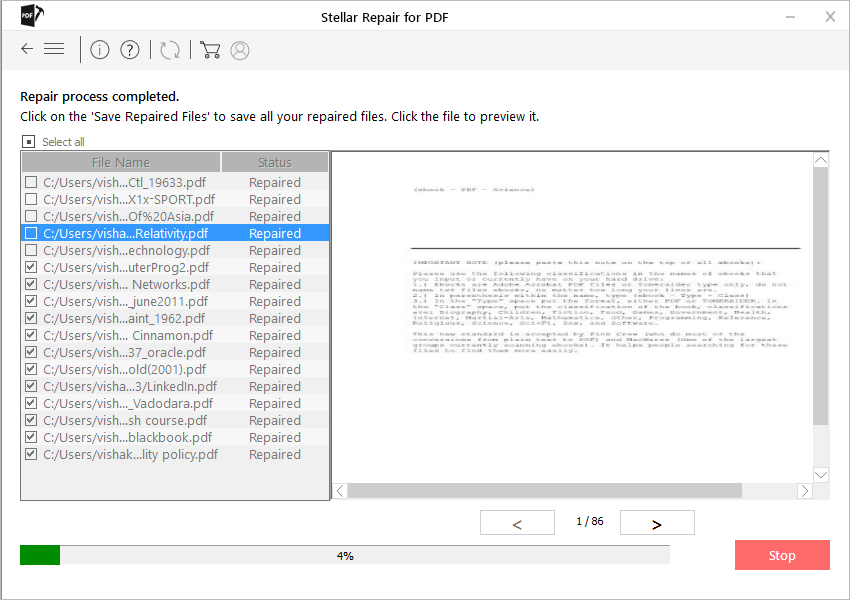
If hex editing feels too technical, try an easy PDF repair online tool. Visit our recommended tool and upload your damaged file. It automatically fixes header issues and many other corruption problems. The process usually takes a few seconds. Download the repaired PDF and open it. This method works great for minor header errors.
Step 5: Use PDFtk for Advanced Repair
For more control or batch repairs, you can repair PDF with PDFtk. PDFtk is a free command-line tool. Install it, then open your terminal (Command Prompt or PowerShell on Windows, Terminal on Mac/Linux). Run: pdftk damaged.pdf output repaired.pdf. This often fixes header issues by regenerating the file structure. If that doesn’t work, try: pdftk damaged.pdf cat output repaired.pdf. The ‘cat’ operation can repair many structural problems.
For a full walkthrough of PDFtk, check our PDF repair guide.
Step 6: Validate the Repaired File
Open the repaired PDF in your preferred viewer. Scroll through all pages to ensure content displays correctly. Check for missing text, images, or formatting issues. If the file still has problems, the header might not be the only issue—your PDF may have additional corruption like a broken cross-reference table. In that case, see our how to repair PDF xref guide for deeper fixes. Also, our PDF format error repair guide covers common issues beyond headers.
Common Pitfalls
- Forgetting to back up the original – If you mess up the header, you may lose the file permanently. Always keep a backup.
- Using the wrong header version – A PDF 1.4 file will not open if you write 1.7. Check the version by looking at the original file’s properties or search for ‘%PDF’ in the hex dump to see the original.
- Ignoring the xref table – Sometimes fixing the header alone isn’t enough. The cross-reference table might also be damaged. That’s a separate repair process.
Where to Next
You’ve fixed the header – great job! If your PDF still has issues, don’t give up. Check out our PDF repair guide for a broader overview. For specific problems like missing images or form fields, we have dedicated guides. Happy repairing!




