Ever opened a PDF and gotten a cryptic error like “Not a PDF file” or “Format error: not a PDF or corrupted”? Don’t panic. These format errors are super common, and most of the time they’re fixable without any fancy software. This guide is for anyone who’s hit a wall with a corrupted PDF—whether you’re a student with a deadline or a professional who needs that contract opened. By the end, you’ll have a working PDF and a few tricks to prevent future headaches.
We’ll walk through five methods, from the simplest (re-saving) to more advanced fixes like repairing the XREF table. You don’t need to be a tech wizard—just follow along step by step. Most solutions are free or use tools you probably already have.
What You’ll Need
- The corrupted PDF file
- Adobe Acrobat Reader (free) or Adobe Acrobat Pro (trial works)
- A reliable internet connection for online tools
- Optional: PDFtk (free command-line tool) or a hex editor (like HxD)
- Patience—some repairs take a few tries
Step 1: Identify the Error
Before you throw tools at the file, figure out what you’re dealing with. Common errors include “Format error: not a PDF or corrupted,” “Couldn’t open PDF: something went wrong,” or weird behavior like blank pages. Try opening the file in different viewers (Chrome, Edge, a mobile app) to see if the error is universal. If it opens in one viewer but not another, the issue might be minor.

Step 2: Try a Simple Re-Save
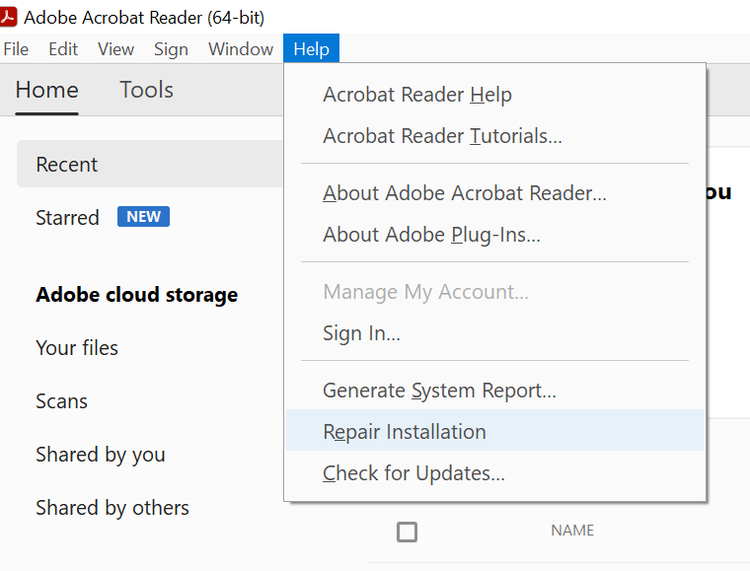
If the file opens at all, even partially, you can often fix it by re-saving as a brand-new PDF. Open it in Adobe Acrobat (or Reader if it supports editing), go to File > Save As > choose a new name and location. This rebuilds the internal structure. If you’re on a Mac, check out our guide to repair a PDF on Mac for specific steps. No luck? Move on.
Step 3: Use a Dedicated Repair Tool
Online PDF repair tools can work wonders. Upload your file and let the service rebuild it. For example, try a free no-watermark repair service—just be careful with sensitive documents. We recommend tools that don’t store your files (check privacy policies). After processing, download the repaired PDF. If the result is still broken, don’t worry—we have more tricks.
Step 4: Repair the XREF Table (Advanced)
The XREF table is like a map inside the PDF. If it’s corrupt, the file can’t find its pages. You can repair a PDF XREF table using a hex editor or tools like PDFtk. For example, with PDFtk (command line), run: pdftk corrupted.pdf output fixed.pdf. This forces a rebuild. Alternatively, use a hex editor to manually fix cross-reference offsets—but that’s only if you’re comfortable with hex. Beginners should skip to Step 5.
Step 5: Recover with PDFtk
PDFtk is a powerful free tool that often succeeds where others fail. Download it, open your terminal or command prompt, and use the command: pdftk input.pdf output output.pdf. If that doesn’t work, try pdftk input.pdf cat output output.pdf (copies all pages, ignoring errors). This method is great for fixing many structural issues. For a deeper dive, see our ultimate PDF repair guide.

Common Pitfalls
- Overwriting the original file before checking the repaired version. Always save the repaired PDF with a new name.
- Using an online tool with sensitive data. If your PDF contains private info, opt for offline tools like PDFtk or Adobe Acrobat.
- Expecting 100% recovery. Some damage is irreversible, especially if the file is truncated or encrypted. In those cases, try fixing PDF download errors first, or accept partial recovery.
Where to Next
If none of these steps worked, don’t give up. Check out our related guides: for mobile users, see how to repair a PDF on mobile; for encrypted files, look into recovering a corrupted PDF. And remember, prevention is easier than repair—keep backups and avoid sketchy download sites. Happy PDF hunting!




