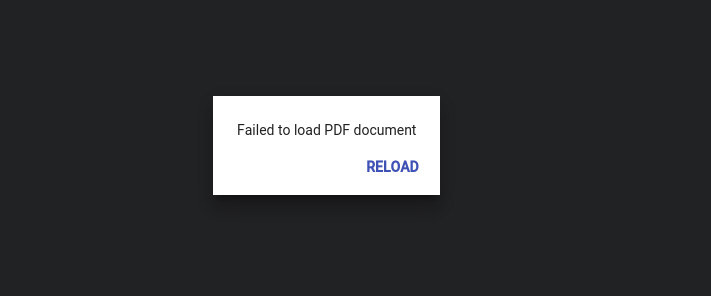
Ever tried to download a PDF and got an error instead of your file? You’re not alone. It could be a network glitch, a browser cache problem, or the PDF itself being corrupted. This guide is for anyone frustrated by a PDF download error—whether you’re a student, professional, or casual user. By the end, you’ll have a working PDF file and know how to fix common download issues on your own.
We keep things casual and practical. No jargon overload. Each step is something you can try right now. We’ll start with the simplest fixes (they work surprisingly often) and then move to more advanced options like repairing the file. You don’t need to be a tech wizard—just follow along.
What You’ll Need
- A computer or mobile device with internet access
- A web browser (Chrome, Firefox, Edge, or Safari)
- A PDF viewer (Adobe Acrobat Reader, browser built-in, or a third-party app)
- Optional: a PDF repair tool (we’ll show you free ones)
Step 1: Refresh and Retry the Download
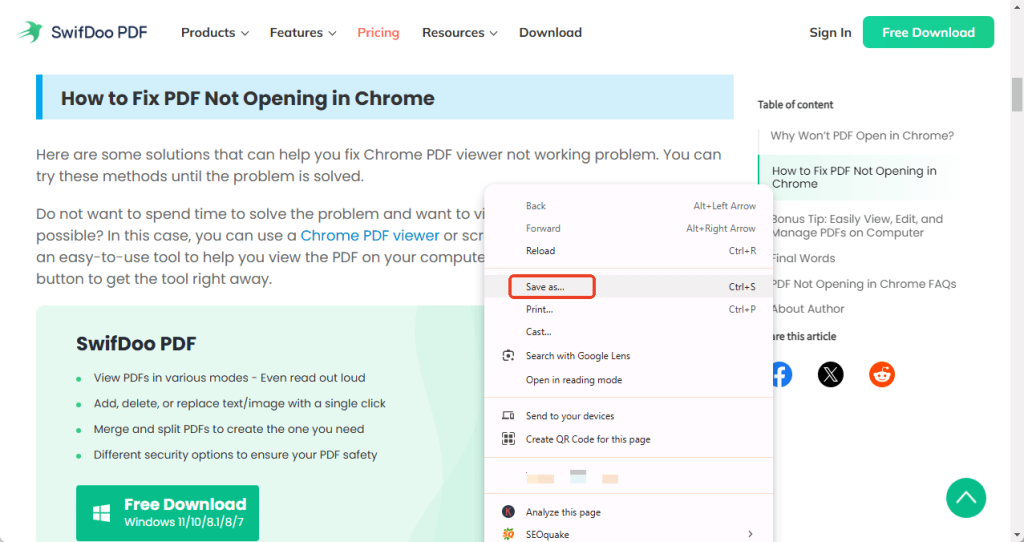
Sometimes the download fails due to a temporary hiccup. Press Ctrl+R (or Cmd+R on Mac) to refresh the page, then click the download link again. If that doesn’t work, try right-clicking the link and selecting ‘Save link as…’ to bypass any browser quirks.
Step 2: Clear Your Browser Cache
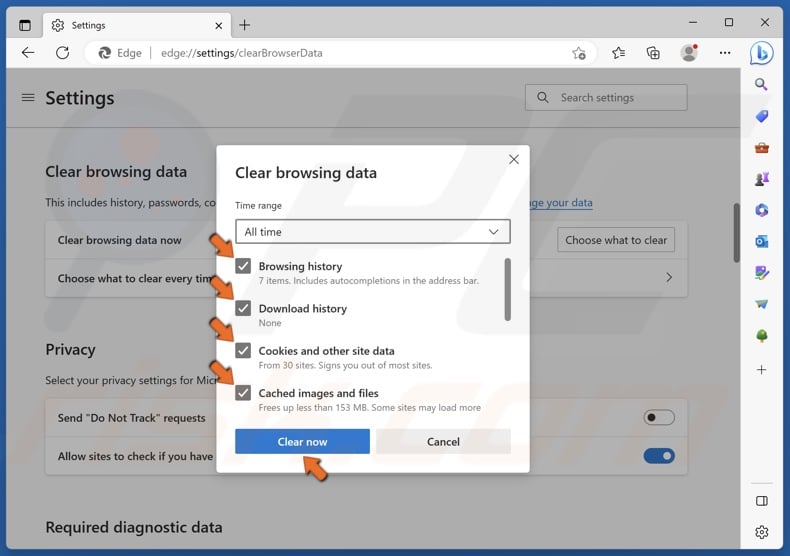
A clogged cache can cause download errors. Go to your browser’s settings and find ‘Clear browsing data.’ Check ‘Cached images and files,’ then click ‘Clear data.’ After that, reload the download page and try again. This often fixes stubborn issues, especially with large PDFs.
Step 3: Try a Different Browser or a Download Manager
If clearing cache doesn’t help, switch to another browser. For example, if you’re using Chrome, try Firefox. Sometimes browser-specific bugs cause PDF download errors. Alternatively, use a download manager like JDownloader or Internet Download Manager. They handle large files better and resume interrupted downloads. This step is especially useful if you’re dealing with a large PDF from a site that’s slow.
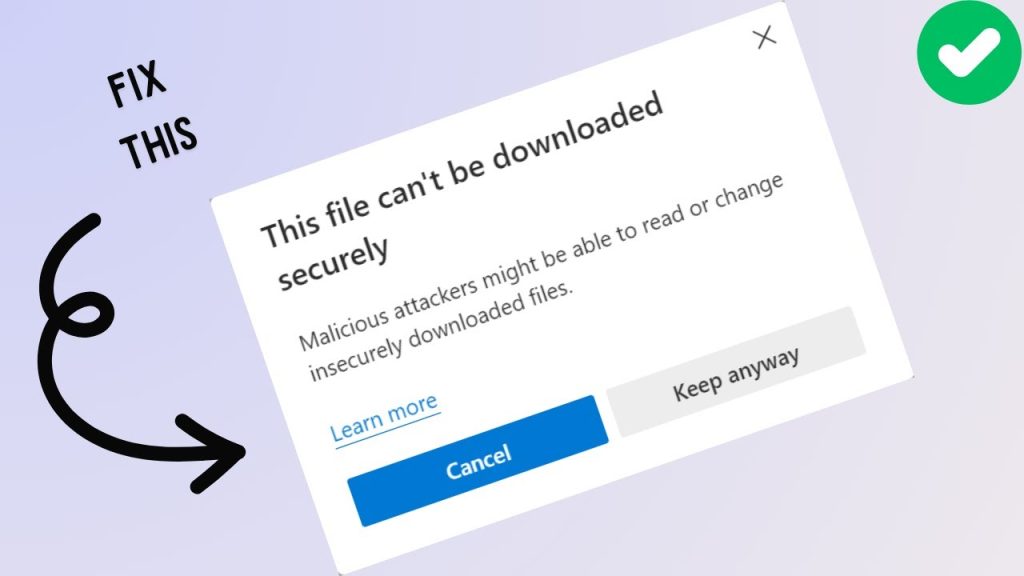
Step 4: Check if the PDF Is Corrupted and Repair It
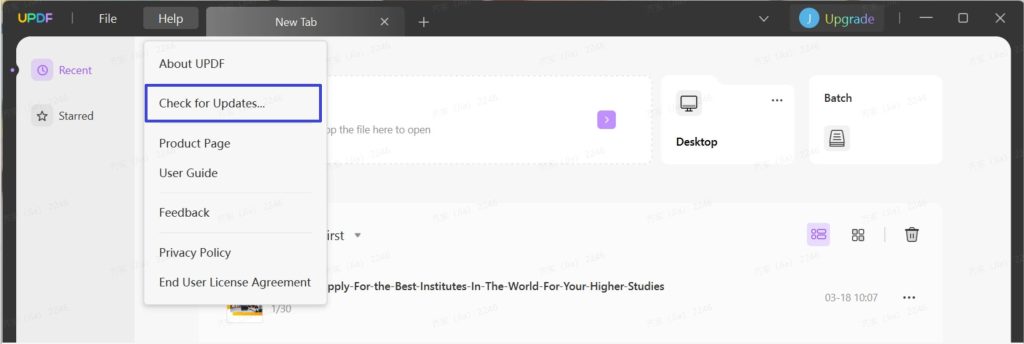
If you managed to download the file but it won’t open or shows errors, the PDF might be corrupted. Don’t panic—you can try to repair it. First, try opening it in a different viewer (like Adobe Acrobat Reader’s built-in repair feature). If that fails, use a dedicated tool. We have a guide on how to repair corrupted PDF for detailed steps. You can also try online services that offer PDF recovery—just search for ‘fix PDF errors online‘ and upload your file. Remember to use trusted sites to keep your data safe.
Step 5: Download from an Alternative Source or Ask the Sender
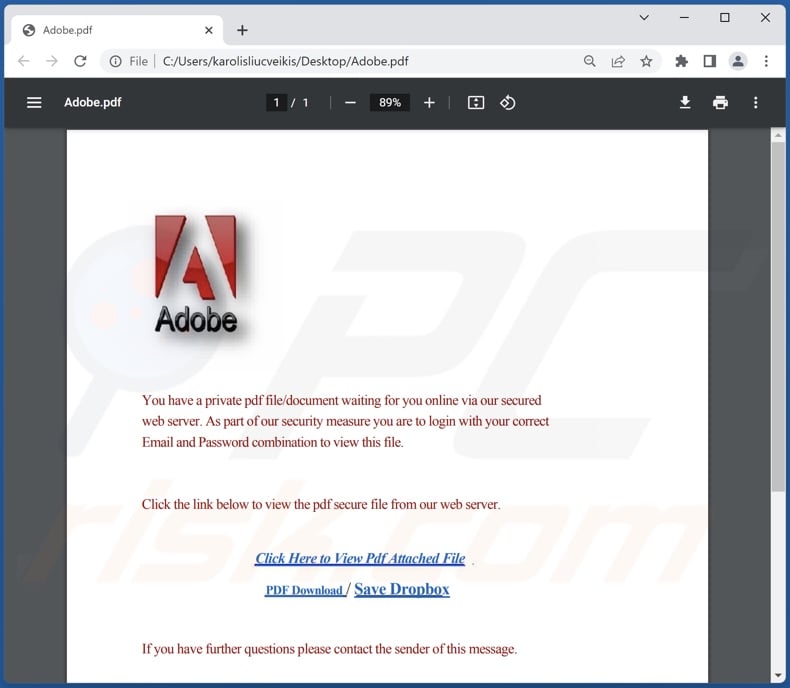
If the download error persists, the problem may be on the server side. Try accessing the PDF from a different device or network (like switching from Wi-Fi to mobile data). If it’s a document you requested, ask the sender to re-upload or send it via email as an attachment. Sometimes a simple resend fixes everything. And if you receive a PDF that won’t download, suggest they check their own link.
Common Pitfalls
- Skipping the cache clear step—most download errors are cache-related, so don’t ignore it.
- Using an outdated browser—older versions may have bugs. Keep yours updated.
- Assuming the file is gone forever—even if the download fails, the file might be recoverable from temporary folders. Check your browser’s download history or use a recovery tool.
Where to Next?
Got your PDF working? Great. If you want to dive deeper, check out our guides on acrobat pdf repair for advanced fixes, or if you’re dealing with a PDF that won’t open in Chrome, we’ve got you covered. And for a broader approach, our PDF recovery collection has tips for all kinds of PDF issues. Happy downloading!




