
Ever had a fillable PDF that suddenly won’t open, or opens but all your carefully typed answers are gone? Maybe the form fields are scrambled or just plain missing. This happens more often than you’d think—corrupted files, failed downloads, or software glitches can wipe out the interactive parts of a fillable PDF. This guide is for anyone who needs to recover those lost fields and the data inside them, whether you’re dealing with a work form, a tax document, or a school application.
By the end of this tutorial, you’ll have a working fillable PDF with all form fields restored and your data back. We’ll use free tools and methods that require zero technical expertise. No expensive software, no command-line wizardry—just clear steps anyone can follow.
What You’ll Need
- The corrupted fillable PDF file (keep a backup copy!)
- A computer with internet access
- A free PDF reader like Adobe Acrobat Reader or PDF-XChange Editor (optional but helpful)
- A reliable online PDF repair tool (we’ll recommend one)
- Patience—sometimes you need to try more than one method
Step 1: Assess the Damage
First, figure out what’s actually wrong. Try opening your fillable PDF in a few different readers. If it won’t open at all, you’ll get an error message like ‘File is damaged’ or ‘This PDF cannot be displayed’. If it opens but form fields are missing or uneditable, the interactive structure might be corrupted. Note the exact error—this will help you choose the right fix.
If the file opens fine but fields are blank, skip to Step 3. If you get a hard error, proceed to Step 2.
Step 2: Use a Free Online PDF Repair Tool
Online tools can often fix basic corruption. Head to a reputable site like pdfrepairs.click (check out their repair pdf free no watermark tool) or another trusted service. Upload your file, wait for the scan, and download the repaired version. These tools rebuild the internal structure of the PDF, which often brings fillable fields back to life.
Important: Always use a tool that doesn’t store your files permanently. Most good ones auto-delete after a few hours. If you’re uneasy about sending sensitive data online, skip to Step 4.
Step 3: Extract and Restore Form Data with PDFtk
If the online repair didn’t bring back your data, try extracting the form field values using a PDF toolkit. Download PDFtk Server (free for personal use) and run a command like: pdftk input.pdf dump_data_fields output form_fields.txt. This pulls out all field names and their values into a text file. Then merge that data back into the repaired PDF with: pdftk repaired.pdf fill_form form_fields.txt output final.pdf. For a step-by-step breakdown, see our guide on repair pdf with pdftk.
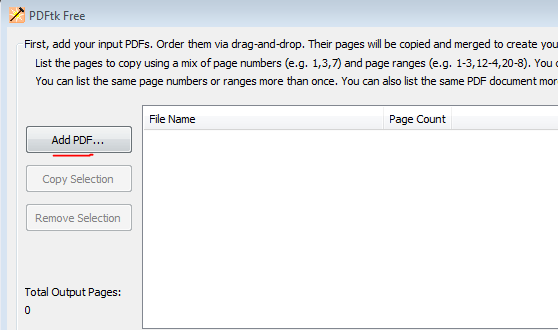
No command line? No problem. Use a free GUI tool like PDF-XChange Editor (go to Form → Add/Edit Form Fields) to manually copy data from your text file into the fields.
Step 4: Manually Recreate Form Fields
If nothing else works, you might need to rebuild the form fields from scratch. Open the PDF in a program that can edit PDFs directly—try LibreOffice Draw (free) or PDF-XChange Editor. Go to the Form menu and add new fields: text boxes, check boxes, radio buttons, etc. Match the field names from your extracted data (if you have it) so any saved values can be re-entered. This method is also useful if the original form is completely mangled—see our pdf repair guide for more tips on editing corrupted PDFs.

Once you’ve recreated all fields, save the file and test it by filling in a few fields and closing/reopening the PDF. If everything works, you’ve recovered your fillable PDF!
Common Pitfalls
- No backup: Always work on a copy. If you overwrite the original and the fix goes wrong, you’re stuck. Keep that original safe.
- Using sketchy online tools: Some free repair sites inject watermarks or steal your data. Stick with well-known, reputable services—check our repair pdf for pdf viewer article for trusted recommendations.
- Ignoring field properties: When manually adding fields, pay attention to font, size, and alignment. A mismatched field might look fine but fail validation in the target application.
Where to Next
Now that you’ve recovered your fillable PDF, you might want to learn how to prevent future issues. Check out our detailed guide on repair fillable pdf for preventative tips and advanced recovery tricks. And if you run into other PDF problems, our full pdf repair guide covers everything from corrupted images to broken thumbnails.




