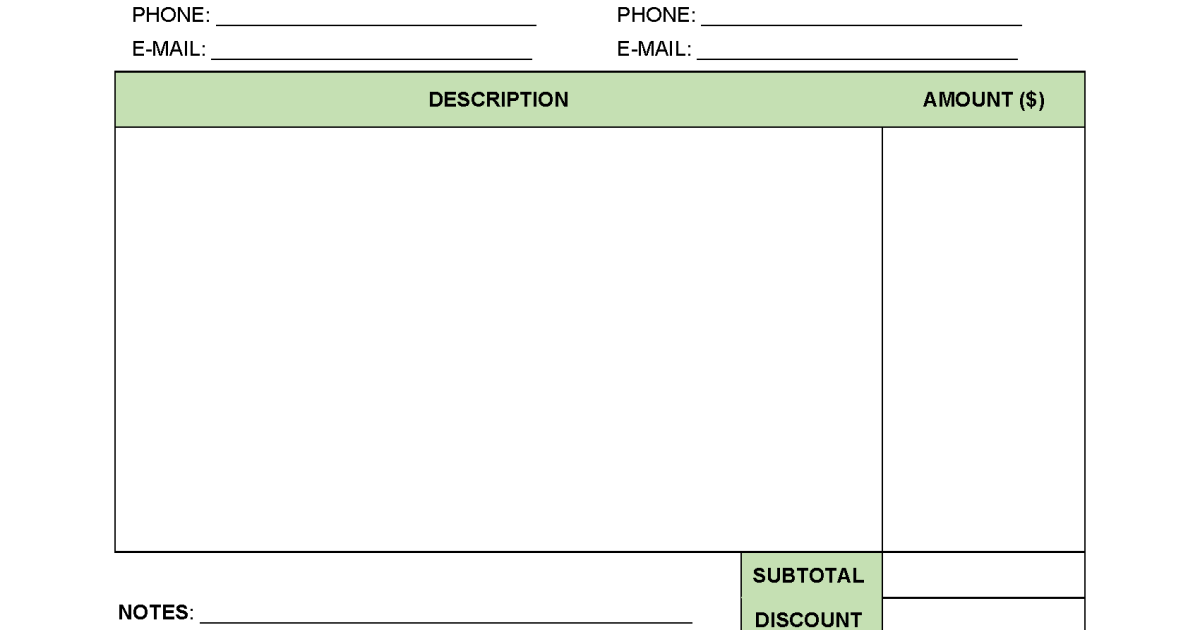
So you’ve got a fillable PDF that’s gone rogue—fields aren’t showing up, clicking submit does nothing, or the file just won’t save your entries. Don’t worry, you’re not alone. This guide is for anyone who needs to get a broken fillable form working again, whether you’re a freelancer, a small business owner, or just someone trying to fill out an online application. By the end of these steps, you’ll have a fully functional fillable PDF that behaves exactly as intended.
We’ll cover everything from quick online fixes to manual repairs in Adobe Acrobat. Even if you’ve never touched PDF repair tools before, you’ll be able to follow along. No technical wizardry required—just a few clicks and a bit of patience. Let’s turn that frustrating PDF into a smooth, fillable form.
What You’ll Need
- Your broken fillable PDF file (obviously)
- A computer with Adobe Acrobat Pro (or a free alternative like PDFescape or LibreOffice Draw)
- An internet connection for online repair tools
- Backup of the original PDF (if you have it)
- Patience—sometimes it takes a couple of tries
Step 1: Diagnose the Problem
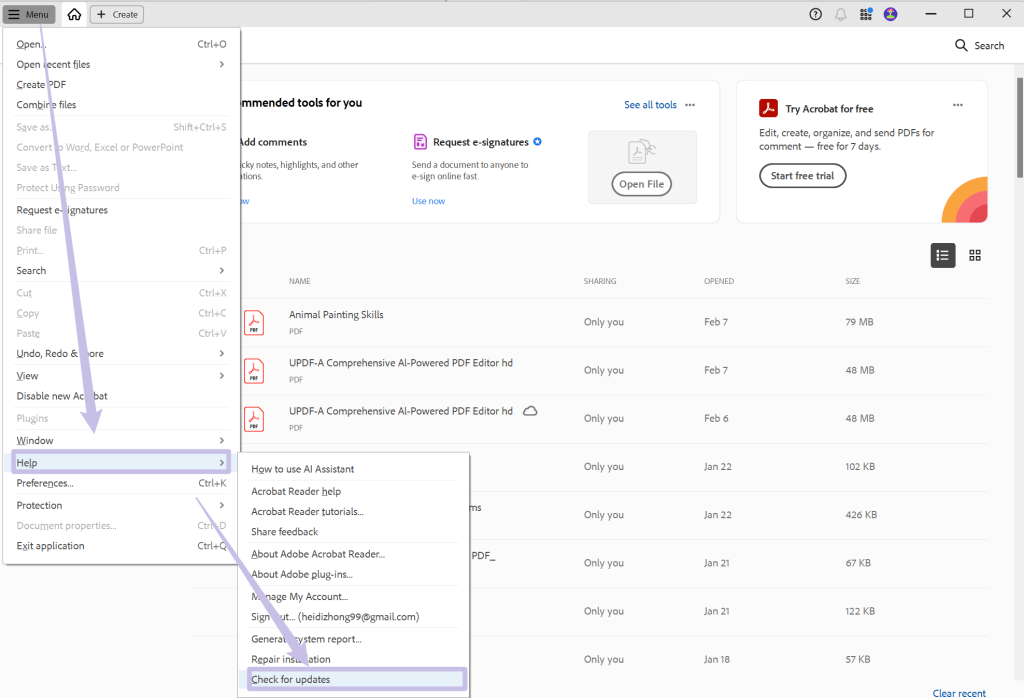
Before you dive into repairs, figure out what’s actually wrong. Open your PDF in at least two different viewers—Adobe Acrobat, your browser, and maybe a free reader like Foxit. Does the form work in one but not another? That can tell you if the issue is with the file itself or the viewer. Look for error messages like “This document has certain rights disabled” or blank fields. If the file is completely corrupted (won’t even open), you’ll need a different approach—check out our guide on pdf recovery for that.
Step 2: Try Adobe Acrobat’s Built-in Repair
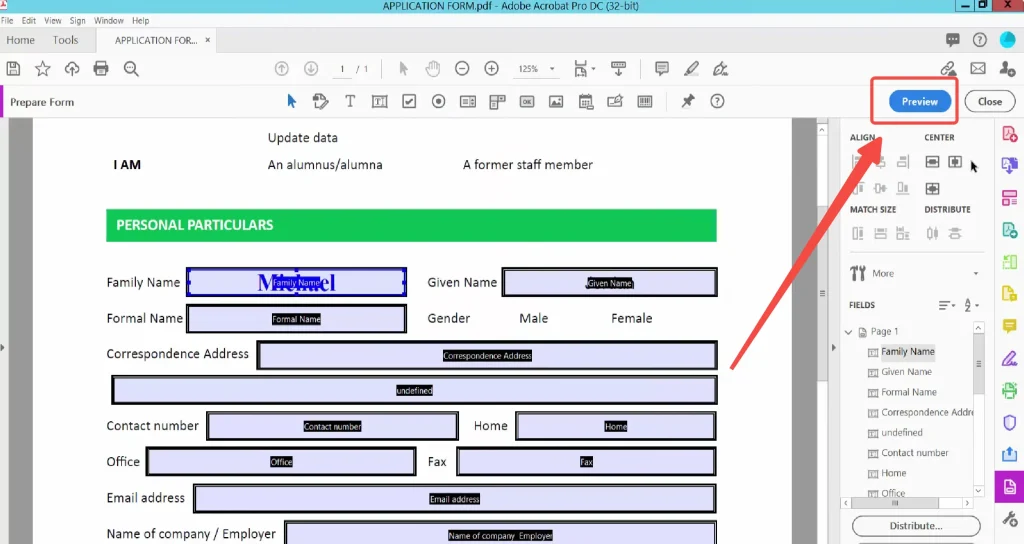
If you have Adobe Acrobat Pro, it’s the easiest place to start. Open the file, then go to File > Save As Other > Optimized PDF. In the dialog, keep all default settings and click OK. This often fixes minor corruption and restores form functionality. Another trick: use the Action Wizard. Go to Tools > Action Wizard > Create New Action, then add “Repair Document” and run it on your file. Still broken? Move to the next step.
For more advanced Acrobat repair options, see our detailed acrobat pdf repair guide.
Step 3: Use an Online Repair Tool
Online tools are great when you don’t have Acrobat. Our top pick is a secure pdf repair online service that handles fillable forms well. Upload your PDF, let the tool scan for issues, and download the repaired version. Most tools also offer a preview so you can check before downloading. If the form still has problems, try a different service—sometimes one tool fixes what another misses.
For more options, check out our roundup of the best online pdf repair tools.
Step 4: Manually Re-Add Form Fields (If Necessary)
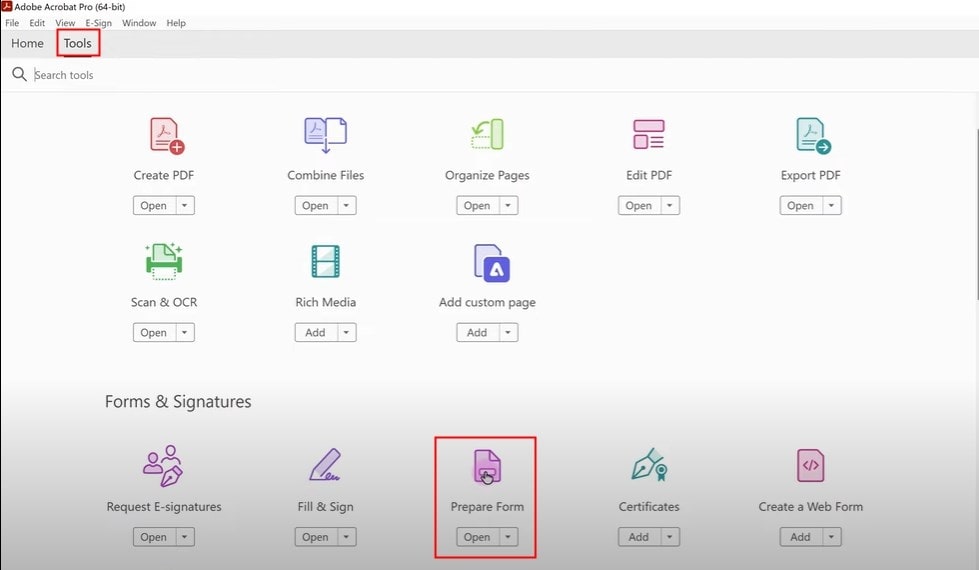
Sometimes the repair process wipes out form fields. No worries—you can rebuild them. In Acrobat, go to Tools > Prepare Form. Acrobat will scan the document and add automatic fields, or you can click “Add New Field” to place them manually. For text fields, set the name, font, and formatting. For checkboxes and radio buttons, group them under the same field name. Save frequently to avoid losing progress.
If you’re dealing with large forms, you might want to automate this—our fix pdf errors online guide covers batch fixes.
Step 5: Test Your Repaired Form
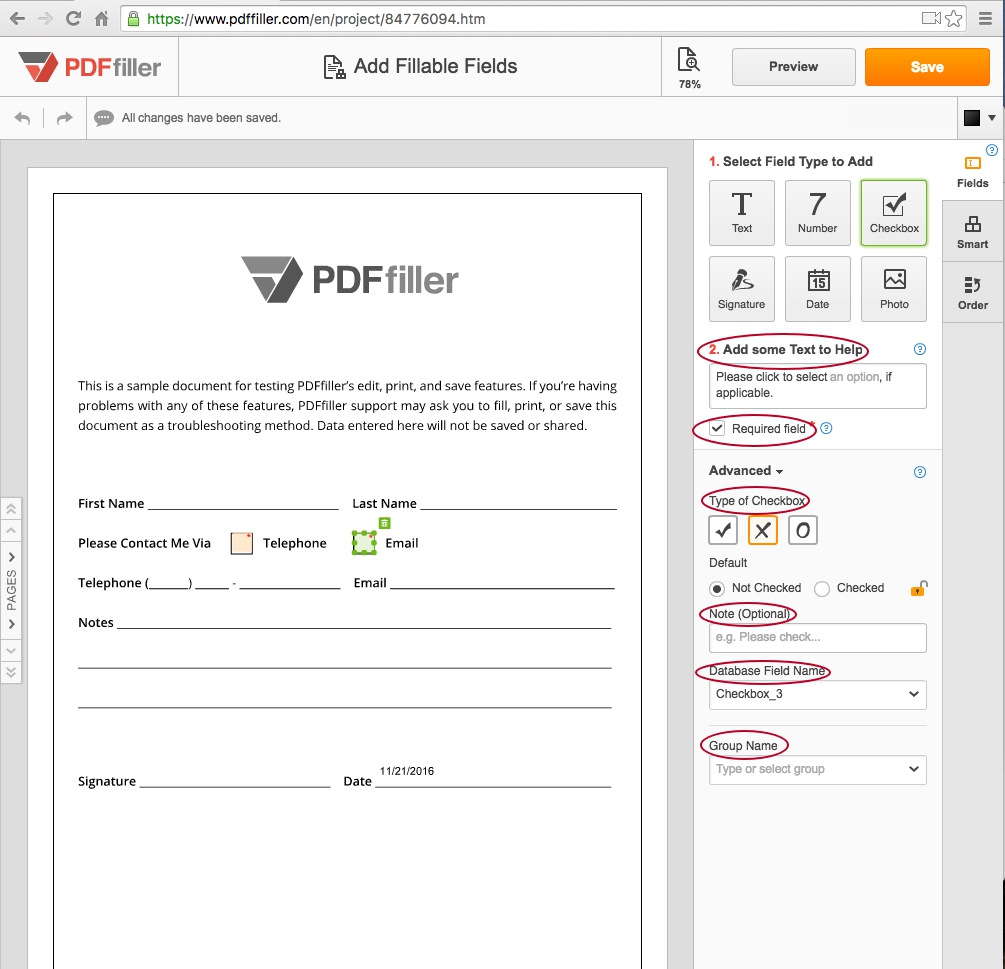
Before you call it a win, test the repaired form thoroughly. Open it in your browser, in Acrobat, and in a free reader. Fill out all fields, use tabs to jump between them, and try saving and reopening the file. If everything works, congratulations! If not, go back to Step 1 and try a different approach. Sometimes the issue is specific to one viewer—make sure your form works where it needs to.
Common Pitfalls
- Forgetting to flatten the file if you don’t want users to modify fields—but flattening removes fillability, so only do it for final distribution.
- Using a general PDF repair tool that doesn’t support form fields—always pick a tool that specifically mentions ‘fillable forms’.
- Not saving a backup before you start—if a repair tool messes something up, you’ll need the original to try again.
Where to Next?
Got your fillable PDF back in shape? Great! Now that you know the basics, you might want to explore related topics. Check out our guide on fix pdf errors online for general PDF issues, or dive into pdf recovery if you ever face a corrupted file. For deeper Acrobat tricks, revisit our acrobat pdf repair guide, and for a comparison of online tools, see our best online pdf repair list.
Remember, repairing fillable PDFs gets easier with practice. Bookmark this guide and come back anytime you hit a wall—you’ve got this!




