So you tapped that PDF file and… nothing. Or maybe you get a blank screen, an error message, or the app crashes. This guide is for any Android user who’s frustrated when a PDF won’t open. By the end, you’ll have a handful of tested fixes that work—no tech degree required. We’ll start with the easiest checks and work our way up to repairing the file itself.
Most PDF issues on Android are caused by a corrupted file, a buggy app, or an incomplete download. I’ll walk you through each fix step by step. You’ll also learn when to use an online PDF fixer to repair a badly damaged document. Let’s get that PDF open.
What You’ll Need
- An Android phone or tablet
- The PDF file that won’t open
- A file manager app (most phones have one built-in)
- Internet connection (for some steps)
- Optional: a computer to transfer files if needed
Step 1: Check the File Extension and Integrity
First, make sure the file is actually a PDF. Sometimes a .txt or .html file gets mislabeled. Open your file manager and locate the file. Long-press it and select Properties (or Info). Check that the file ends with .pdf. Also note the file size—a 0 KB file is empty and won’t open. If the file seems legit, move to the next step.
Step 2: Clear the PDF Viewer App’s Cache and Data
Your PDF reader app might be corrupted or overloaded. Go to Settings > Apps > find your PDF app (e.g., Adobe Acrobat, Google PDF Viewer). Tap Storage > Clear Cache, then Clear Data. This resets the app without deleting your PDF files. Try opening the PDF again.

Step 3: Try a Different PDF Viewer App
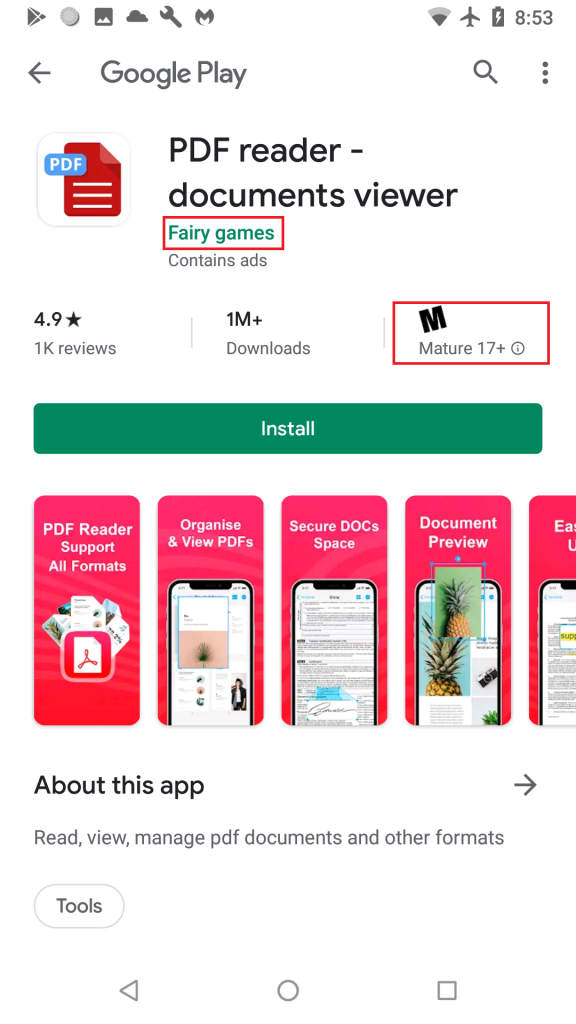
If clearing cache didn’t work, the issue might be with that specific app. Install a different PDF reader from the Play Store—like Xodo PDF Reader or Google PDF Viewer. Open your file with the new app. Often a fresh viewer handles files that others choke on. Even if you normally use Adobe, trying an alternative can save the day. For a more advanced fix, you can also use a desktop tool to repair PDF on Android by transferring the file to a PC first.
Step 4: Re-download or Re-transfer the File
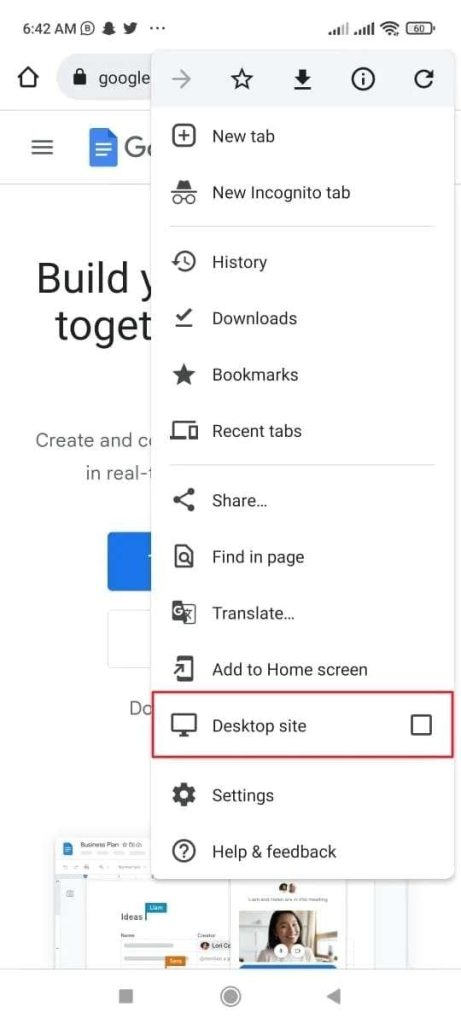
A partially downloaded or corrupted transfer is a common culprit. If you got the PDF via email, try to re-download it. In the email app, open the attachment and tap Download again. If it’s from a website, download it fresh. For files transferred from a computer, use a different cable or method (e.g., email yourself, or use cloud storage). If the file came as an email attachment, you might need to repair a PDF email attachment before it opens.

Step 5: Use an Online PDF Repair Tool
If the file is corrupted, no amount of app-switching will help. That’s when you need an online PDF fixer. Upload the broken PDF to a trusted site like Smallpdf, iLovePDF, or Sejda. They’ll attempt to repair the structure and let you download a fixed version. This method can recover most corrupt PDFs without any software installation. For a deeper dive, check out our guide on how to fix a PDF without software.
Step 6: Update Android and the PDF App
Outdated software can cause compatibility issues. Go to Settings > System > System Update and install any pending updates. Then open the Play Store, go to My apps & games, and update your PDF viewer. Restart your phone and try opening the PDF again. This simple step resolves many glitches, especially if you’re still using an old version of the app. If you prefer not to use Adobe, you can fix a PDF without Acrobat by using alternative viewers or online tools.
Common Pitfalls
- Assuming the file is fine when the app is actually the problem. Always try a different viewer first.
- Forgetting to clear app data. Cache clearing alone sometimes isn’t enough—go for the full clear.
- Using an unreliable online repair service. Stick to well-known platforms to avoid malware or data loss.
Where to Next
You’ve now got a toolkit to handle most PDF-not-opening issues on Android. If you need to fix more severe corruption, check out our guide on how to repair a PDF on Android using desktop tools. For email attachments, learn to repair a PDF email attachment. And if you’re looking for a permanent fix without buying software, see our step-by-step on how to fix a PDF without software. Happy reading!




