You’re staring at an error message, or your PDF opens as a blank page or garbled mess. Maybe it refuses to open at all. Don’t panic—you don’t need to buy Adobe Acrobat or install any sketchy software. This guide is for anyone who wants to fix a PDF using only free online tools and features already on your computer. By the end, you’ll have a working PDF, no downloads required.
We’ll walk through five methods, from the simplest (try a different viewer) to more powerful options like Google Drive or online conversion. Each step takes just a few minutes. Even if you’re not tech-savvy, you can follow along. Let’s get that PDF back to life.
What You’ll Need
- The corrupted PDF file
- A computer or phone with internet access
- A modern web browser (Chrome, Firefox, Edge, or Safari)
- A Google account (optional, for Google Drive method)
- Patience—not every fix works on every file
Step 1: Try a Different PDF Viewer
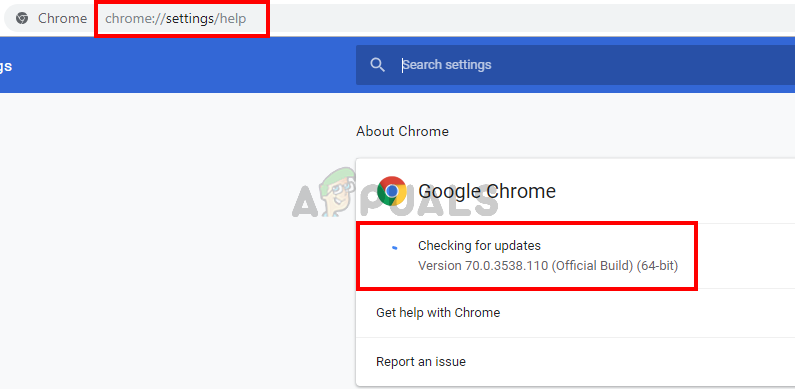
Sometimes the problem isn’t the file but the program. If you normally use Adobe Reader, try opening the PDF in your web browser (drag it into Chrome or Firefox). Or on Mac, use Preview. These built-in viewers are often more forgiving of minor corruption. If it opens, you can then re-save it from that viewer. For example, in Chrome, click the print icon and choose “Save as PDF”—this creates a fresh copy.
Step 2: Use Google Drive
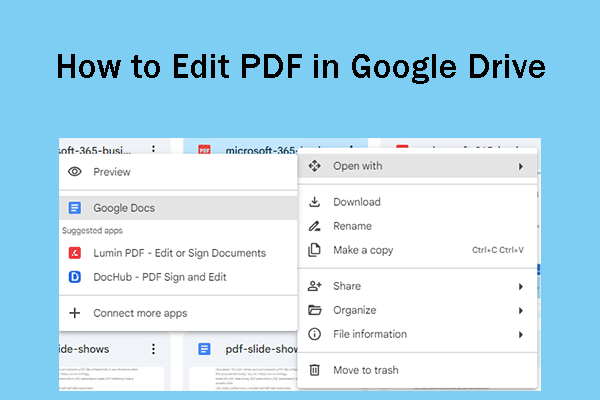
Google Drive can repair some corruption automatically. Upload your PDF to Drive (drive.google.com), then double-click to open it with Google Docs viewer. If it displays correctly, click the three-dot menu and select “Download” to get a clean version. This method works best for text-heavy PDFs. For more advanced recovery, you can also use an online pdf fixer like the one covered in our separate guide.
Step 3: Use an Online PDF Repair Service
Several free online tools can fix PDFs without installing anything. Upload your file to a trusted service like Smallpdf, ILovePDF, or PDF24. They rebuild the PDF structure and fix common errors. For a safe and watermark-free experience, check out our recommendations for safe pdf repair online and repair pdf free no watermark. These tools also offer an easy pdf repair online option with just one click.
Step 4: Convert to Another Format and Back
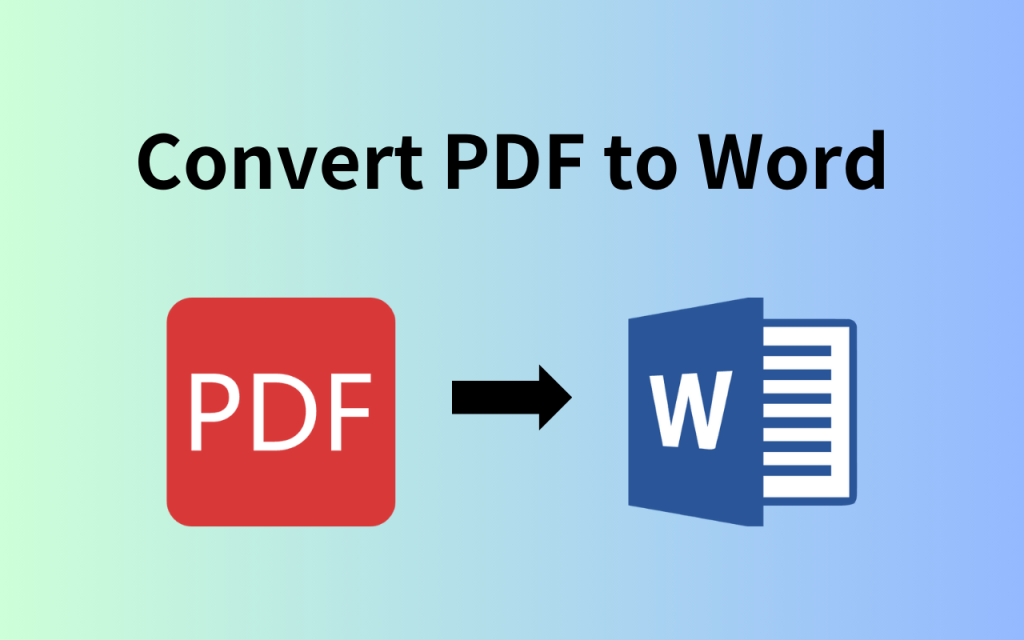
If the PDF’s internal structure is damaged, converting it to Word then back to PDF can often fix it. Use a free online converter (like those on the same sites above) to turn the PDF into a .docx file. Download that, then use the same tool to convert the Word file back to PDF. This regenerates the PDF from scratch, stripping out broken references. It’s especially effective for files with missing fonts or corrupted cross-reference tables.
Step 5: Use the Built-In Print to PDF Feature
If you can open the PDF at all (even with visual glitches), try printing it. Go to File > Print (or Ctrl+P / Cmd+P) and select “Save as PDF” or “Microsoft Print to PDF” as the printer. This generates a new PDF based on the rendered content, often bypassing corruption in the original file. This trick works in most browsers and in Preview on Mac.
Common Pitfalls
- File size limits: Many online services cap uploads at 100–200 MB. For larger files, use Google Drive or split the PDF first.
- Privacy risks: Uploading sensitive documents to unknown websites can be unsafe. Stick to reputable tools or use offline methods if confidentiality matters.
- Not all damage is repairable: Severely corrupted files (e.g., with zeros for all bytes) may be beyond recovery. In such cases, try to find a backup or the original source.
Where to Next
Now that you’ve fixed your PDF, explore more tips: learn how to fix pdf without acrobat if you ever need deeper repairs, or discover how to recover a signed PDF that still has valid signatures. For everyday issues, our easy pdf repair online guide has you covered. Bookmark this page for the next time a PDF gives you trouble.




