
So your PDF crashed—maybe the app froze, the power went out, or the file just decided to give up. You’re left with a PDF that won’t open, shows gibberish, or throws error messages. Don’t panic. This guide is for anyone who needs to get that document back, whether it’s a work report, an e-book, or a signed contract. By the end, you’ll have a working PDF (or at least know exactly what to try next).
We’ll cover a range of methods: from easy online tools to more technical fixes like Ghostscript and hex editing. No experience needed—just follow along step by step. The best part? Most of these methods are free or already on your computer.
What You’ll Need
- The crashed PDF file (obviously)
- A computer with internet access
- Optional: Adobe Acrobat Reader or Pro (free version works)
- Optional: Ghostscript installed (free, open-source)
- Optional: A hex editor like HxD (Windows) or Hex Fiend (Mac)
Step 1: Assess the Damage First
Before you jump into repairs, see how bad it is. Try opening the PDF in different viewers: Adobe Acrobat, your browser (Chrome, Firefox), or a lightweight reader like SumatraPDF (Windows) or Preview (Mac). Sometimes the file is fine, and the crash was just a glitch. If it opens in one reader but not another, skip straight to Step 3 or 4. If nothing works, move on.
Step 2: Try an Online Repair Tool
The quickest fix is an online pdf fixer. Upload your file, let the server rebuild the structure, and download the repaired version. This works for most common corruption issues caused by crashes. For a list of trustworthy options, check out our guide on online pdf fixer—but avoid any site that asks for payment upfront or uploads your file to public servers. Stick with well-known, safe pdf repair online services.

Step 3: Use Adobe Acrobat’s Built-in Repair
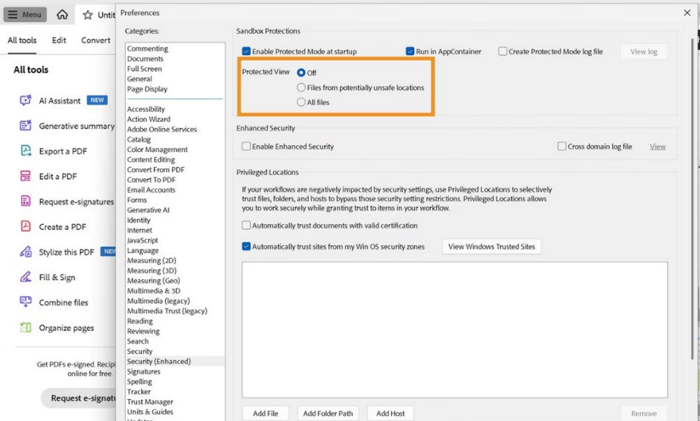
If you have Adobe Acrobat Pro (or even the free Reader with advanced features), you can try its built-in repair. Open Acrobat, go to File > Open and select your crashed PDF. If it opens, go to File > Save as Other > Optimized PDF… and check ‘Discard user data’ and ‘Repair’ options. This rewrites the file structure. If the file won’t open at all in Acrobat, try opening a new document and using File > Create > PDF from File—sometimes the import process can fix minor issues.
Step 4: Repair with Ghostscript (Advanced)
Ghostscript is a powerful command-line tool that can rebuild corrupted PDFs. If you’re comfortable with a terminal, install Ghostscript and run a command like: gs -o repaired.pdf -sDEVICE=pdfwrite -dPDFSETTINGS=/prepress crashed.pdf. This forces Ghostscript to re-render the PDF, often fixing broken cross-reference tables and object streams. For a full walkthrough, see our guide on how to repair pdf xref and the article on repair pdf with ghostscript.
Step 5: Manual Hex Editing (Last Resort)
If nothing else works, you can manually fix the PDF at the hex level. Open the file in a hex editor (like HxD on Windows or Hex Fiend on Mac) and look for missing or broken ‘xref’ tables and ‘trailer’ sections. This is tedious, but if you know the structure, you can sometimes copy a working xref from a similar PDF. We have a detailed guide on how to repair pdf xref that walks you through it. Only attempt this if the file is small and you have time to spare.
Common Pitfalls
- Relying on only one method: If an online tool fails, don’t give up. Try Acrobat, Ghostscript, or even a different reader (like Preview on Mac) to export as another format. Many people find that a fix pdf without software approach works after an online tool fails.
- Ignoring backups: Before you start any repair, make a copy of the crashed file. Some repair methods can further damage the file if they fail. Always work on a duplicate.
- Using shady online services: Free online PDF repair sites often have hidden costs, upload limits, or malware risks. Stick with the safe pdf repair online options we recommend in Step 2.
Where to Next
If your PDF contains sensitive information (like signatures or legal documents), check out our guides on recover signed pdf and recover legal pdf for specialized recovery methods. For Mac users, we also have a dedicated article on repair pdf on mac. And if the crash happened during a download, see how to fix pdf download error. You’ve got this—good luck!




