So you’ve got a PDF that’s full of blank pages—maybe you downloaded it, received it as an email attachment, or printed it from an app. Don’t worry, the content is probably still in there, just hiding. This guide is for anyone who needs a working PDF back, whether you’re a student, an office worker, or just someone trying to read an important document. By the end, you’ll have a fully functional PDF with all the text and images visible, using tools you already have or can grab quickly.
We’ll walk through four methods, from the simplest (switching your PDF viewer) to more advanced (using Ghostscript). Each step is tested and should fix most blank-page issues. No fancy software needed for the first three steps—just a bit of patience.
What You’ll Need
- The problematic PDF file
- A computer with internet access
- A PDF reader (Adobe Acrobat, Foxit, or even a web browser)
- Optional: Ghostscript installed (for the advanced step)
Step 1: Try a Different PDF Viewer
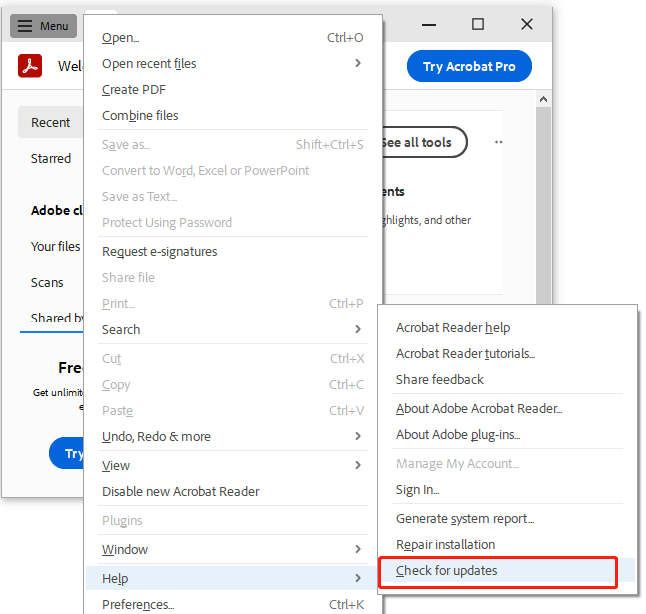
Sometimes the issue isn’t the PDF itself but the program you’re using to open it. Different PDF viewers handle rending quirks differently. If you’re using Adobe Acrobat, try opening the file in a web browser (Chrome, Edge, or Firefox all have built-in PDF viewers) or in a free alternative like Foxit Reader. You might find the pages show up perfectly in the new viewer. If that works, you’re all set—no repair needed.
Step 2: Re-save or Print to PDF

If switching viewers didn’t help, the next trick is to re-save the file. Open the PDF in any viewer (even the one that shows blank pages), go to File > Print (or press Ctrl+P). Instead of a physical printer, choose “Microsoft Print to PDF” (Windows) or “Save as PDF” (Mac). This effectively renders each page and outputs a fresh PDF. Save the new file with a different name and open it. Often this simple re-save fixes blank pages caused by incomplete data.
Step 3: Use an Online PDF Repair Service
No luck yet? An online PDF repair tool can handle many common problems, including blank pages. You simply upload your file, the service processes it, and you download a repaired version. This is especially handy if you’re looking for a quick fix without installing anything. For a reliable site, check out our guide on online pdf fixer. Just be sure to use a tool from a reputable provider to keep your document safe.
Step 4: Rebuild the PDF with Ghostscript

When all else fails, Ghostscript is your heavy-duty option. It’s a command-line tool that can read and rewrite PDFs from scratch, often salvaging content that other tools miss. First, download and install Ghostscript from ghostscript.com. Then open a terminal (Command Prompt on Windows, Terminal on Mac/Linux) and run this command:
Replace “input.pdf” with your file’s name and “output.pdf” with whatever you want to call the fixed file. The -dPDFSETTINGS=/prepress flag preserves high quality. After running, open the new PDF—blank pages should be gone. For more details on the command, see our article on repairing with Ghostscript.
Common Pitfalls
- Missing fonts: If the blank pages are caused by missing fonts, the above methods may not work. You’ll need to embed all fonts using a tool like Adobe Acrobat Pro or Ghostscript with the -dEmbedAllFonts option.
- Intentional blank pages: Some PDFs have blank pages on purpose (e.g., for double-sided printing). Check the page count before assuming something is wrong. If you only have one blank page in a 10-page document, it might be intentional.
- Low-quality online tools: Free online repair services might strip out images, reduce quality, or even introduce new errors. Stick with well-known services or the Ghostscript method for critical documents.
Where to Next?
Blank pages are just one type of PDF issue. If you run into other problems—like a corrupted file that won’t open—check out our guides on fixing PDFs without any software, xref table repair, and PDF repair on Mac. You’ll find step-by-step solutions for almost any PDF hiccup.




