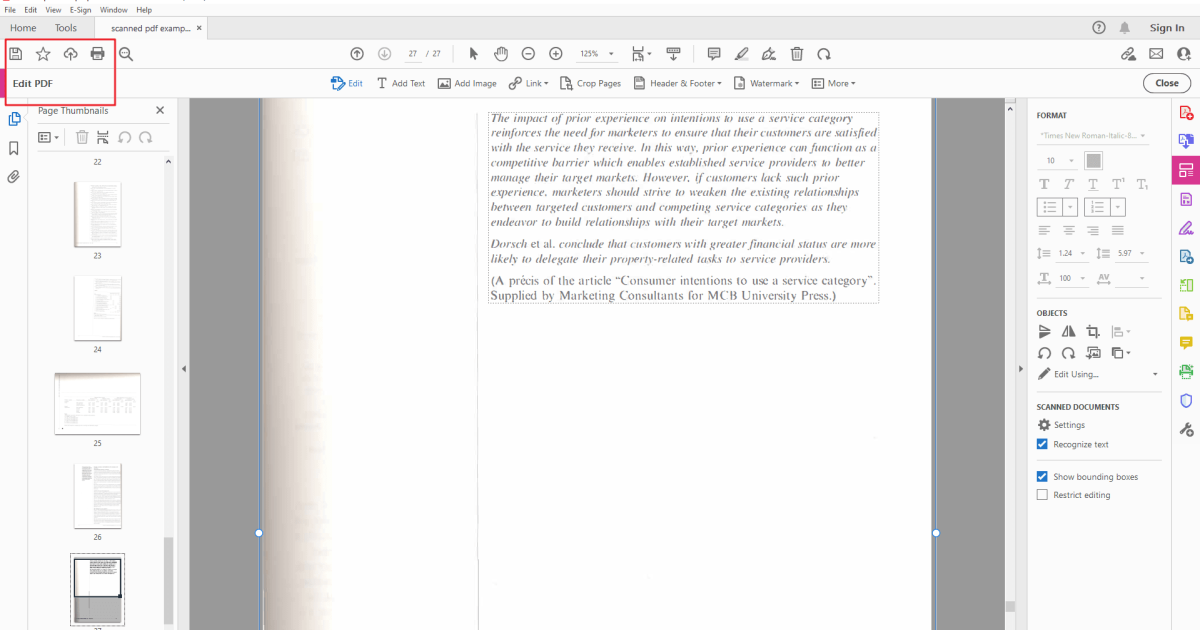
So you edited a PDF and now it’s a mess—text is garbled, images are missing, or the file won’t even open. Maybe you used a free online editor, or you accidentally saved a corrupted version. Don’t panic. This guide is for anyone who needs to rescue a PDF that went wrong after editing. By the end, you’ll have a clean, working PDF that looks like it should.
We’ll walk through several methods, from quick checks to advanced tools. You might only need the first step, or you might need to combine a couple. Either way, we’ve got your back. Let’s get that PDF back in shape.
What You’ll Need
- The original PDF file (before editing) if you have it
- A PDF reader like Adobe Acrobat, Foxit Reader, or your browser
- Internet connection for online tools
- Optional: Ghostscript (free command-line tool) for advanced repair
Step 1: Check for Simple Glitches
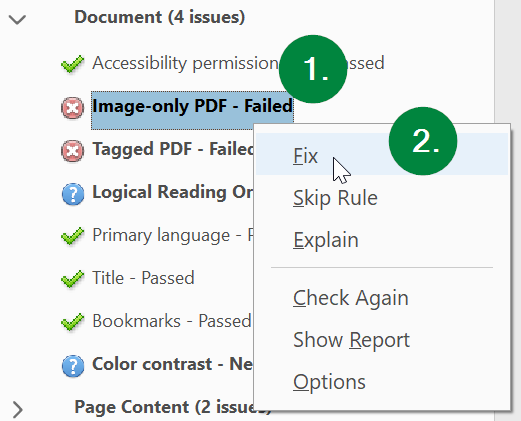
Before diving into heavy repair, rule out easy fixes. Try opening your edited PDF in a different viewer—sometimes the problem is the app, not the file. Also, check if the file size is suspiciously small (maybe only a few KB). If so, the editor might have saved just a thumbnail or metadata. Another quick test: rename the file extension to .txt and open it in Notepad. If you see readable text like “%PDF-1.4” at the start, the structure is intact. If it’s gibberish, the file is likely corrupted.
Step 2: Use an Online PDF Fixer
If you need a quick fix without installing anything, try an online pdf fixer. Upload your edited PDF to a trusted repair service (like the one we reviewed in our online pdf fixer guide). These tools often rebuild the file structure, fix cross-reference tables, and restore missing content. Just be careful with sensitive documents—upload to a service that promises to delete your file after processing. After repair, download and check if everything looks right.
Step 3: Revert Changes Using Version History
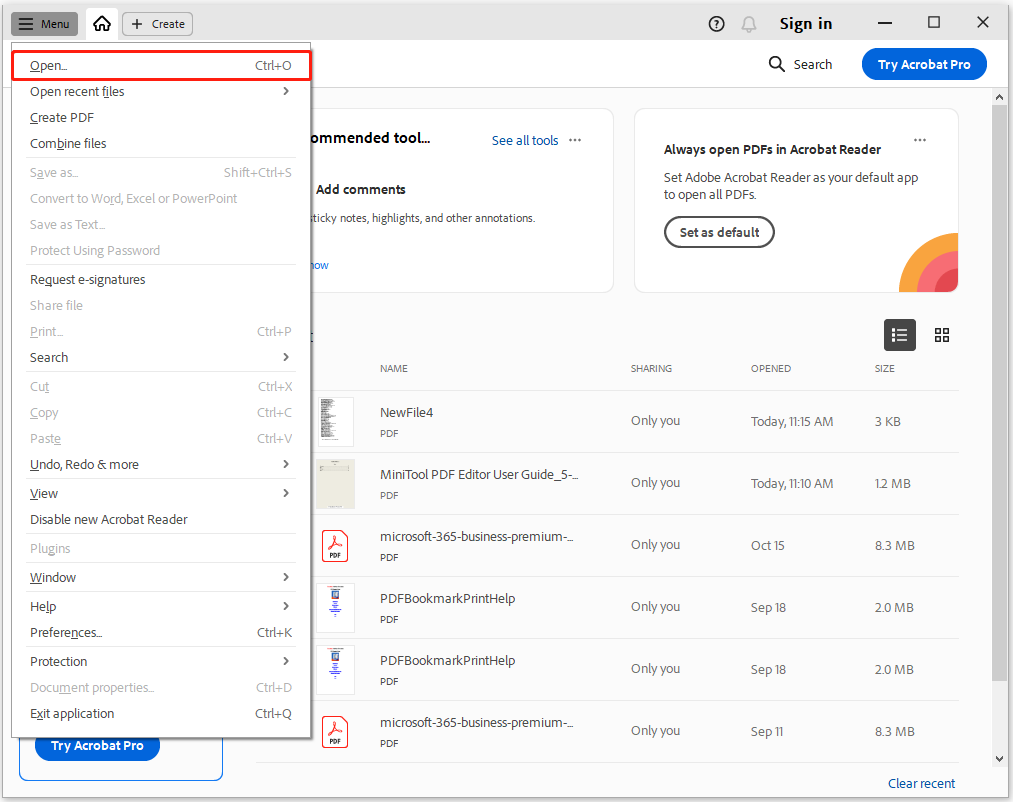
Some editors (like Adobe Acrobat) automatically save previous versions. If your editing app keeps a version history, you can roll back to before the edit went wrong. In Acrobat, go to File > History > View History and pick an earlier version. This is similar to the approach used in our repair pdf after crash guide. If you don’t have version history, check if you saved a backup copy elsewhere.
Step 4: Repair with Ghostscript

For stubborn corruption, Ghostscript is a powerful free tool. It can recompile the PDF from scratch, often fixing deep structural issues. Follow our repair pdf with ghostscript guide for exact commands. The basic idea: run gs -sDEVICE=pdfwrite -dCompatibilityLevel=1.4 -dPDFSETTINGS=/prepress -o output.pdf input.pdf. Ghostscript will interpret the content and output a clean PDF. This method is especially good for fixing format errors.
Step 5: Repair Format Errors Directly
Sometimes editing introduces specific format errors like a bad XREF table or wrong object references. If you get an error message, note the details and use our pdf format error repair guide to target that issue. You might need to hex-edit the file or use a specialized tool. Don’t worry—most errors are fixable if you know where to look.
Step 6: Try Fixing Without Any Software

If you’re stuck, you can attempt a manual fix by opening the PDF in a plain text editor. This sounds scary, but it’s doable for simple issues. Look for missing “endobj” tags or truncated streams. Our fix pdf without software guide walks you through the basics. It’s a last resort, but it can save you when nothing else works.
Common Pitfalls
- Saving over the original: Always keep a backup of the unedited PDF. If you only have the broken version, recovery is harder.
- Using low-quality editors: Free online editors often strip out fonts, images, or metadata. Stick to reputable tools or Adobe Acrobat.
- Forgetting to embed fonts: If your PDF uses custom fonts and they’re not embedded, other viewers will substitute and mess up the layout. Embed fonts before saving.
Where to Next
You’ve fixed your edited PDF—great! Now explore other repair guides on our site to handle different issues. Whether it’s a corrupted attachment or a damaged header, we’ve got step-by-step help. Happy reading!




