So your PDF won’t open, shows garbage text, or throws an error — yeah, it’s corrupted. Don’t panic. I’ve been there, and in most cases you can get that file back with a few simple tricks. This guide is for anyone who just wants their document working again, no tech degree required. By the end, you’ll have a repaired PDF (or at least salvaged content) using free tools you probably already have or can grab in seconds.
We’ll start with the easiest online fixes, then move to a reliable command-line tool (Ghostscript) that handles the nastiest corruption. If those fail, I’ll show you how to at least rescue the images and text. You don’t need Adobe Acrobat or any paid software. Ready? Let’s fix that broken PDF.
What You’ll Need
- Your corrupted PDF file
- A web browser (for online tools)
- Ghostscript (free download for Windows/Mac/Linux) — optional but recommended for tough cases
- A backup of the original file (just in case)
Step 1: Identify the Type of Corruption
Before diving in, figure out what’s wrong. Open the PDF and see what happens: Does it not open at all? Does it open but with missing pages? Or do you get an error about a ‘bad xref table‘? Knowing the symptoms helps you pick the right fix. For example, a bad xref table is a structural issue that Ghostscript loves to fix.
Step 2: Try an Online PDF Repair (Quickest)
If the corruption is mild, an online tool can often patch it up. Head to a reputable site (check our guide to repair PDF file online for recommendations). Upload your file, let the service process it, and download the repaired version. No software to install, works from any device. This method handles about 60% of common issues like broken streams or incomplete downloads.
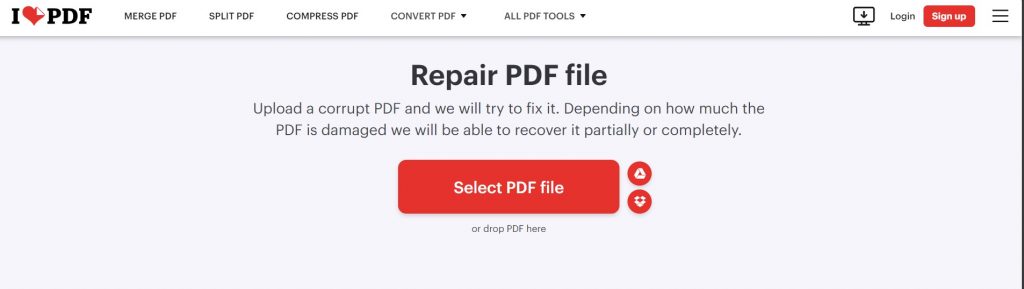
If the online tool fails or your file is too large, move to the next step.
Step 3: Use Ghostscript (For Tough Cases)
Ghostscript is a free, open-source interpreter that can process PDFs and often rebuilds them cleanly. Install it from the official site, then open a terminal/command prompt. Run a simple command like: gswin64c -o repaired.pdf -sDEVICE=pdfwrite -dPDFSETTINGS=/prepress input.pdf. This writes a new PDF from the old one, skipping corrupt objects. For macOS/Linux, use gs instead of gswin64c. This technique is especially good for fixing a bad xref table or repairing a PDF after a crash.
If Ghostscript gives you errors too, you might need to extract what you can.
Step 4: Extract Images and Text as a Last Resort
When repair fails entirely, salvage the content. Use a tool like pdfimages (comes with Poppler) to extract images from damaged PDF. For text, try pdftotext. Even if the PDF is partially broken, these tools often grab embedded data. You can then reassemble the pieces — for example, reinsert images into a new document. See our guide on how to extract images from damaged PDF for details.
Common Pitfalls
- Not making a backup first — always keep the original. If your repair makes things worse, you’ll need the original to try another method.
- Using shady online tools — some upload your file to unknown servers. Stick with well-known services or use offline options like Ghostscript. You can fix PDF without Acrobat safely.
- Ignoring the file size — a corrupted PDF that’s suddenly tiny or huge indicates severe damage. Don’t waste time; jump straight to Ghostscript or extraction.
I once spent an hour on an online fixer when all I needed was a single Ghostscript command. Learn from my mistake: try the command-line first if the damage is obvious.
A sadder but wiser user
Where to Next
These steps should revive most corrupted PDFs. If you’re still stuck, check out our other guides: we cover specific scenarios like PDF repair after crash and fixing common structural issues. You can also find tips for recovering files from network transfer errors. And remember — for future proofing, always keep backups of important documents. Good luck!




