
So you’ve got a damaged PDF and you need the images out of it—maybe it’s a corrupted report with charts you can’t lose, or a scanned document that got mangled during transfer. Don’t panic. Even if the PDF won’t open properly in a regular viewer, the images are often still tucked away inside the file structure. This guide is for anyone who’s ever stared at an error message and thought, “I just need the pictures.” By the end, you’ll have a set of working images extracted from even the most stubborn damaged PDF, using free tools on any operating system.
We’ll start with the quickest online method, then move to more powerful command-line and desktop tools for bulk or tricky cases. You don’t need to be a tech wizard—follow the steps in order, and you’ll likely save your images. And if the PDF is really far gone, we’ll also cover how to first fix PDF without software or try a dedicated repair method before extraction.
What You’ll Need
- Your damaged PDF file (duh).
- A web browser (for the online step).
- Optional: Python installed (for pdfimages on Windows/Mac/Linux).
- Optional: GIMP (free image editor) for manual extraction.
- Patience—some damaged files take a few tries.
Step 1: Assess the Damage
Before you dive in, check exactly how bad the PDF is. Try opening it in your normal PDF reader. If you get an error like “File is damaged” or “Cross-reference table error,” that’s a good sign—the images are often still intact. If the PDF opens but shows blank pages or garbled text, images might be hidden. If it doesn’t open at all, skip to Step 4. This quick check helps you pick the best method.

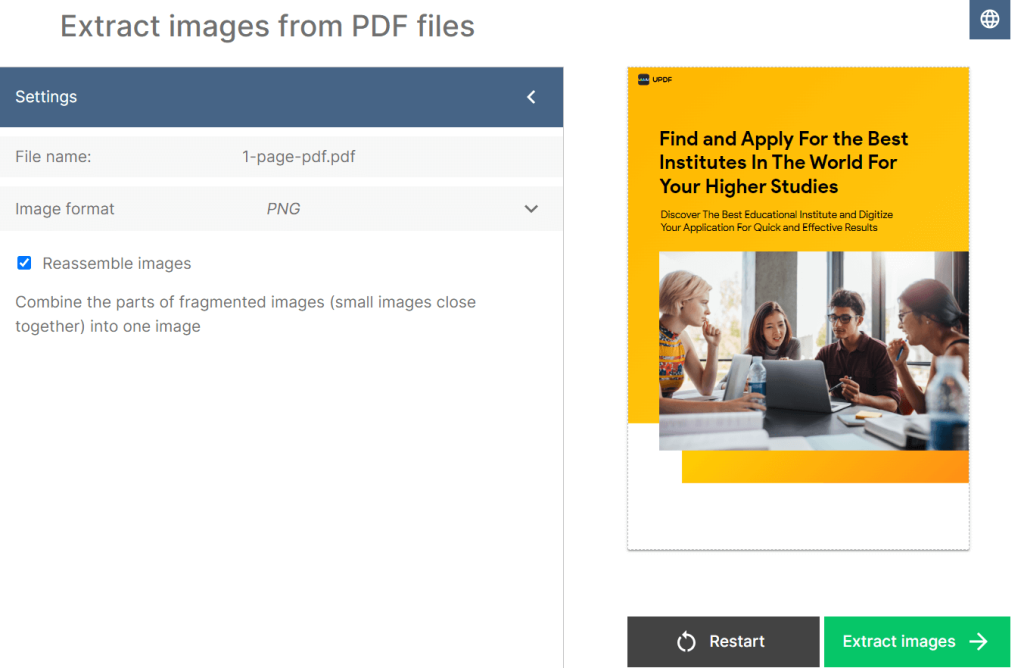
Step 2: Try an Online Extractor (Fast & Easy)
The simplest way to grab images is with a free online tool. Upload your PDF to a site like PDFaid (no account needed). It scans the file and lets you download all embedded images as a zip. This works great for PDFs that open partially. If you get a “file corrupted” error on the site, try online corrupted PDF recovery tools first to make it readable, then come back.
Step 3: Use pdfimages (Command Line) for Bulk Extraction
When the online option fails or you have hundreds of images, pdfimages (part of the poppler-utils package) is your friend. Install it via your package manager (Linux) or download poppler for Windows/Mac. Then run: pdfimages -all damaged.pdf output. This will extract all images as separate files (JPEG, PNG, etc.) even if the PDF has a bad Xref table. It’s the most reliable free tool for damaged files.

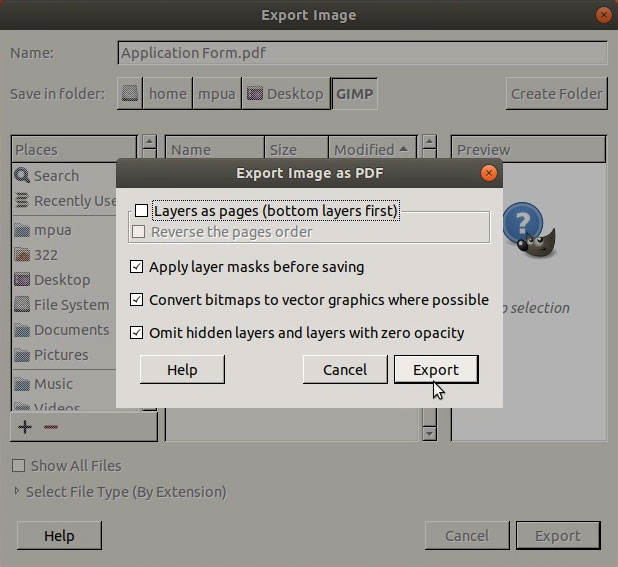
Step 4: Use GIMP to Open and Export Images
If pdfimages doesn’t work, open the damaged PDF in GIMP (free). File > Open, select the PDF, and choose a resolution (300 DPI is good). GIMP will render each page as a layer. You can then export each layer as an image (File > Export As). This method works well for PDFs that are visually broken but still renderable. For a deeper recovery, first repair PDF after crash with Ghostscript to fix the structure.
Step 5: Prioritize Repair Before Extraction (If PDF Is Severely Damaged)
When the PDF is so damaged that even pdfimages fails, try to repair it first. You can repair PDF with Ghostscript by running: gs -dNOPAUSE -dBATCH -sDEVICE=pdfwrite -sOutputFile=repaired.pdf damaged.pdf. This often fixes structure issues, then you can extract images from the repaired file. Alternatively, if the PDF’s header is corrupted, check our guide on repairing a damaged header. Once you have a readable PDF, repeat Step 2 or 3.
Common Pitfalls
- **The PDF is actually encrypted.** If the file is password-protected, extraction tools can’t access the images. Try to remove the password first, or use a tool that asks for credentials.
- **Images are compressed in unusual formats.** Some PDFs use JPEG2000 or JBIG2 compression. pdfimages with the -all flag handles most, but GIMP may not open them. Try converting with ImageMagick instead.
- **Online tools have size limits.** Free online extractors often cap file size at 50–100 MB. For larger files, use command-line tools or desktop apps like GIMP.
Where to Next
You’ve got your images out! Now that the crisis is over, consider backing up your PDFs regularly to avoid future heartache. If you ran into a particularly nasty corruption issue, check out our guide on fixing edited PDFs that won’t open, or learn how to recover legal PDFs with sensitive images. And if you ever need to extract images from a healthy PDF, the same steps work even faster.




