So you’ve opened a PDF and some pages are just… gone. Maybe it’s a work report, an eBook you downloaded, or a legal document you need to submit. Don’t panic — missing pages are a common PDF corruption symptom, and in most cases they’re recoverable. This guide is for anyone who’s dealt with a PDF that seems shorter than it should be, whether it happened because of a bad download, a crash during editing, or a file transfer error.
By the end of this tutorial, you’ll have a fully repaired PDF with all its original pages restored. We’ll cover several methods — from quick online tools to command-line fixes — so you can choose the one that fits your skill level and tools at hand. No prior technical experience required, just a little patience and the steps below.
What You’ll Need
- Your corrupted PDF file
- A PDF reader (Adobe Acrobat Reader, Foxit, or your OS default)
- Internet access (for online repair methods)
- Optional: Adobe Acrobat Pro (trial works)
- Optional: Ghostscript (free, command-line tool)
- Optional: A dedicated PDF repair tool (we’ll mention one)
Step 1: Confirm the Problem
Before diving into repairs, make sure the pages are actually missing and not just hidden or not rendering. Open the PDF in at least two different viewers (e.g., your browser and Acrobat Reader). If the page count differs or you see blank pages where content should be, then you’ve got a corruption issue. Sometimes the file itself is fine but the viewer struggles — that’s when a simple re-save or export to a new PDF helps.
Step 2: Try an Online PDF Fixer
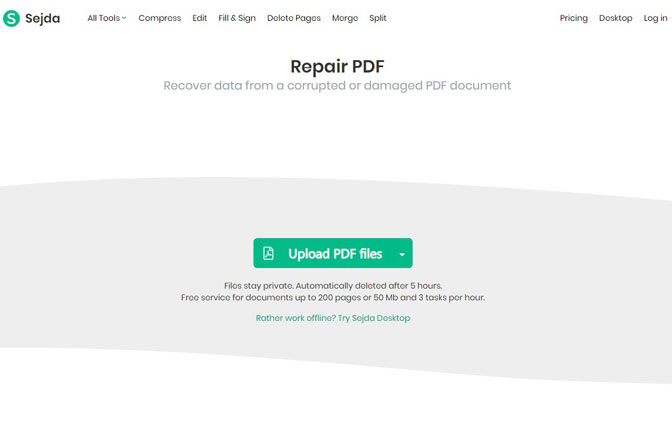
The quickest option is an online pdf fixer. Upload your file to a trusted service (like PDFRepairs.click or Smallpdf) and let it rebuild the structure. These tools often detect missing pages and regenerate the file. Be careful with sensitive documents — use a service that deletes uploads after processing. This method works best for minor corruption where the file still opens but skips pages.
Step 3: Use Adobe Acrobat Pro (or a free alternative)
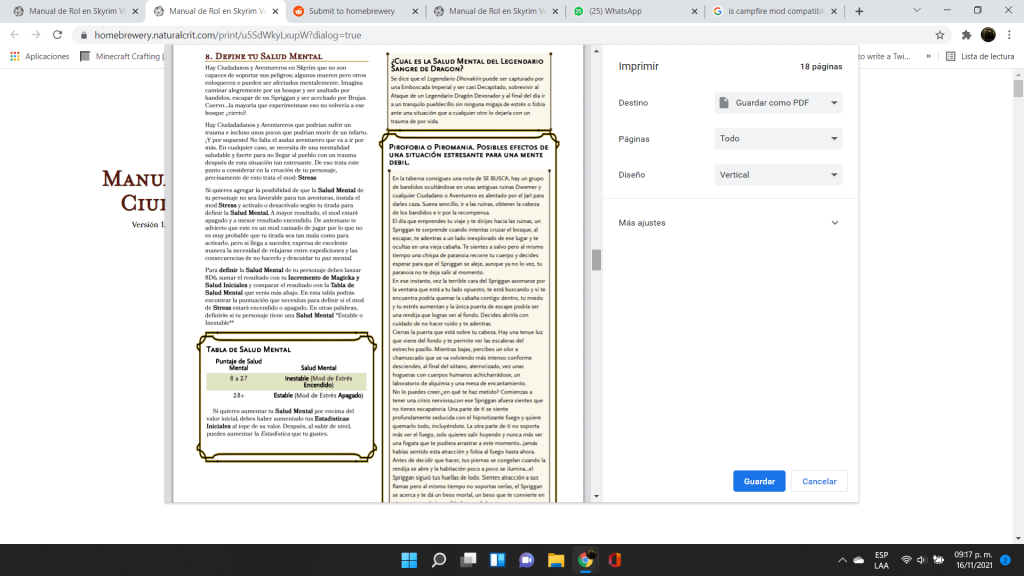
If you have Adobe Acrobat Pro, open the file, then go to File > Save As Other > Optimized PDF. Click OK without changing any settings — this forces Acrobat to recompile the PDF, often fixing missing pages. If you don’t have Acrobat, you can fix pdf without acrobat by using the free ‘Print to PDF’ trick: open the file in a reader, choose Print, then select ‘Microsoft Print to PDF’ as the printer. This recreates the file from scratch, which can recover lost pages.

Step 4: Recover with Ghostscript
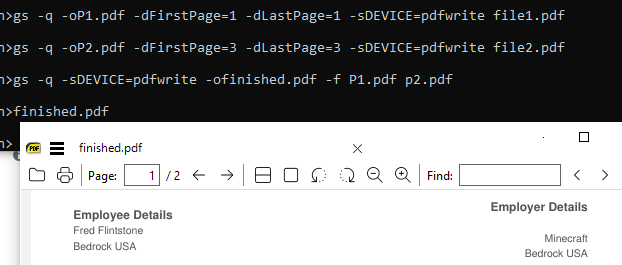
For stubborn corruption, Ghostscript is a powerful free tool. Download and install it, then run this command in the terminal: gs -o output.pdf -sDEVICE=pdfwrite -dPDFSETTINGS=/prepress input.pdf. This reprocesses the PDF and often fills in missing pages. If you’re new to command line, don’t worry — just copy-paste the command. We dedicated a full guide to repair pdf with ghostscript if you need more detail.
Step 5: Use a Dedicated PDF Repair Tool
When all else fails, specialized software like PDF Repair Toolbox can scan the file’s raw data and extract whatever pages are still there. These tools are not free, but they’re worth it for critical documents. Download a trial, load your file, and follow the repair wizard. The tool will attempt to rebuild the page tree and bring back those missing pages.
Common Pitfalls
- Not backing up the original file first. Always save a copy before attempting any repair — some methods can make things worse.
- Assuming missing pages are always repairable. If the PDF was truncated during download (e.g., incomplete transfer), the pages were never written. Check the file size against expected size. For those cases, our guide on how to recover incomplete pdf might help.
- Using an online tool for sensitive documents without checking their privacy policy. Stick to services that automatically delete your file after processing.
Where to Next
Missing pages are just one flavor of PDF trouble. If you’re dealing with blank pages instead of nothing, our guide on pdf repair for blank pages covers that specifically. And if you frequently run into PDF issues, bookmark the PDF Repair & Tools section for quick access to all our repair tutorials.




