You know the pain: you’re about to open an important PDF—maybe a contract, an ebook, or a school assignment—and your PDF reader says ‘File is damaged and cannot be repaired’ or shows garbled text. The last thing you want is to sign up for yet another online service, hand over your email, and get spammed forever. Good news: you don’t have to. There are plenty of ways to repair a PDF without signup, using free online tools that work right in your browser.
By the end of this guide, you’ll have a clean, readable PDF that matches the original as closely as possible. No account creation, no software downloads, and no personal information needed. Let’s dive in.
What You’ll Need
- A corrupted or broken PDF file sitting on your computer or phone
- A modern web browser (Chrome, Edge, Firefox, Safari—any will do)
- A stable internet connection (your file will be uploaded to a server for processing)
- Patience—most repairs are completed in under a minute
That’s it. No special software, no credit card, no email signup. Just your file and a working browser.
Step 1: Choose a Trusted No-Signup PDF Repair Tool
Open your browser and navigate to a reliable online PDF repair service that doesn’t require registration. Several reputable services let you upload your file and get a repaired version without any account. Look for a tool that explicitly states ‘no signup’ or ‘no account needed’. The site pdfrepairs.click, for example, offers a dedicated tool for corrupted pdf repair without any login.
To make sure the tool is trustworthy, quickly scan the privacy policy if you’re concerned about file security. Most reputable services automatically delete your files after processing (usually within an hour). Avoid any site that asks for your email before letting you repair a PDF.
Step 2: Upload Your Corrupted PDF
Once you’re on the tool’s page, look for a clear ‘Upload’ or ‘Choose File’ button. Click it and select the broken PDF from your computer or phone. Most tools also support drag-and-drop: you can simply drag your PDF file from a folder and drop it onto the dashed upload area.
The upload time depends on your file size and internet speed. For a typical document (a few megabytes), it’ll be almost instant. If your file is huge (hundreds of MB), consider using a tool that offers chunked upload—but for most people, a standard upload works fine.
Step 3: Start the Repair Process
After the upload completes, you’ll usually see a ‘Repair’ or ‘Fix’ button. Click it. The tool will analyze your PDF, try to reconstruct the file structure, and fix common corruption issues like broken cross-reference tables, missing objects, or encoding problems.
This process typically takes less than a minute. You’ll see a progress bar or a spinning indicator. Don’t refresh the page—let the tool finish its work. If you have a severely damaged file (e.g., from a failed download), you might want to check our guide on how to repair pdf file online for additional tips.
Step 4: Download the Repaired PDF
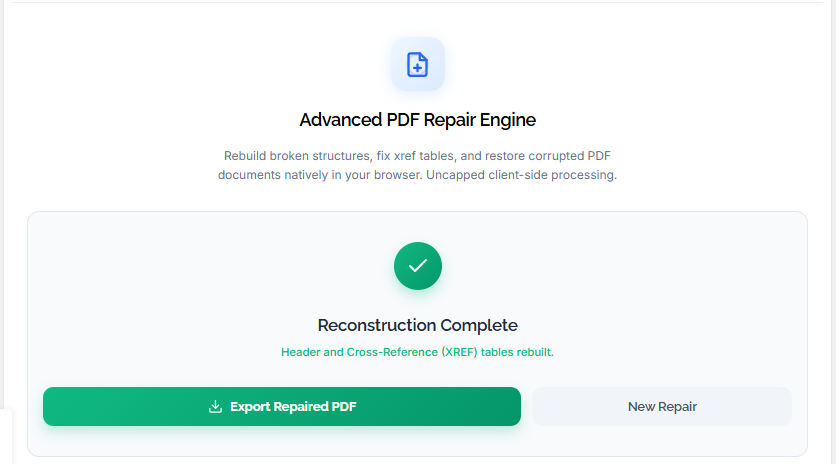
Once repair is complete, the tool will present a ‘Download’ button. Click it to save the fixed PDF to your device. Some services also offer a preview before downloading—take a quick look to ensure the document looks right.
Still having issues? If the file still doesn’t open or looks garbled after downloading, you might have a more complex problem. Try using a different tool or method. Our articles on fix pdf without software and online pdf fixer cover alternative approaches that don’t require signups.
Common Pitfalls
- File too large: Some free no-signup tools impose a file size limit (often 10-50 MB). If your PDF exceeds the limit, you may need to split it first or use a desktop tool. Check the tool’s FAQ before uploading.
- Upload timeout: If your internet is slow or the file is huge, the upload may time out. Try using a wired connection or a tool that supports resume uploads. Alternatively, compress the PDF if possible.
- Temporary server issues: Free online tools rely on public servers. Occasionally, they may be down or overloaded. Wait a few minutes and try again, or switch to a different no-signup service.
If you’re still stuck after trying these steps, remember that not all PDFs can be fully recovered. But in most cases, these simple no-signup methods work. For more stubborn corruption, you can explore advanced methods like fix pdf after network transfer or using a dedicated tool like Ghostscript (which requires download but no signup).
Where to Next?
Now that you’ve repaired your PDF without any signup hassle, you might want to learn how to prevent corruption in the future. Check out our guide on how to fix a corrupted PDF to understand common causes. Also, if you often deal with incomplete downloads, our article on fixing PDF corruption from network transfers can help. For a broader overview of online repair options, see our online pdf fixer roundup.




