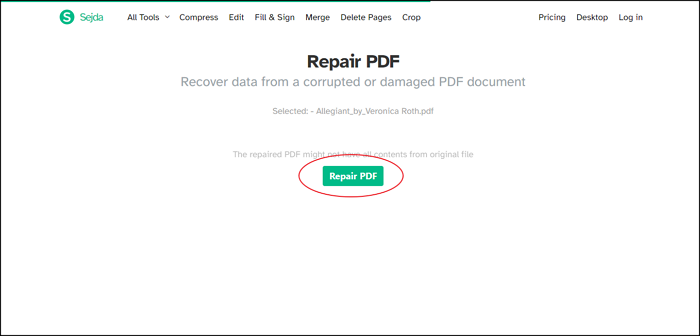
Ever had a PDF that just won’t open, or when it does, it’s a garbled mess? Maybe you downloaded an important document and got a blank page instead of the content. This guide is for anyone who’s stuck with a corrupted PDF and wants a quick, free fix without installing any software. By the end, you’ll have a clean, readable PDF saved on your device.
We’ll walk through using online PDF repair tools that work right in your browser. No downloads, no Acrobat required. It’s perfect for one-off repairs or when you’re on a shared computer. Ready? Let’s get that PDF back in shape.
What You’ll Need
- A corrupted PDF file (know its location on your device)
- A stable internet connection
- A modern web browser (Chrome, Firefox, Edge, or Safari)
- A little patience – upload times depend on file size
Step 1: Choose an Online PDF Repair Service
First, you need a trustworthy online tool. There are many free options, but not all are reliable. A good place to start is our guide to the best online pdf fixer, which compares popular services. Alternatively, you can use well-known platforms like Smallpdf, iLovePDF, or PDFResizer. The key is to pick one that doesn’t upload your data to servers you don’t trust.
Step 2: Upload Your Corrupted PDF
Once you’re on the tool’s website, look for an ‘Upload’ or ‘Choose File’ button. Click it and select your corrupted PDF from your computer. Many tools also support drag and drop – just drag the file into the browser window. If you have multiple corrupted files, check if the tool supports batch processing, but for now, focus on one file at a time.
Step 3: Wait for the Repair Process
After uploading, the tool will scan your PDF and attempt to fix corruption. This usually takes a few seconds to a couple of minutes, depending on file size. You’ll see a progress bar or a spinning icon. During this time, don’t close the browser tab or navigate away. Some advanced tools offer options like ‘Repair only’ or ‘Repair plus optimize’ – stick with the basic repair unless you know what you’re doing.
Step 4: Preview and Verify the Repaired PDF
Once repair completes, many tools show a preview of the document. Take a moment to flip through the pages. Check if all content is there – text, images, and formatting. If you see missing sections or weird characters, you might need a more advanced method like our online corrupted pdf recovery guide. If it looks good, proceed to download.
Step 5: Download the Repaired File
Click the ‘Download’ or ‘Save’ button. Your browser will prompt you to choose a location. Save it with a new filename to avoid overwriting the original (e.g., add ‘_repaired’ to the name). Now you have a working PDF! If you run into issues, some tools also offer a ‘Send to email’ option for backup.
Common Pitfalls
- Uploading the wrong file: Double-check the filename before uploading. You might accidentally repair a different PDF.
- Using an unreliable tool: Not all online PDF repair tools are secure. Stick to reputable ones like the browser pdf repair tool we reviewed.
- Expecting a perfect repair: Online tools work best for minor corruption. For severe issues, you may need offline methods such as fix pdf without software or dedicated software.
Where to Next?
Repairing a PDF online is great for quick fixes, but sometimes the file is beyond basic repair. Check out our guide on repair pdf email attachment for specific cases. Also, if your PDF still has blank pages or missing content, try our step-by-step for recovering from a crash. You’ve got this – your documents are in good hands!




