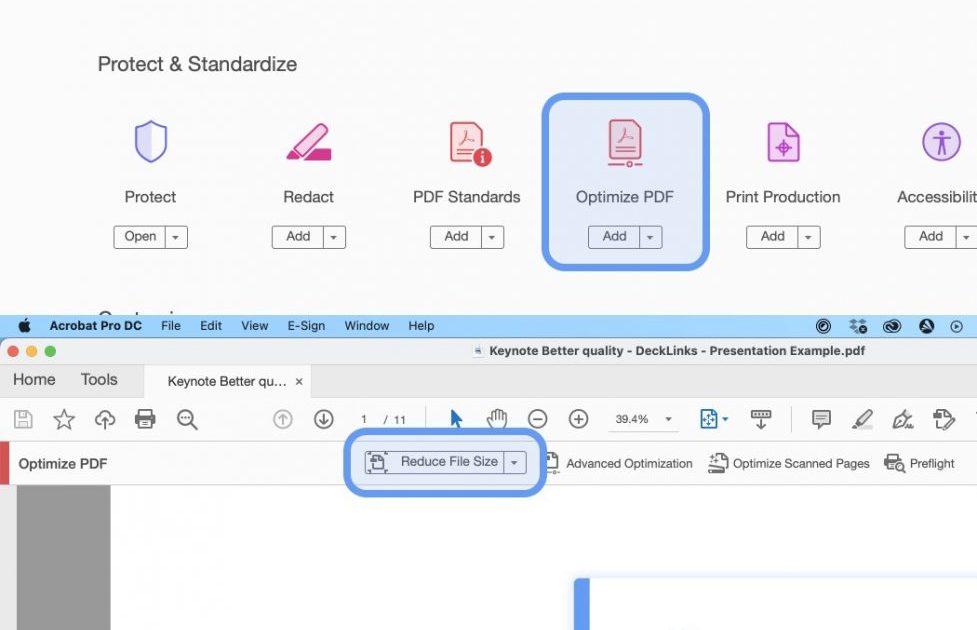
Did you compress a PDF to email it or save disk space, only to open it later and see blurry images, missing text, or a file that won’t even open? You’re not alone. Compression algorithms can sometimes mangle the internal structure of a PDF, especially if the file has complex formatting or embedded fonts. This guide is for anyone who’s stared at a garbled PDF and thought, “I should have kept the original.” By the end, you’ll have a clean, readable PDF again—using tools you probably already have or can grab for free.
We’ll walk through five practical steps, from simple re-saves to command-line fixes. No matter your skill level, you’ll find a method that works. And if you’re worried about making things worse, don’t be—we’ll also cover common pitfalls so you don’t end up in a deeper hole.
What You’ll Need
- The compressed PDF file you need to fix
- A backup of the compressed PDF (just in case)
- Optional: Adobe Acrobat Pro (trial works) or a free alternative like Ghostscript
- Optional: An internet connection for online tools
- Patience and a few minutes of your time
Step 1: Assess the Damage
Before you start fixing, open the compressed PDF in your default viewer. Note what’s broken: Are images pixelated or missing? Is text garbled or replaced with symbols? Do pages look blank or misaligned? This assessment will help you choose the right repair method. For example, missing images often point to a decompression issue, while garbled text might be a font embedding problem.
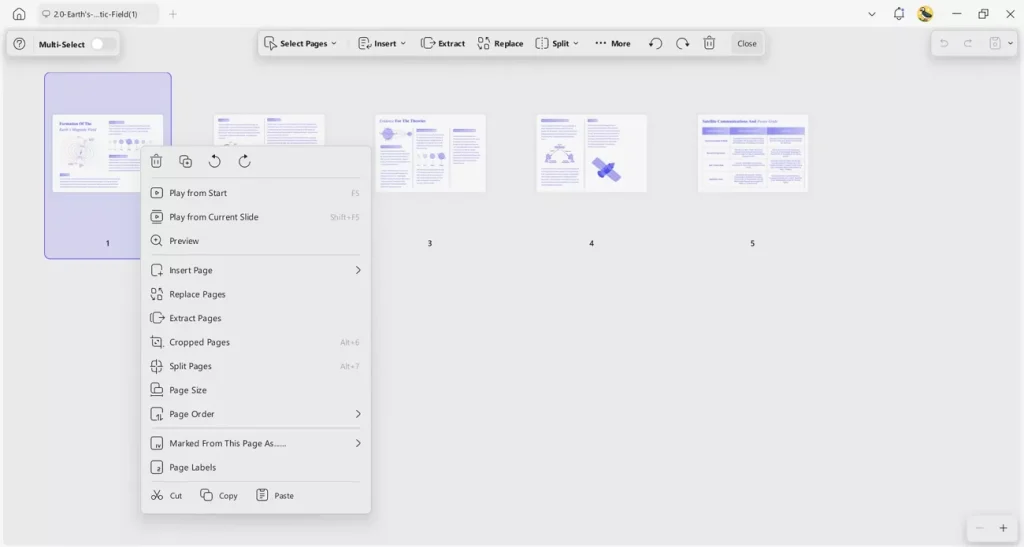
If the PDF won’t open at all, try a different reader. Sometimes the issue is with your viewer, not the file. You can also run a quick check using a pdf integrity checker to see if the structure is sound.
Step 2: Re-save as a New PDF
The simplest fix: open the compressed file in any PDF editor (like Adobe Acrobat, Foxit, or even Preview on Mac) and choose File > Save As > PDF. Re-saving often rewrites the internal structure cleanly, fixing many compression artifacts. If you don’t have a full editor, try printing to PDF using your OS print dialog—that can also rebuild the file.
Did that work? Great! If not, move on to the next step.
Step 3: Use a Dedicated PDF Repair Tool
If re-saving didn’t cut it, try a tool built for corrupted pdf repair. Adobe Acrobat Pro has a built-in repair feature: go to Tools > Repair. Alternatively, online tools like the one at pdfrepairs.click can handle compression-related corruption without installing anything. Upload your file, let the service analyze and fix it, then download the repaired version.
Free options like PDF24 or Smallpdf also offer repair functions, but be careful with sensitive documents. For offline use, consider dedicated software that specializes in bad xref pdf repair—a common compression side effect.
Step 4: Try Ghostscript (Command Line)
When all else fails, Ghostscript is a powerful command-line tool that can decompress and recompress a PDF correctly. Install Ghostscript, then run a command like this: gs -sDEVICE=pdfwrite -dCompatibilityLevel=1.7 -dNOPAUSE -dBATCH -sOutputFile=output.pdf input.pdf. This recreates the PDF from scratch, often fixing deep structural issues caused by compression.
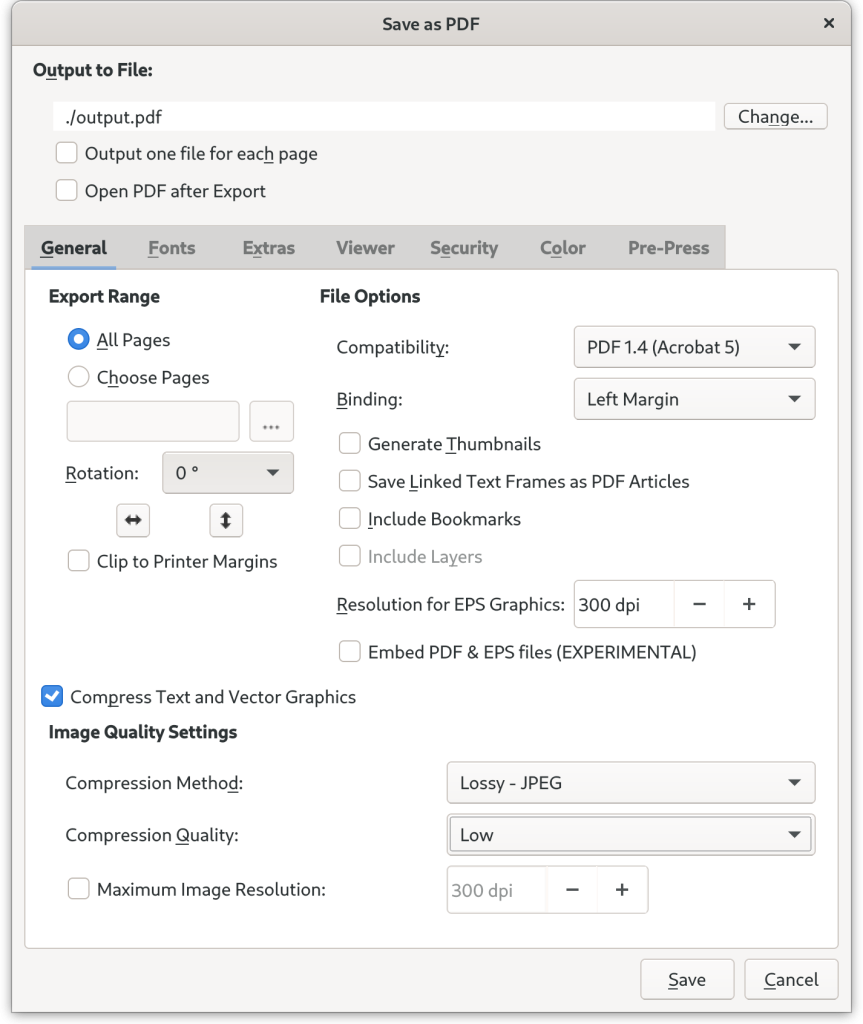
If you’re not comfortable with the terminal, you can use a GUI wrapper like RedNumber or PDFCreator. Ghostscript is especially effective for repair linearized pdf files that got mangled during compression.
Step 5: Recompress with Care
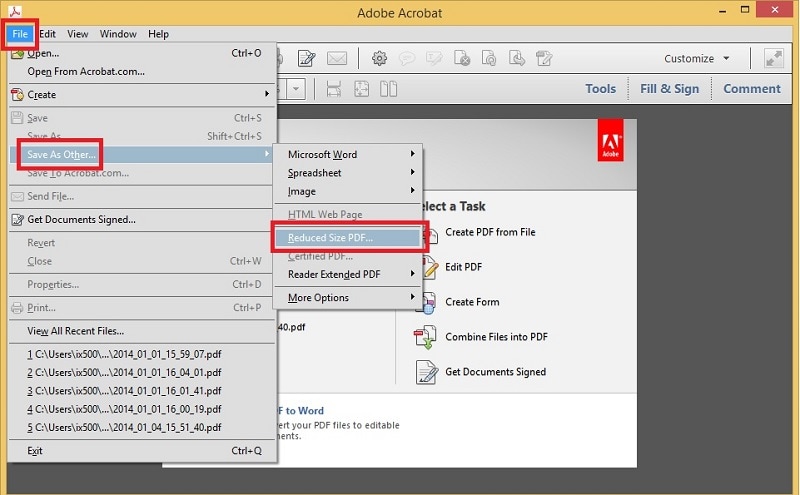
If your goal was to shrink the file, but the compression went wrong, try recompressing using a different method. In Adobe Acrobat, go to File > Save As > Reduced Size PDF. Use high-quality settings to avoid further damage. Or use online tools that let you choose compression level: pick “medium” or “low” instead of “maximum” to preserve readability.
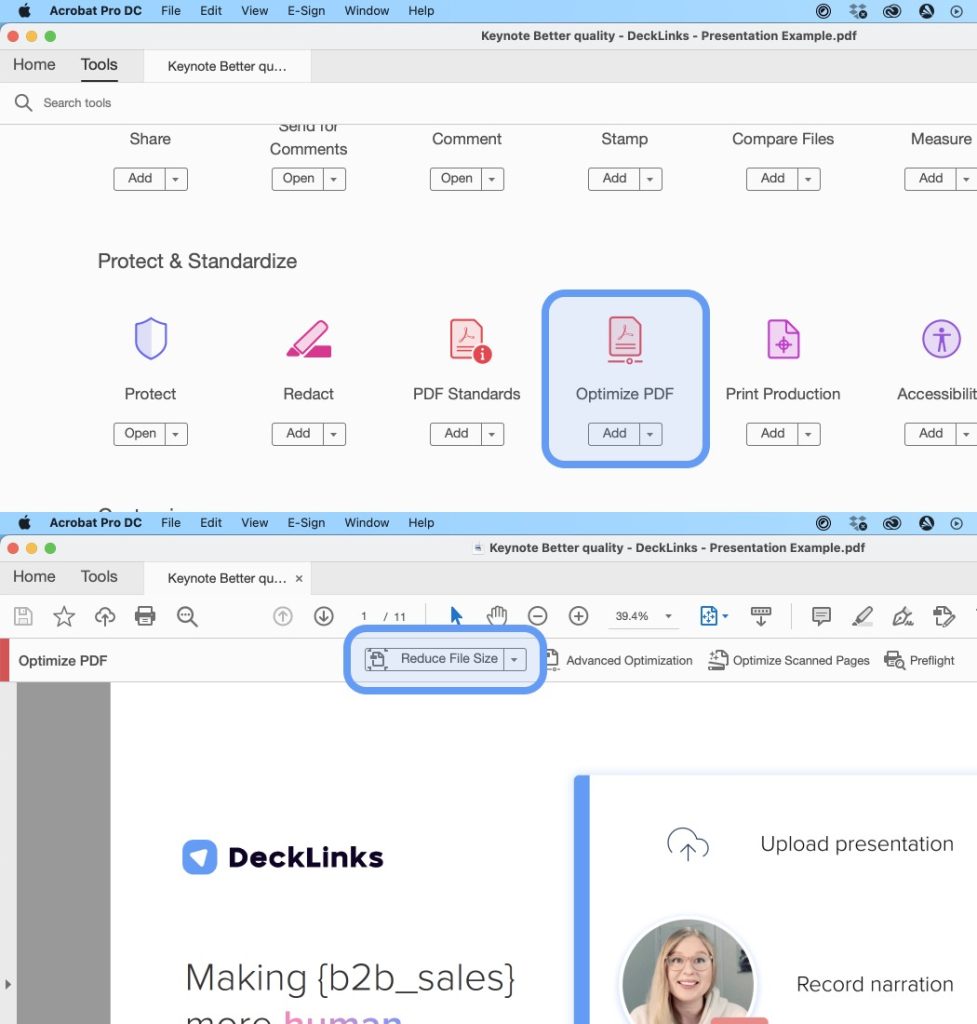
Remember: recompression can reintroduce the same issues. Always keep a backup of your repaired file before compressing again.
Common Pitfalls
- Over-compressing again – Fixing a compressed PDF by recompressing too aggressively can make things worse. Use moderate settings and test the output.
- Losing the original – Always keep a backup of the compressed version in case the repair goes wrong. Never overwrite the only copy.
- Using the wrong tool – Not all PDF repair tools handle compression artifacts. If one doesn’t work, try another from our list of fix edited pdf recommendations.
Where to Next?
You’ve got your PDF back in shape. Now why not check its integrity with our pdf integrity checker guide to make sure it’s fully healthy? Or if you’re dealing with other PDF issues, browse our library of repair tutorials—we’ve got you covered.




