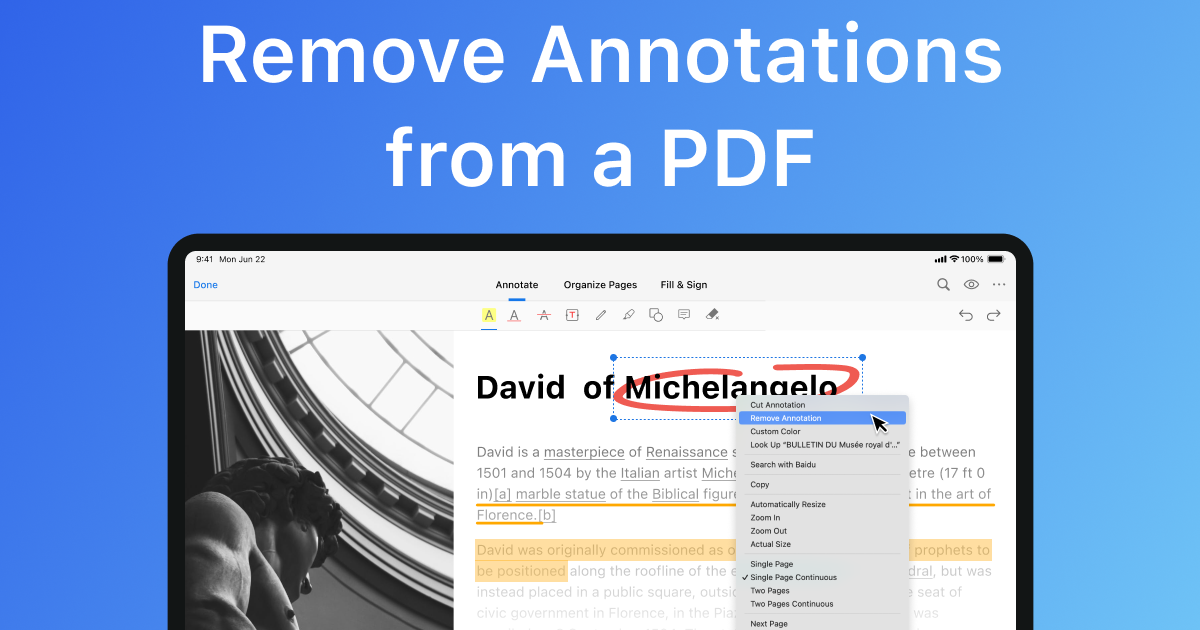
You’ve been studying or working on a PDF for hours, adding highlights, comments, and sticky notes. Then you open it again and poof—everything’s gone. The annotations have vanished. Don’t panic. This happens more often than you’d think, and in most cases, those annotations are still hiding in the file somewhere. This guide is for anyone who’s lost their PDF annotations—students, researchers, lawyers, or project managers—and wants them back. By the end, you’ll know exactly how to recover those annotations using built-in tools, a little know-how, and some free or affordable software.
We’ll walk through four proven methods: checking the annotation layer (often the quickest fix), repairing the PDF to restore missing data, extracting annotations with a dedicated tool, and recovering from a previous version of the file. No guarantee for every edge case, but these steps work for the vast majority of situations. Grab your PDF and let’s get those annotations back.
What you’ll need
- A PDF file with missing annotations
- Adobe Acrobat Reader (free) or Adobe Acrobat Pro (trial or paid)
- A backup or earlier version of the PDF (if available)
- Optional: a reliable internet connection for online tools
- Patience—sometimes the annotations come back after a simple re-save
Step 1: Check the annotation layer
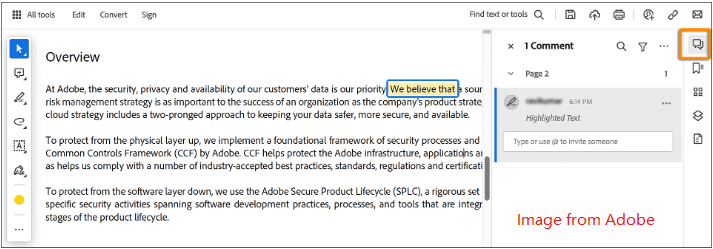
Annotations in PDFs are often stored in a separate layer. Sometimes that layer gets hidden or toggled off by accident. Open your PDF in Adobe Acrobat Reader or Pro and look for the Comments pane (usually on the right side). Click the speech bubble icon or go to View > Comments. If you see your annotations listed there, they’re still in the file—they just might be hidden on the page. Check the settings to make sure comments are set to display. You can also try toggling the ‘Show Comments List’ button.
Step 2: Repair the PDF to restore annotation data
If the annotation layer is empty, the next step is to repair the PDF itself. Often, annotations are still embedded in the PDF structure but the file’s internal pointers are damaged. A simple re-save or optimized save can rebuild those pointers. In Adobe Acrobat Pro, go to File > Save As Other > Optimized PDF, and save a copy. If you don’t have Pro, try using a dedicated PDF repair software that can fix these internal issues without compromising quality—check out our guide on how to repair PDF without losing quality. Alternatively, you can use an online tool—just be cautious with sensitive documents. Some online services allow you to repair PDF errors online for free.
Step 3: Extract annotations with a dedicated tool
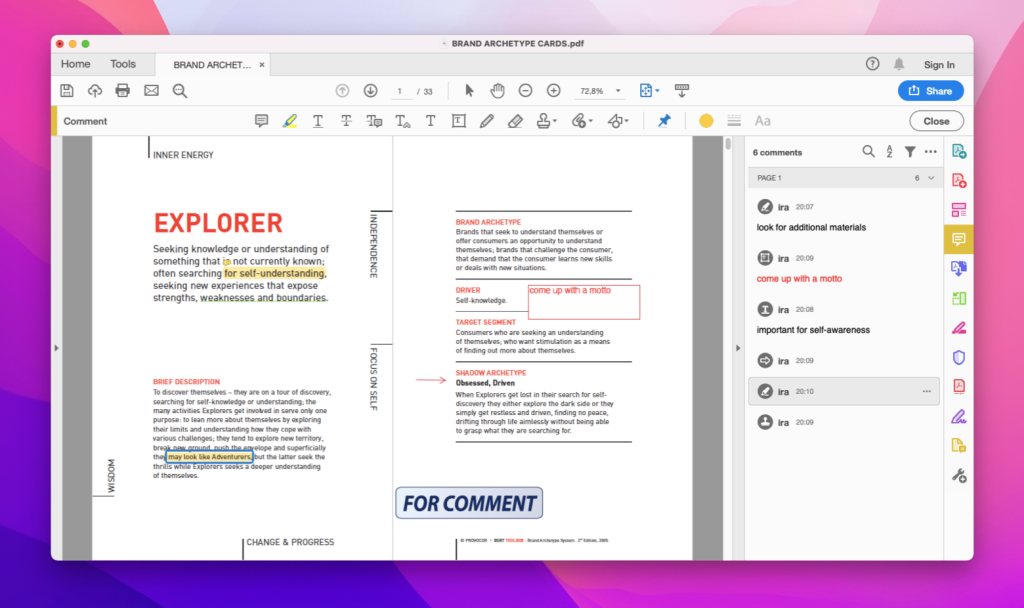
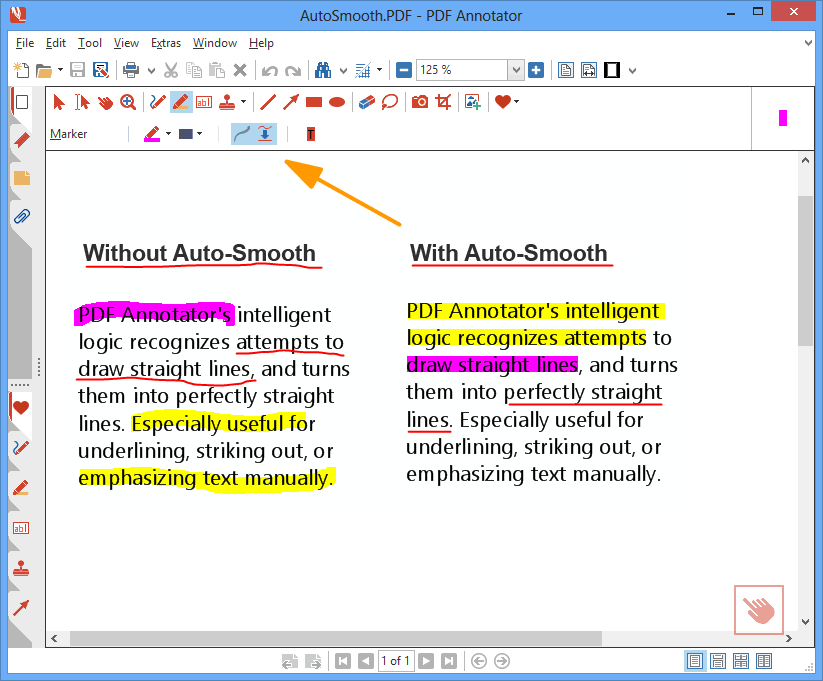
When the above methods fail, the annotations might still be in the file but not displayed. Specialized annotation extraction tools can parse the raw PDF code and pull out comments, highlights, and sticky notes. Programs like A-PDF Annotation, PDF Annotator, or free online extractors can do this. Open your PDF in the tool, run the extraction, and export the annotations as a separate file (e.g., XFDF or text). You can then import those annotations back into your main PDF using Acrobat. This method works even when the PDF is slightly corrupted but not completely destroyed. For severely damaged files, you may need a more comprehensive PDF file repair solution.
Step 4: Recover from a previous version
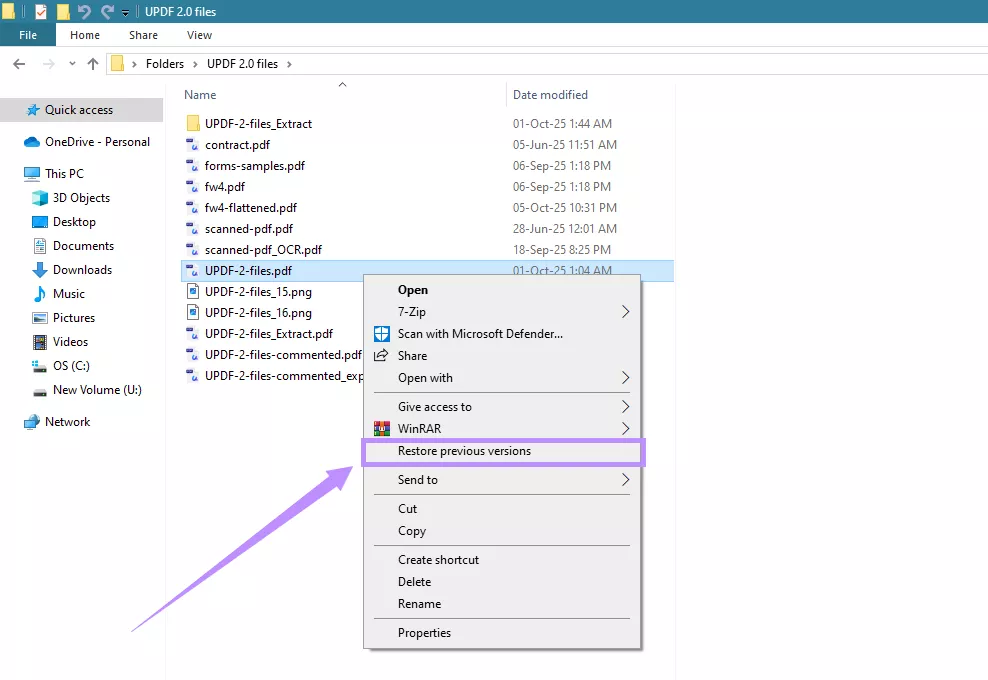
If you have version history enabled (Windows File History, Mac Time Machine, or cloud storage like OneDrive/Google Drive), you might be able to restore an earlier version of the PDF that still contains the annotations. On Windows, right-click the PDF file, select Properties, go to the Previous Versions tab, and choose a version from before the annotations disappeared. On Mac, open Time Machine and browse to the folder containing the PDF. If you use cloud syncing, check the version history in the web interface. This is often the simplest recovery method—if you have a backup. If not, make it a habit to enable versioning for important documents. For more recovery scenarios, see how to recover a damaged PDF.
Common pitfalls
- Saving over the original file instead of using ‘Save As’. Always save a copy before attempting repairs so you don’t lose the original.
- Using free online tools without considering privacy. Annotations may contain sensitive info—use desktop software or a trusted online service that promises not to store your files.
- Assuming annotations are recoverable after the PDF has been flattened. Once annotations are merged into the page content, they can’t be extracted separately. Always keep an unflattened backup.
Where to next
Now that you’ve recovered your annotations, make sure to keep them safe. Consider exporting annotations regularly as a separate backup file. If you’re dealing with more complex PDF issues, like corrupted invoices or academic papers, check out our guides on fixing those specific types. And if you ever lose annotations again, you’ll know exactly what to do. Happy reading!




