You’re trying to open an important PDF and boom — your reader says “file is damaged,” “cross-reference table is broken,” or just goes blank. If you’ve been there, you’re in the right place. This guide is for anyone who needs to fix a broken PDF right now, without downloading sketchy software or signing up for a paid service.
By the end of this tutorial, you’ll have a working PDF file again — recovered through free, reputable online tools. You’ll also know how to check if the repair worked and what to do if the first attempt fails. No tech skills required, just a browser and five minutes.
What You’ll Need
- The corrupted or error-prone PDF file (keep a backup copy just in case)
- A stable internet connection
- A modern browser (Chrome, Firefox, Edge, or Safari)
- Optional: a secondary PDF reader (like Adobe Acrobat Reader) to double-check the result
Step 1: Identify the Specific Error
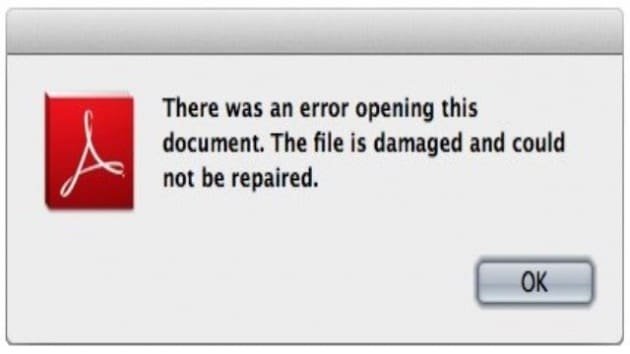
Different PDF errors need different repair approaches. Before you jump in, note what your PDF reader says when you try to open the file. Is it “this file is damaged”, “could not open because of an error”, “cross-reference table not found”, or just blank pages? This will help you pick the right online tool.
Step 2: Choose a Reputable Online PDF Repair Tool
Not all online repair services are equal. Stick with well-known, browser-based tools that don’t require file uploads to shady servers. Good options include iLovePDF, SmallPDF, or the built-in repair feature of Google Drive (which can re-save a PDF and fix minor issues). For this guide, we’ll use the free “Repair PDF” tool from iLovePDF because it’s fast and handles most common errors.
Step 3: Upload Your Corrupted PDF
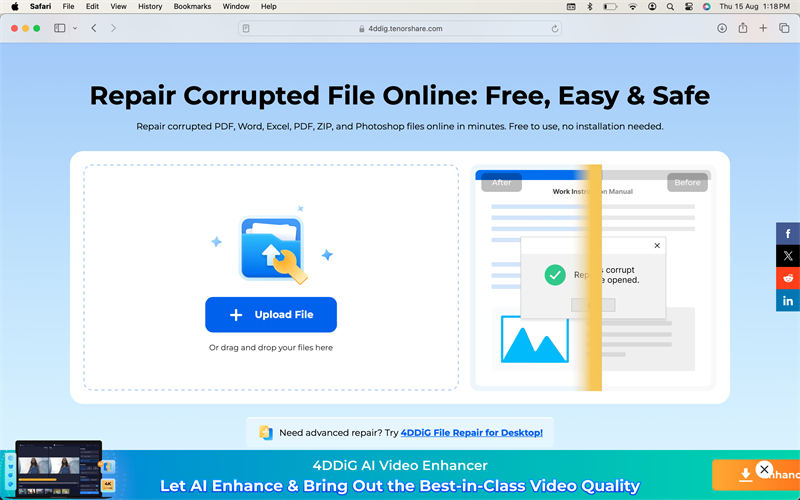
Go to the iLovePDF Repair PDF page (or your chosen tool). Click the “Select PDF file” button and choose the corrupted file from your computer. If you prefer, you can also drag and drop the file into the upload area. The tool will automatically start scanning and repairing the file.
Step 4: Wait for the Repair to Finish
The repair process usually takes a few seconds to a minute, depending on file size. You’ll see a progress bar or spinning icon. Don’t close the browser tab — wait until the “Download” button appears. If the tool can’t fix the file, it will show an error message. In that case, try a different tool or a corrupted pdf repair method for tougher errors.
Step 5: Download and Test the Repaired PDF
Once the repair completes, click “Download” to save the fixed file. Open it in your PDF reader. Check that all pages are present, the text is readable, and any images display correctly. If the file still has issues — like blank pages — try using a specific tool for pdf repair for blank pages. For severe corruption, you might also need a pdf integrity checker to verify the internal structure.

Common Pitfalls
- Uploading a file that’s too large: Some free online tools have a file size limit (e.g., 100MB). If your PDF is over that, you’ll need to split it first using a free PDF splitter or use a desktop tool. Also check fix pdf after compression if size is the issue.
- Assuming all errors are repairable: Very severe corruption — like a PDF that got truncated mid-download — may not be fully recoverable online. You might need a desktop tool that can rebuild the file from scratch. Check how to recover an incomplete PDF for that scenario.
- Not keeping a backup: If the repair tool alters the file in a way that makes it worse (rare but possible), you lose the original. Always keep a copy of the original corrupted PDF. You can then try alternative tools like a browser pdf repair tool that works directly in Chrome.
Where to Next
Now that your PDF is back in action, you might want to learn about preventing future corruption. Check out our guide on repair pdf without losing quality if you often work with compressed files. If you need to extract images or text from a damaged document, see our tutorial on extract images from damaged PDF. And for a deeper understanding of how PDFs work, read about fix signed pdf that won’t open. Happy repairing!




