If you’ve ever compressed a PDF to shrink its file size, you know the trade-offs: sometimes the result is a garbled mess, missing pages, or a file that won’t even open. This guide is for anyone staring at a compressed PDF that’s gone wrong. You don’t need to be a tech wizard — just follow along, and by the end you’ll have a fully repaired PDF that looks and works like it did before compression (or pretty close).
We’ll cover several methods: free online tools, Adobe Acrobat tricks, and dedicated repair software. You’ll also learn what causes compression corruption and how to avoid it next time. Ready to bring your PDF back to life? Let’s dive in.
What You’ll Need
- Your compressed PDF file (obviously!)
- A stable internet connection (for online tools)
- Adobe Acrobat Pro (optional, but useful for advanced repair)
- A backup copy of your original file (always a good idea)
- A PDF repair tool like SysTools or PDF Repair Kit (for severe cases)
Step 1: Check If the PDF Is Actually Corrupted
Sometimes a compressed PDF isn’t truly broken — your PDF reader might just be having a bad day. Before you panic, run a quick integrity check. You can use a free online PDF integrity checker or open the file in a different viewer. If you want a detailed report, check out our guide on PDF integrity checker.
Step 2: Re-download or Decompress the File
If the PDF came from an email or a download, the compression tool itself might have glitched. Try re-downloading the original. If you compressed it as a ZIP or RAR, extract the PDF using 7-Zip or WinRAR. Sometimes the corruption is just in the container, not the actual PDF. After extracting, try opening the PDF again. If that works, you’re done. If not, move on.

Step 3: Use an Online PDF Repair Tool
Plenty of free websites can fix minor compression glitches. Head to a trusted service like PDFRepairs.click and upload your file. They’ll scan for errors and output a clean version. This method works wonders for broken metadata or missing fonts. For a deeper dive, see our guide on how to repair PDF file online.
Step 4: Repair Without Losing Quality Using Adobe Acrobat
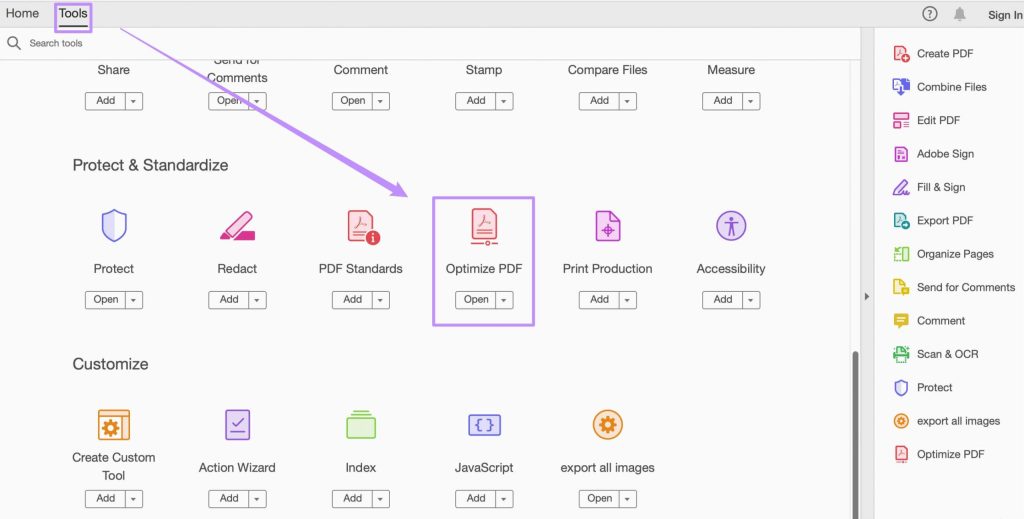
If the online tool didn’t cut it, open the PDF in Adobe Acrobat Pro. Go to File > Save As Other > Optimized PDF. In the dialog, tweak the compression settings — reduce image resolution only as needed, and keep fonts embedded. This often restores lost quality. For a full tutorial, check out our article on repair PDF without losing quality.
Step 5: For Severe Corruption, Use Dedicated Repair Software
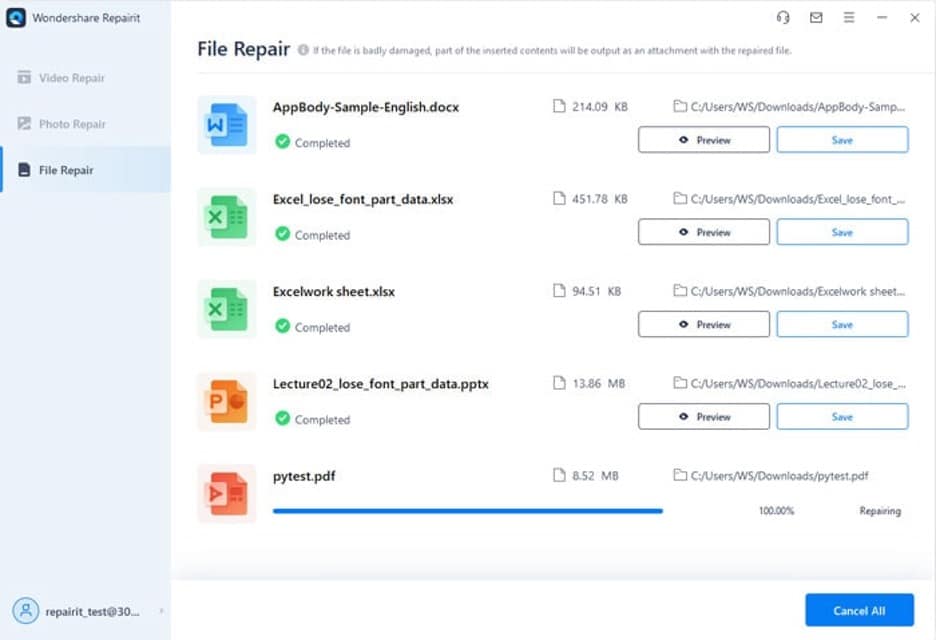
When nothing else works, it’s time for the big guns. Tools like SysTools PDF Repair or PDF Repair Kit can reconstruct even badly damaged files. Download one, run the scan, and let it auto-repair. These are usually paid, but many offer free trials. Our corrupted PDF repair guide covers the best options.
Common Pitfalls
- Overwriting the original file without a backup — you can lose everything if the repair fails. Always keep a copy.
- Using shady online tools that upload your sensitive documents to unknown servers. Stick to reputable sites or use desktop software for private files.
- Not checking the page count after repair. Sometimes pages go missing or turn blank. If that happens, try a different method or check our guide on recover incomplete PDF.
Where to Next
You’ve fixed your compressed PDF — great! But if you run into other issues, we’ve got you covered. Learn how to fix PDF after compression more thoroughly, or try extracting images from a damaged PDF. Keep exploring our PDF repair library to become a pro.




