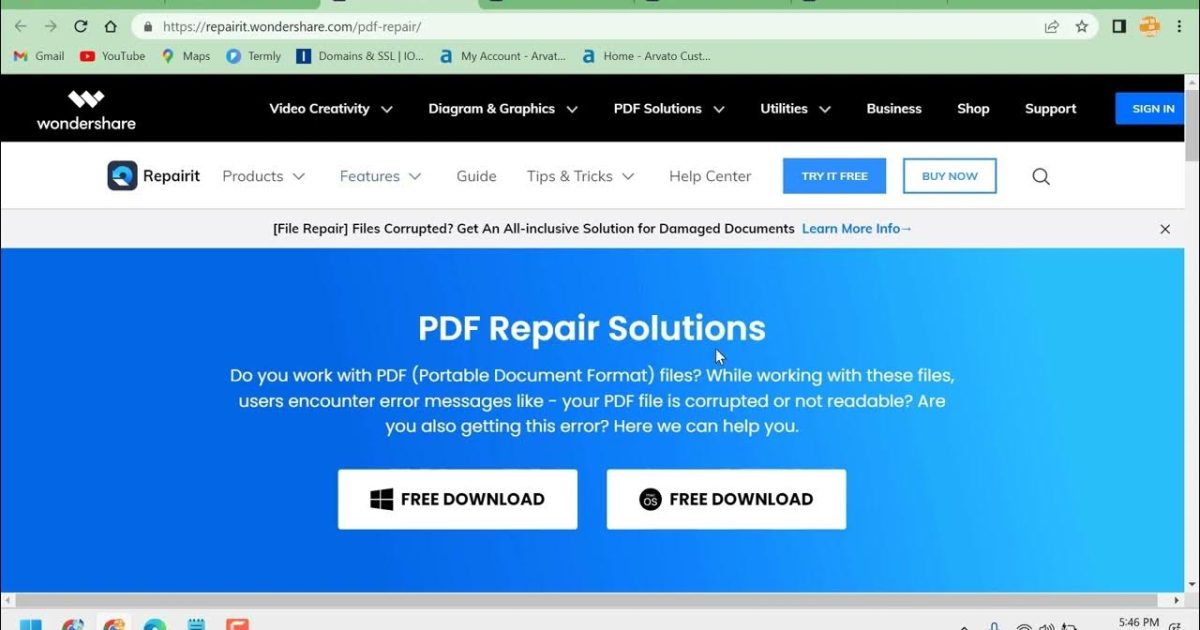
So your PDF won’t open, shows garbled text, or gives you an error message. Don’t panic — it’s probably not permanently broken. This guide is for anyone who’s staring at a damaged PDF and needs a practical way to get it back. By the end, you’ll have a working file (or at least recoverable content) using free tools and a few manual tricks.
We’ll cover everything from quick online fixes to deeper manual repairs. No technical degree required — just follow the steps in order. Most damage is fixable with the first method, but if that fails, we’ve got backups.
What You’ll Need
- The damaged PDF file on your computer or phone
- A stable internet connection (for online tools)
- Adobe Acrobat Reader (free) or another PDF viewer
- A second PDF tool like PDFtk or Ghostscript (optional)
- A backup of the file (just in case)
Step 1: Try a Simple Re-open
Sometimes a PDF just needs a fresh start. Close the file completely, wait a few seconds, and open it again. If that doesn’t work, restart your device — this clears temporary glitches. Still no luck? Move to Step 2.
Step 2: Use a Browser-Based PDF Repair Tool
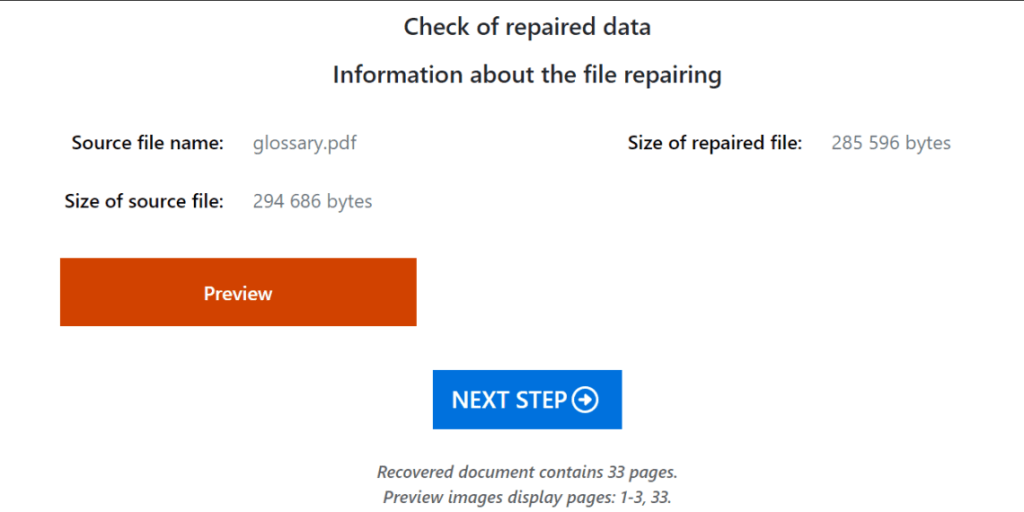
Online tools can fix many types of corruption without installing anything. Upload your file to a reputable service like iLovePDF, Smallpdf, or Sejda. They’ll try to rebuild the PDF structure. If you want a quick no-signup option, check out this browser pdf repair tool. Download the repaired version and test it.

Step 3: Open in a Different PDF Viewer
Sometimes the issue is with your viewer, not the file. Try opening the PDF in another program: web browsers (Chrome, Firefox), Microsoft Word (it can import PDFs), or a lightweight reader like SumatraPDF. If any of these display the content, save a copy from that viewer.

Step 4: Extract Text and Images Manually
If the PDF won’t open at all, you may still salvage the content. Tools like pdfminer (Python) or online extractors can pull raw text. For images, try opening the PDF with 7-Zip or a hex editor — you might find embedded images. Our guide on extract images from damaged pdf is a deeper dive.

Step 5: Use a Dedicated PDF Repair Tool
When simpler methods fail, dedicated repair software can rebuild the file from scratch. Free options like PDFtk (command line) or Recoll can fix structural issues. For a comprehensive solution, the corrupted pdf repair guide walks you through using PDF Repair Toolbox. After repair, verify the output opens correctly.
Common Pitfalls
- Working from a copy without a backup — always keep the original. If a repair tool damages the file further, you’ll need the original to try another method.
- Using shady online tools that upload your file to unknown servers. Stick to well-known services with privacy policies, especially for sensitive documents.
- Skipping step 1 — many ‘corrupt’ PDFs are just temporary glitches. Always try reopening or restarting first.
Where to Next?
You’ve got your PDF back — now keep it healthy. Learn how to repair pdf without losing quality for future fixes, or check out the all-in-one pdf file repair solution if you deal with corrupted files often. For files that failed to download fully, see recover incomplete pdf. And if you prefer staying offline, our browser pdf repair tool works without signup.




