Got a PDF that just won’t open, or looks like a glitchy mess? You’re not alone. This guide is for anyone who’s ever stared at a ‘corrupted file’ error and felt a little panic. By the end, you’ll know exactly how to use PDF repair software – from picking the right tool to saving a working copy – and you’ll have a few tricks to avoid making things worse.
We’ll keep it casual and practical. No tech jargon overload, just steps you can follow right now. Whether it’s a work report, an e-book, or a scanned document, you’ll learn how to salvage your file and get back to what matters.
What You’ll Need
- A corrupted PDF file (the one you want to fix).
- A computer with internet access (most repair tools are online or downloadable).
- A PDF repair software – we’ll recommend a few options.
- Patience: some repairs take a few minutes, especially with larger files.
- A backup of the original file, just in case (seriously, make one).
Step 1: Identify the Problem
Before you jump into repair, figure out what’s wrong. Does the PDF not open at all? Do you see error messages? Or does it open but with missing pages, weird characters, or blank screens? Knowing the symptoms helps you choose the right approach. For example, if you’re dealing with a file that got messed up during upload, you might need a specialized tool for that scenario. Check out our guide on how to recover damaged pdf for more specifics on diagnosing corruption.
Step 2: Choose a PDF Repair Tool
You have two main options: online tools or desktop software. Online tools (like Adobe Acrobat Online, Smallpdf, or ilovepdf) are convenient but often have file size limits. Desktop software (like Wondershare Repairit, Stellar Repair for PDF, or DataNumen PDF Repair) is more powerful and can handle bigger files. If you need to repair compressed pdf files, desktop tools usually do a better job. For quick fixes without downloading anything, an online tool works fine. Just make sure you’re using a reputable site – some free tools can mess up your file further.
Step 3: Upload or Open the PDF
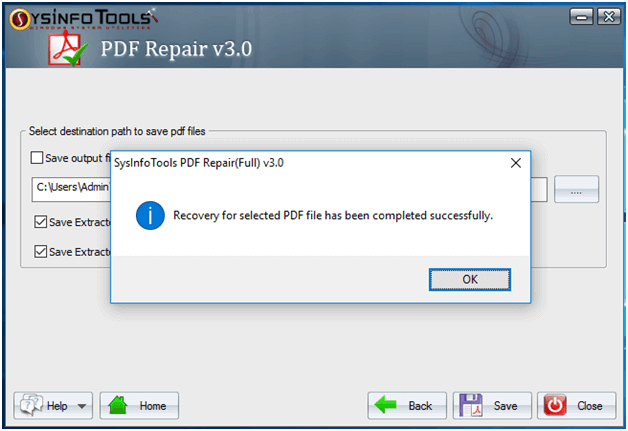
Once you’ve chosen a tool, the next step is to get your file into it. For online tools, you’ll usually click an ‘Upload’ button and select your PDF from your computer. For desktop software, you’ll typically click ‘Open’ or ‘Add File’ and browse to the file. Some tools even let you drag and drop – super handy. If your file is too large or the upload keeps failing, consider compressing it first (though that can add issues – see our repair pdf error online guide for tips).
Step 4: Run the Repair
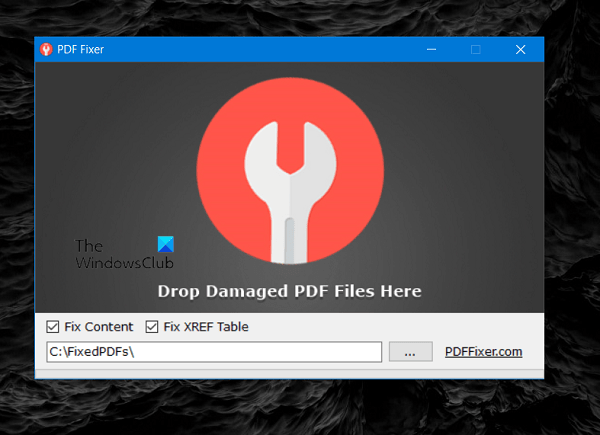
After the file is loaded, look for a ‘Repair’ or ‘Start’ button. Click it and let the software do its magic. Most tools show a progress bar – this is normal. Depending on the file size and the extent of damage, it could take from a few seconds to several minutes. Don’t interrupt the process. If you’re using an online tool, make sure your internet connection is stable. For complex corruption, you might need to try a second tool – I’ve had luck using both a general repair tool and then a specialized one for restructured PDFs.
Step 5: Preview and Save the Repaired File
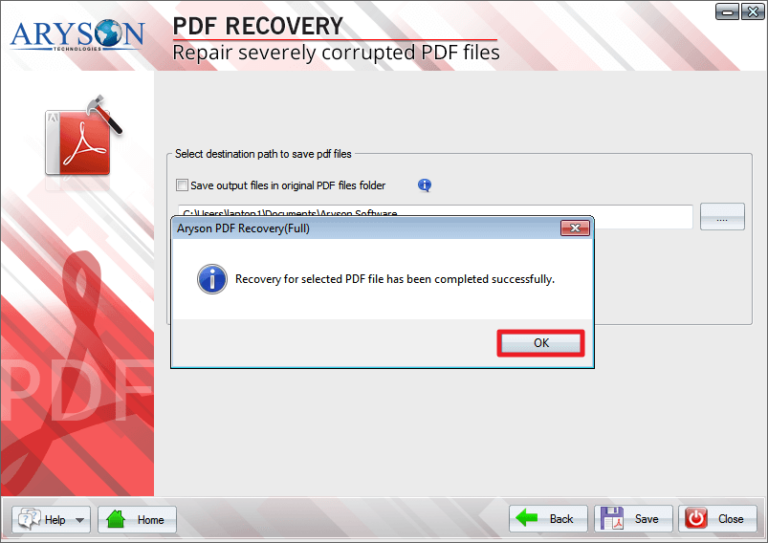
Once the repair is done, most tools offer a preview so you can check if everything looks good. Scroll through the pages, ensure text and images are intact. If it’s satisfactory, hit ‘Save’ or ‘Download’. Always save the repaired file with a new name – don’t overwrite the original, just in case the repair introduced new glitches. You can also use this step to repair pdf without losing quality by choosing high-quality save options if available.
Common Pitfalls
- Using unreliable free tools: Some free online PDF repair tools may contain malware or add watermarks. Stick with well-known brands or read reviews first. A bad tool can make a corrupted pdf repair job impossible.
- Overwriting the original file: Always save the repaired version separately. If the repair fails, you still have the original to try again with a different tool.
- Expecting 100% recovery: Not every PDF can be fully fixed. If a file is severely damaged, some content (like images or complex formatting) might be lost. Set realistic expectations and consider other recovery methods if the repair doesn’t cut it.
Where to Next
Hopefully your PDF is back in shape. If you run into specific issues – like a PDF that got corrupted during transfer or one with missing pages – we’ve got you covered with detailed guides on each scenario. Check out our posts on fixing PDFs after network transfer, recovering academic PDFs, or dealing with blank pages. And remember, practice makes perfect – the more you repair, the better you’ll get at diagnosing problems.




