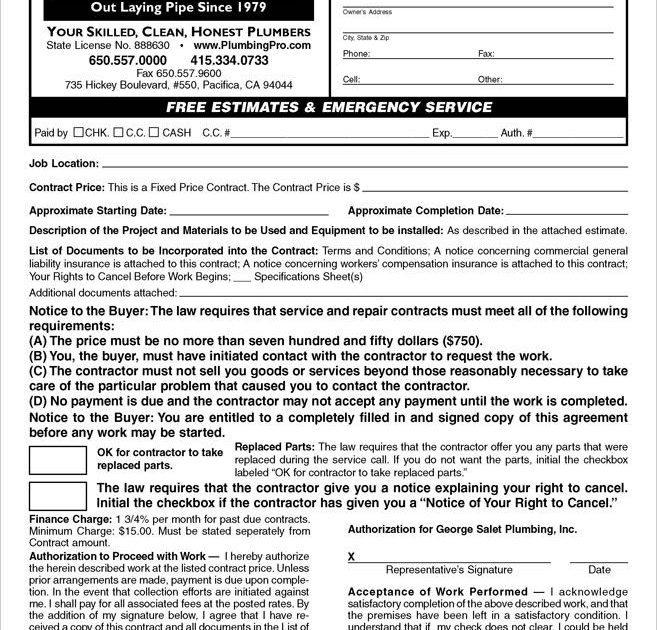
If you’re a freelancer, lawyer, or business owner who deals with contracts daily, you know the panic of a corrupted PDF right before a deadline. Maybe the file won’t open at all, shows garbled text, or the signatures are missing. This guide is for anyone who needs to repair a contract PDF quickly and reliably. By the end, you’ll have a working copy of your contract, complete with original formatting and security features intact.
We’ll cover three proven methods: using dedicated pdf repair software, leveraging Adobe Acrobat’s built-in repair tools, and trying free online services. Plus, you’ll learn how to check the integrity of your PDF after repair so you can sign and send it with confidence. No advanced tech skills required—just follow the steps and you’ll be back in business.
What You’ll Need
- The corrupted PDF file (preferably a backup copy)
- A computer with internet access
- Adobe Acrobat Reader (free) or Adobe Acrobat Pro (trial works)
- A reliable online PDF repair tool (we’ll recommend one)
- Optional: pdf integrity checker for post-repair verification
Step 1: Try Adobe Acrobat’s Built-In Repair
Adobe Acrobat has a hidden ‘Save As Optimized’ trick that can fix minor corruption. Open the corrupted PDF (if it opens at all) and go to File > Save As Other > Optimized PDF. Click ‘Analyze and Fix’ in the dialog window. This strips away bloated metadata and rebuilds the file structure. Often this solves simple issues like missing fonts or broken links. If the PDF doesn’t open, skip to Step 2.

Step 2: Use Dedicated PDF Repair Software
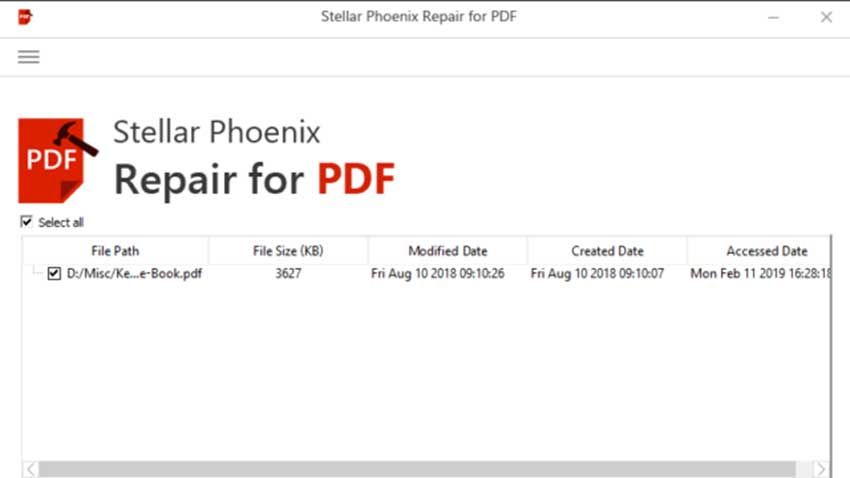
When the built-in method fails, dedicated pdf repair software is the next line of defense. Tools like PDF Repair Toolbox or SysTools PDF Repair can handle severe corruption, including header damage, cross-reference table issues, and missing pages. Download a trial version, upload your contract, and run the repair. The software will create a new, fixed PDF. Always verify the output—check that all pages, signatures, and embedded fonts are present.
Step 3: Leverage Online PDF Repair Services
If you prefer not to install anything, online services can be a lifesaver. Sites like PDFRepair.com or Smallpdf offer free repair for files up to a certain size. Upload your contract, wait a few seconds, and download the fixed PDF. However, be cautious with sensitive contracts—ensure the site uses HTTPS and promises not to store your files. For extra peace of mind, redact confidential clauses before uploading.
Step 4: Verify Integrity with a PDF Checker
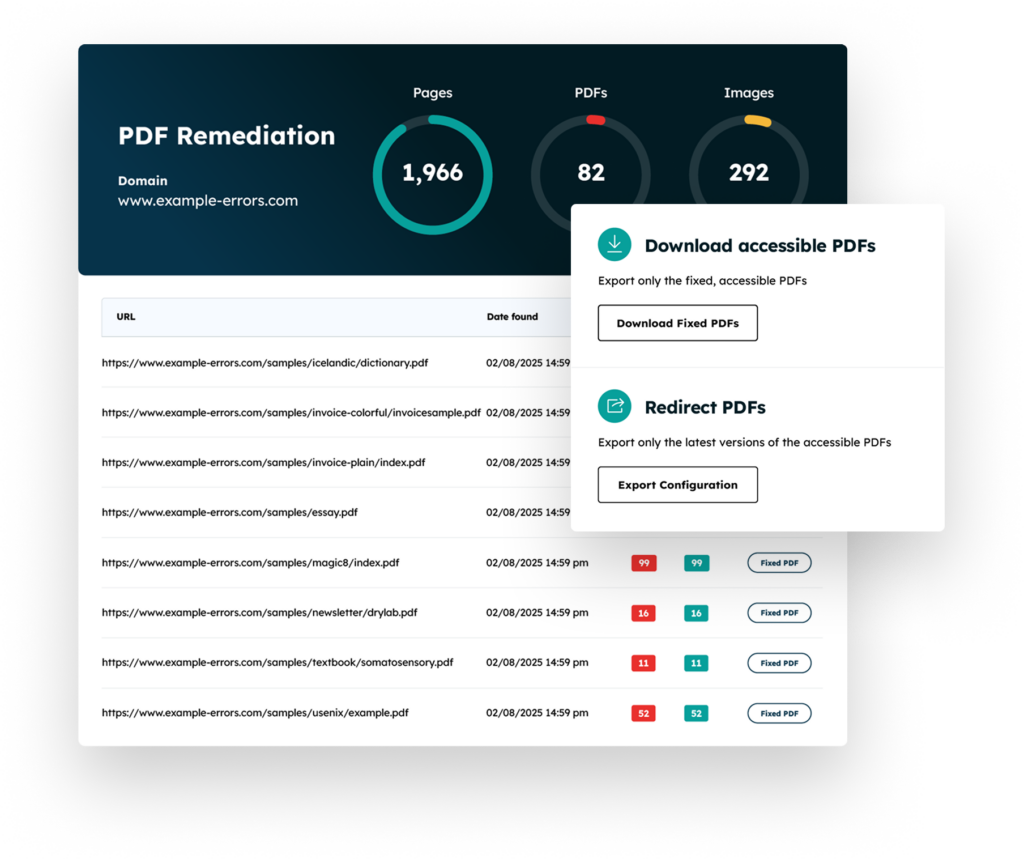
After repair, don’t assume everything is perfect. Use a pdf integrity checker to scan the file for hidden errors. Tools like PDF Checker or Acrobat’s Preflight mode (in Pro) can detect issues like corrupt inline image streams or invalid annotations. Run a full check—if it passes, your contract is safe to use. If it flags problems, go back to Step 2 or 3 with a different tool.
Common Pitfalls
- Forgetting to make a backup first: Always copy the original corrupted file before attempting repair. Some methods can further damage the file, leaving you with no recoverable version.
- Using the wrong tool for the corruption type: A simple header error may need a different approach than a damaged cross-reference table. Try multiple tools if the first fails.
- Overlooking digital signatures: After repair, signatures may become invalid. You might need to re-sign the contract if the signature or certificate chain is broken. Check the signature panel and, if needed, follow a guide to fix edited pdf.
Where to Next
Now that you’ve successfully repaired your contract PDF, consider learning how to recover a damaged pdf from the start to prevent future headaches. If you often work with compressed documents, our guide on how to repair compressed pdf can save you time. And for long-term protection, run periodic checks with a pdf integrity checker on your entire contract library.




