
Ever accidentally deleted a PDF from Google Drive, only to panic because you needed it for a deadline? Or maybe you opened a PDF and found garbled text, as if the file got corrupted during upload. You’re not alone – Google Drive is great for storage, but recovering a PDF that’s been trashed or damaged can feel like a puzzle. This guide is for anyone who’s lost a PDF in Google Drive or ended up with a corrupted copy. By the end, you’ll know exactly how to fish it out of the trash, roll back to an earlier version, or fix a broken file so it opens perfectly again.
We’ll walk through the steps in a casual, no-nonsense way. You’ll learn to check the Google Drive trash, use version history (yes, Google keeps old versions!), download a fresh copy, and if all else fails, use a simple online repair tool to fix encoding or corruption. No technical degree required – just a few clicks and a little patience. Let’s get your PDF back where it belongs.
What You’ll Need
- A Google account (you probably already have one)
- Internet connection
- A web browser (Chrome, Firefox, Edge – any works)
- Optional: a free online PDF repair tool (like pdfrepairs.click) for corrupted files
Step 1: Check the Google Drive Trash
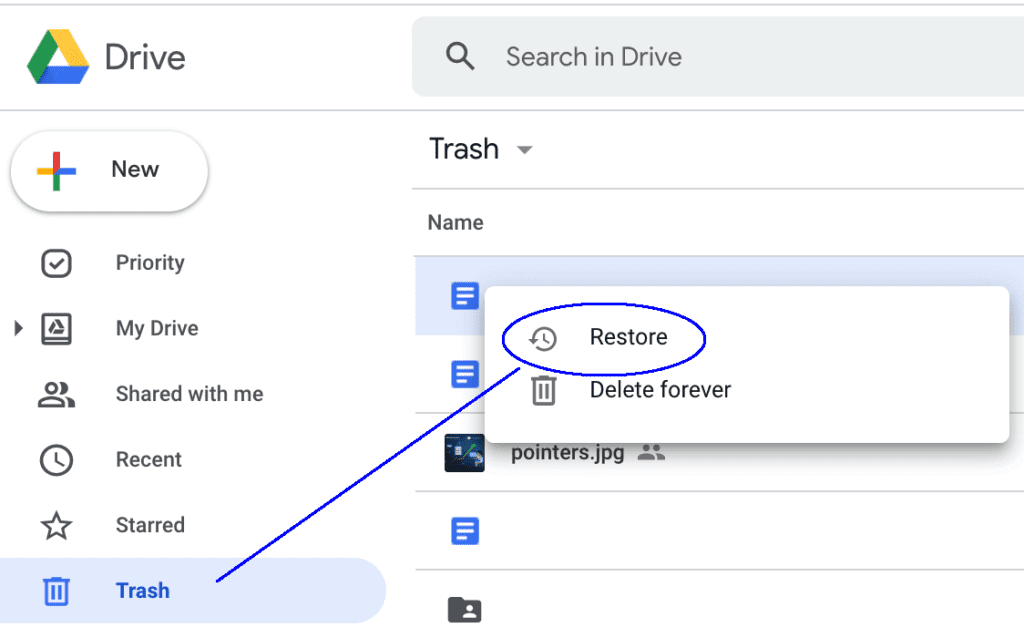
First things first – when you delete a file from Google Drive, it doesn’t vanish forever. It goes to the Trash, where it stays for 30 days (or less if you empty it manually). This is the easiest recovery method.

Go to drive.google.com. In the left sidebar, click “Trash.” You’ll see all your recently deleted files. Look for your PDF. If you find it, right-click on it and choose “Restore.” It will reappear in its original location. If you emptied the trash or it’s been more than 30 days, move to the next step.
Step 2: Use Google Drive Version History
If the file still exists but got corrupted after an accidental edit or sync error, Google Drive keeps previous versions for files uploaded as Google Docs/Sheets. But for PDFs, version history only works if you uploaded a new version of the same file name. Here’s how to check:

Locate your PDF in Drive. Right-click it and select “Manage versions.” You’ll see a list of uploaded versions. If you see an older version that was working, click the three dots next to it and choose “Download.” That downloads the old version. If there’s only one version, move to the next step.
Step 3: Download a Fresh Copy
Sometimes the issue is local – a corrupted download. Try downloading the file again from Drive. Right-click the PDF and select “Download.” Open it with your PDF reader. If it’s still broken, the file itself is corrupted. Time to bring out the repair tools.
Step 4: Use a Free Online PDF Repair Tool
For corrupted PDFs, an online repair tool can fix common issues like broken links, encoding problems, or missing pages. I recommend using a trusted site like pdfrepairs.click. They offer a drag and drop pdf repair feature – just upload your file and they fix it for free.
Go to the repair site. Click “Upload” or drag your PDF into the designated area. The tool will analyze and repair it. After a few moments, download the fixed PDF. Open it – it should look normal now. If the repair fails, you can try more advanced options like using a pdf integrity checker to identify specific problems, or follow a guide to fix pdf text encoding if the text is garbled.
Step 5: Try a Dedicated PDF Repair Software
If online tools don’t work, you may need a desktop app. There are good options like Adobe Acrobat Pro (paid) or free software like PDFsam. These can handle severe corruption. Download one, open your PDF, and use the “Repair” feature. This is especially useful if you need to how to recover damaged pdf files that won’t open at all.

Step 6: Restore from a Backup (If You Have One)
If you have a local backup or used Google Takeout to export your Drive, you can restore the PDF from backup. Check your computer’s downloads folder, external hard drive, or cloud backup service. Upload the backup version to Google Drive again.

Common Pitfalls
Here are three things that can go wrong and how to avoid them:
- Emptying the trash prematurely – Google Drive permanently deletes files after 30 days or if you manually empty the trash. Always check there first and avoid clearing it without reviewing.
- Version history only shows one version – If you never updated the PDF with a new upload, version history won’t help. That’s why step 4 (repair) is your best bet.
- Using a sketchy repair tool – Some free tools upload your file to unknown servers. Stick with reputable sites like pdfrepairs.click that offer repair pdf for free online securely.
Where to Next
Now that you’ve recovered your PDF, you might want to prevent future losses. Consider enabling Google Drive’s backup feature or periodically using a pdf integrity checker to ensure your files are healthy. If you run into other PDF issues, check out our guides on fixing repair pdf for free online or how to recover damaged pdf files from other sources. Happy recovering!




