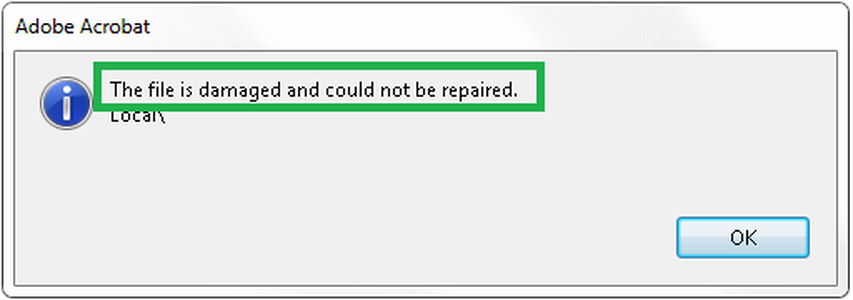
You’re just about to open an important PDF—maybe a contract, invoice, or ebook—and instead of the content, you get an error: “The file is damaged and could not be repaired.” Don’t panic. This guide is for anyone who has a corrupted PDF and needs it fixed fast. Whether you’re a student, freelancer, or office worker, by the end of these steps you’ll have a working copy of your file—or a clear path to recovering it.
We’ll walk through four practical methods: trying a different viewer, using an online repair tool, firing up dedicated software like Adobe Acrobat, and recovering from a backup or previous version. Most of these are free or require no special skills. Let’s get that PDF back in shape.
What You’ll Need
- The damaged PDF file (keep the original in a safe place)
- A computer with internet connection
- Access to a web browser (Chrome, Firefox, Edge, etc.)
- Optional: Adobe Acrobat Reader or Pro (trial works), or other PDF software
- Optional: A cloud backup service like Google Drive, Dropbox, or OneDrive
Step 1: Diagnose the Damage by Opening in Different Viewers
Before diving into repairs, check if the problem is with your PDF viewer rather than the file itself. Try opening the PDF in a different application. For example, if you’re using Chrome’s built-in PDF viewer, try Adobe Acrobat Reader or even Microsoft Edge. Sometimes the error is just a compatibility glitch. If it opens in one viewer but not another, the file may be partially corrupted but salvageable. If it fails everywhere, move to Step 2.
Step 2: Use an Online PDF Repair Tool
Online repair tools can fix many common corruption issues without installing anything. Head to a reputable PDF repair website (like the one you’re on now) and upload your file. The tool will scan for errors like broken streams, missing objects, or invalid cross-reference tables, then rebuild a clean version. Most services offer a free tier for files up to a certain size. After processing, download the repaired PDF and check if it opens correctly.
Step 3: Repair with Dedicated Software (Adobe Acrobat)
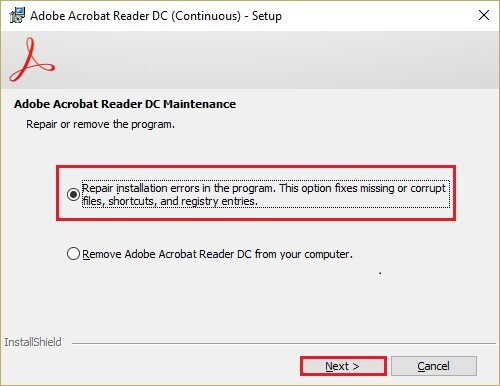
If online tools don’t work, try using professional software. Adobe Acrobat Pro has a built-in repair feature: open the program, go to File > Open, select your damaged PDF, and Acrobat will attempt to fix it automatically. You can also try a dedicated damaged pdf solution like a trial of a PDF repair tool. These programs dig deeper into the file structure and can recover text, images, and even annotations. If you need to recover pdf images or fix pdf links, specialized software is your best bet.
Step 4: Recover from Backup or Previous Version
Did you save the PDF to a cloud service like Google Drive, Dropbox, or OneDrive? Check their version history. Many services keep a record of previous versions for up to 30 days. Right-click the file and select “Version history” or “Previous versions” to restore an uncorrupted copy. Also check your local backup (Time Machine on Mac, File History on Windows). If you need to recover pdf from google drive, there’s a dedicated guide for that. This step often saves the day when nothing else works.

Common Pitfalls
- Using sketchy free tools that make the corruption worse or inject malware. Stick to trusted services like the ones listed in this guide or a known pdf repair website.
- Overwriting the original file. Always work on a copy. If a repair attempt fails, you want the original to try another method.
- Overlooking simple fixes like renaming the file extension or re-downloading if you got it from email. Sometimes the file isn’t actually damaged—it just got a bad download.
Another pitfall: thinking you need expensive software. For many common issues, the free online tool or the drag and drop pdf repair method works perfectly. Don’t pay for a repair until you’ve exhausted the free options.
Where to Next
Once your PDF is working, you might want to polish it further. Check out our guides on how to recover pdf images, fix pdf links, or use the damaged pdf repair services we mentioned. If you ever get another damaged file, you now have a solid routine. Happy reading!




