Ever opened a PDF only to find that the images are missing, broken, or replaced with a red X? It’s frustrating, especially when those images are critical for your work or memories. This guide is for anyone who needs to extract images from a PDF—whether the file is corrupted, the images are embedded but not visible, or you just want to save them separately. By the end, you’ll have a handful of reliable methods to recover your images, from free online tools to manual extraction tricks.
We’ll cover the easiest ways to get those images back, including how to use online extractors, Adobe Acrobat, and specialized PDF repair software. No technical degree required—just follow along step by step. If your PDF is completely trashed, don’t worry; we’ll also touch on how to repair the file first using a drag and drop pdf repair tool before extracting images.
What You’ll Need
- A PDF file with missing or corrupted images
- A computer with internet access (for online tools)
- Optional: Adobe Acrobat Reader or Pro (free to try)
- Optional: A dedicated PDF repair tool like repair pdf image pages software
Step 1: Identify the Problem
First, open your PDF in a standard viewer like Adobe Acrobat Reader or even your browser. Look for missing images—they’ll appear as empty boxes, placeholders, or error icons. Sometimes the images are still embedded but not displaying due to corruption. Take note of which pages are affected and whether the file seems partially damaged. This helps you choose the right recovery method.
Step 2: Use a Free Online Image Extractor
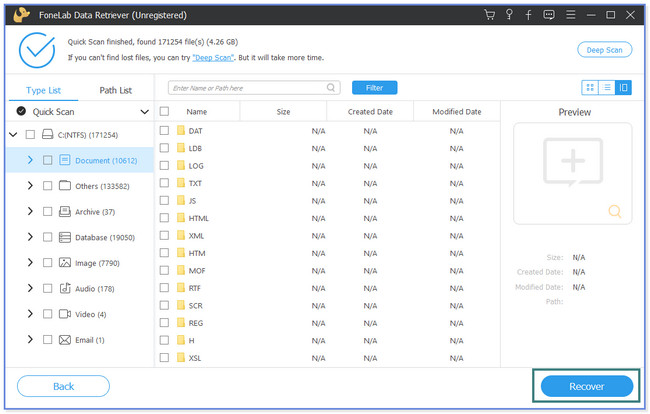
The quickest way to recover images from a PDF is to use an online extraction tool. Sites like Smallpdf, iLovePDF, or PDF Candy offer free image extraction. Upload your PDF, and the tool will extract all embedded images as JPG or PNG files. You can then download them individually or as a ZIP. This works great if the PDF is not heavily corrupted.
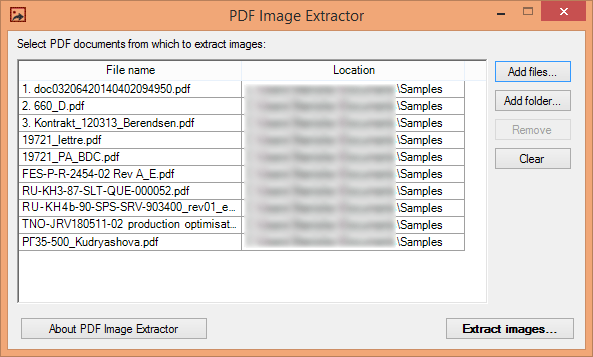
Pro tip: If your PDF is damaged, you might need to recover a damaged PDF first before extraction. Some online tools also offer repair features, but dedicated software often does a better job.
Step 3: Export Images with Adobe Acrobat
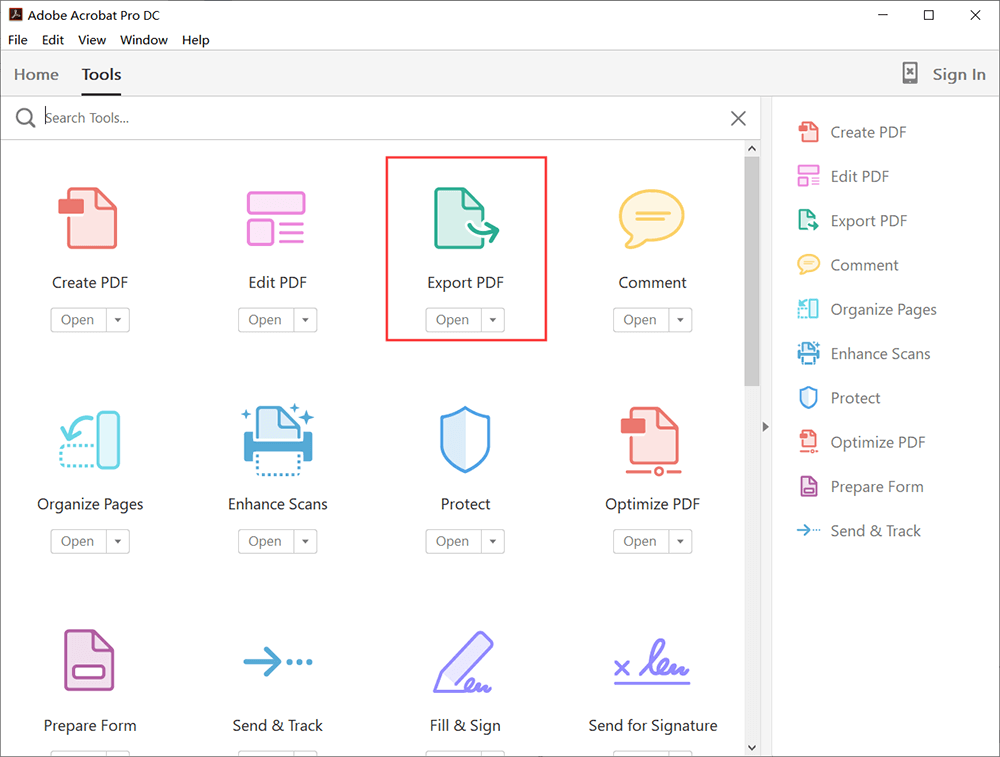
If you have Adobe Acrobat Pro (or the free trial), you can export all images directly. Open the PDF, go to ‘Tools’ > ‘Export PDF’, and then choose ‘Image’ as the export format. You can select ‘JPEG’ or ‘PNG’ and adjust quality settings. Acrobat will render each page as an image, effectively recovering all visible visuals. This method preserves layout but treats whole pages as images, so you might get extra whitespace.
Step 4: Repair the PDF First (If Needed)
Sometimes the images are there but the PDF structure is corrupted. In that case, you need to repair the file before extraction. Use a dedicated PDF repair tool like the repair pdf image pages method or a drag and drop pdf repair service. These tools rebuild the file structure, often recovering lost images in the process. Many are free and work online—just upload and let them do the magic.
Step 5: Manually Extract Using Python (Advanced)
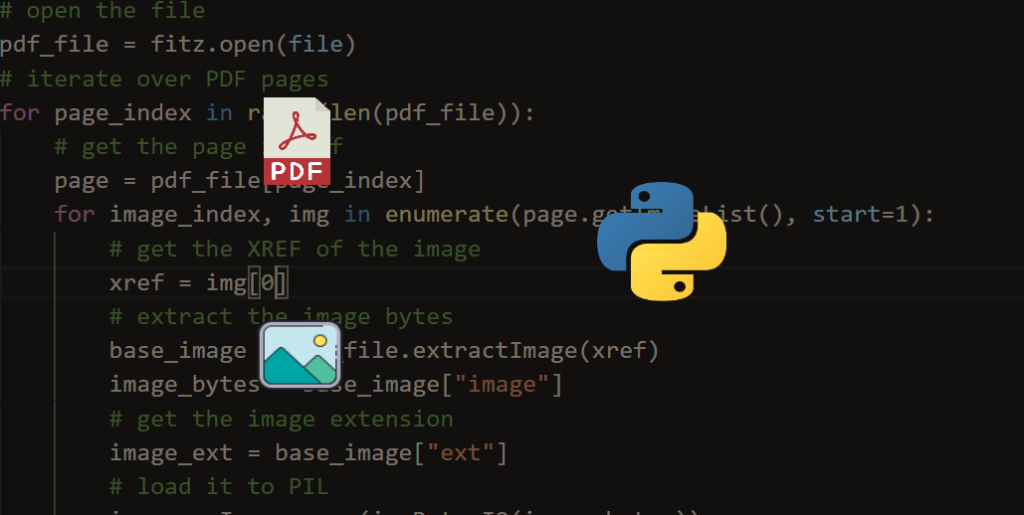
If you’re comfortable with a little programming, you can extract images from a PDF using Python libraries like PyMuPDF (fitz) or pdfminer. Install the library, then use a simple script to iterate through pages and save images. This method gives you full control and works even with partially damaged files. It’s not for beginners, but it’s a powerful last resort.
Common Pitfalls
- Overwriting the original file before verifying the recovery. Always make a backup first.
- Using an unreliable online tool that uploads your file to insecure servers. Stick to well-known services.
- Not checking image quality after extraction. Some methods compress images; use high-quality settings or repair pdf without losing quality techniques.
Where to Next
Now that you’ve got your images back, maybe explore other PDF recovery topics. Check out our guide on how to repair pdf image pages if the images themselves are corrupted, or learn how to recover a damaged PDF entirely. Happy recovering!




