So your PDF won’t open, shows garbled text, or throws an error message? Don’t panic – a damaged PDF isn’t the end of the world. Whether it’s an essential work contract, a digital receipt, or a personal document you can’t lose, this guide will walk you through several ways to fix it. By the end, you’ll have a working PDF and know how to avoid future corruption.
This guide is for anyone who’s ever seen a “This PDF cannot be displayed” prompt. You don’t need to be a tech wizard – just follow these steps, and you’ll likely recover your file. We’ll cover quick online tools, Adobe Acrobat’s built-in repair, and even a command-line trick for the brave. Let’s get your PDF back in shape.
What You’ll Need
- The damaged PDF file (obviously)
- A stable internet connection (for online tools)
- Adobe Acrobat Reader or Pro (optional, but helpful)
- A modern web browser (Chrome, Edge, Firefox)
- Patience – not all fixes work the first time
Step 1: Try Opening in a Different Browser
Sometimes the problem isn’t the PDF itself, but the viewer. Start by dragging the file into Chrome, Firefox, or Edge. Each browser has its own PDF engine, and one might render the file perfectly. If it works, simply save a copy from the browser – you’re done. If not, move on.

Step 2: Use a Free Online PDF Repair Tool
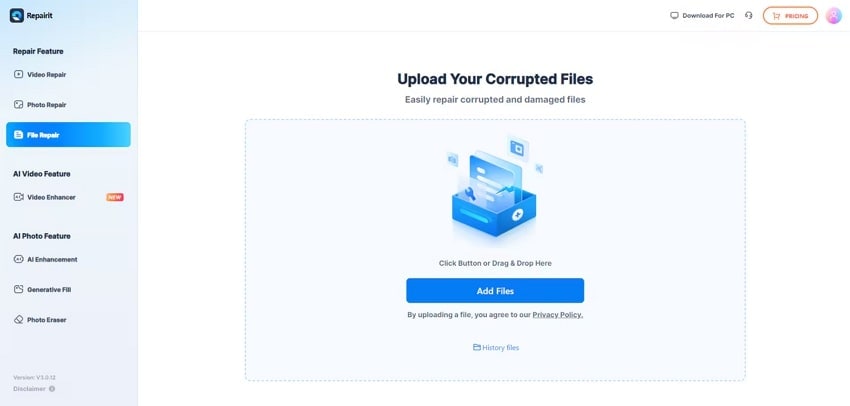
If the browser trick fails, an online repair tool is your best bet. There are many free services that can reconstruct a damaged pdf repair. For example, you can use a dedicated pdf repair website like PDFRepairs.click. Upload your file, let the tool scan and fix it, then download the repaired copy. This method is quick and requires no installation. Check our guide on how to repair pdf for free online for more detailed instructions.
Step 3: Repair with Adobe Acrobat Pro
If you have Adobe Acrobat Pro (the paid version), it has a built-in repair function. Open Acrobat, go to File > Open and select your damaged PDF. If it fails, try File > Repair. This command attempts to fix common corruption issues. For really stubborn files, choose File > Export To > Other > Image and then re-create the PDF from the images. This process can help repair pdf without losing quality if the original PDF has extractable pages.

Step 4: Use Ghostscript (Command Line)
For advanced users, Ghostscript is a free command-line tool that can process damaged PDFs. Download and install Ghostscript, then open a terminal or command prompt. Run: gs -o output.pdf -sDEVICE=pdfwrite -dPDFSETTINGS=/prepress input.pdf. Replace input.pdf with your damaged file. This command reinterprets the PDF’s contents and often fixes structural issues. If you’re not comfortable with the command line, stick with online options like recover damaged pdf online free.

Common Pitfalls
- Not all online tools are safe – avoid ones that ask for your email or upload the file to a public server. Stick to reputable sites.
- Repairing a heavily damaged PDF might result in lost formatting, images, or annotations. Always keep the original file as a backup.
- Some PDFs are password-protected or encrypted – repairing them won’t bypass the password. You’ll need the password first.
Where to Next?
If none of these steps worked, don’t give up. The PDF might be beyond simple repair, but you can still try extracting content with a text editor or using specialized recovery software. For more deep-dive methods, check out our comprehensive guide on damaged pdf repair. And remember, prevent future issues by regularly backing up your important files and keeping your PDF software updated.




