You’re trying to open an important PDF on your phone, but nothing happens—or worse, you get an error message. Don’t worry, you’re not alone. This guide is for anyone whose PDF won’t open on an Android or iPhone. By the end, you’ll have a working PDF or a clear path to repair it.
Most of these fixes take just a minute and don’t require any technical skills. We’ll walk through quick app resets, cache cleaning, alternative readers, and finally, repairing a corrupted file with a free online tool.
What You’ll Need
- Your smartphone (Android or iOS)
- The PDF file that won’t open
- An internet connection (for repair steps)
- Optional: a PDF repair website like PDFRepairs.click
- A PDF reader app (e.g., Adobe Acrobat, Google PDF Viewer)
Step 1: Force Close and Reopen the PDF App
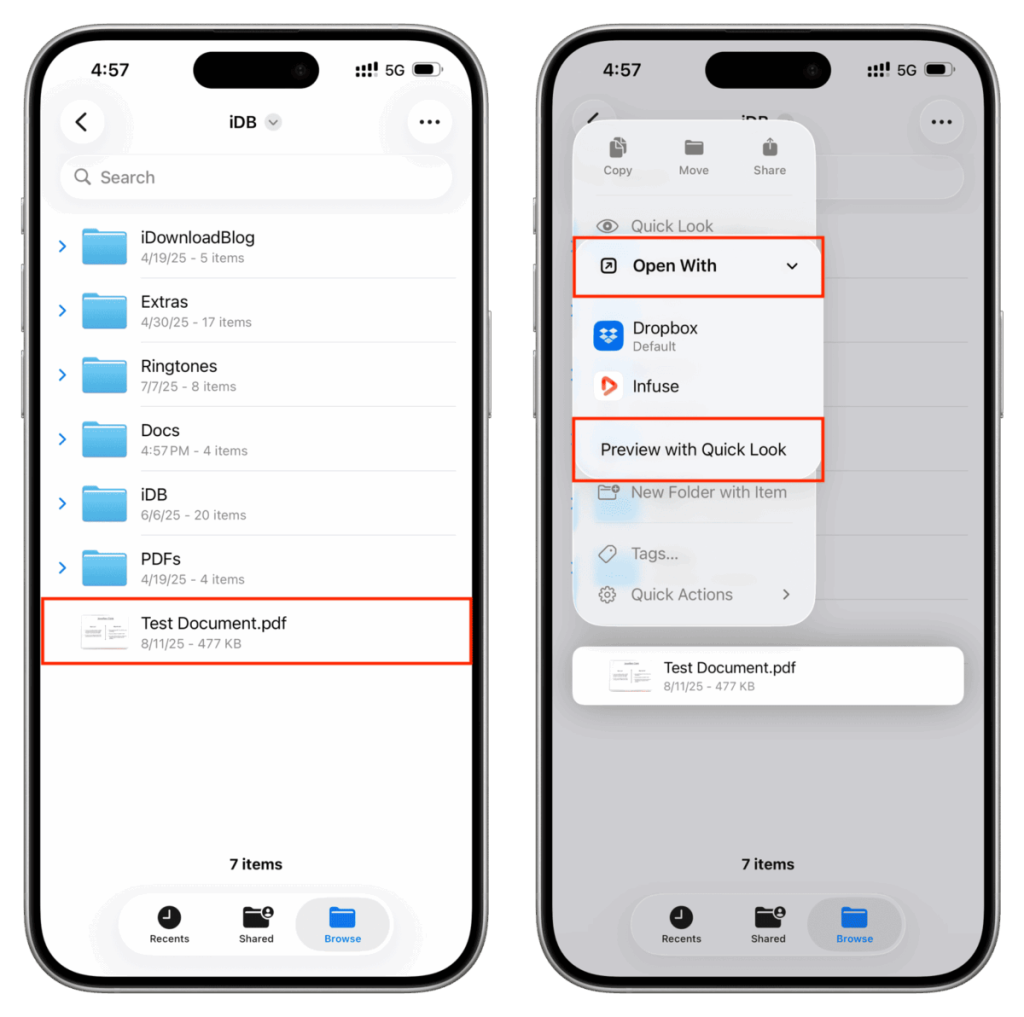
Sometimes the app just glitches. On Android, go to Settings > Apps > your PDF reader > Force Stop. On iPhone, swipe up from the bottom and swipe the app away. Then reopen the app and try again. This clears any temporary hangups.
Step 2: Clear the PDF App’s Cache
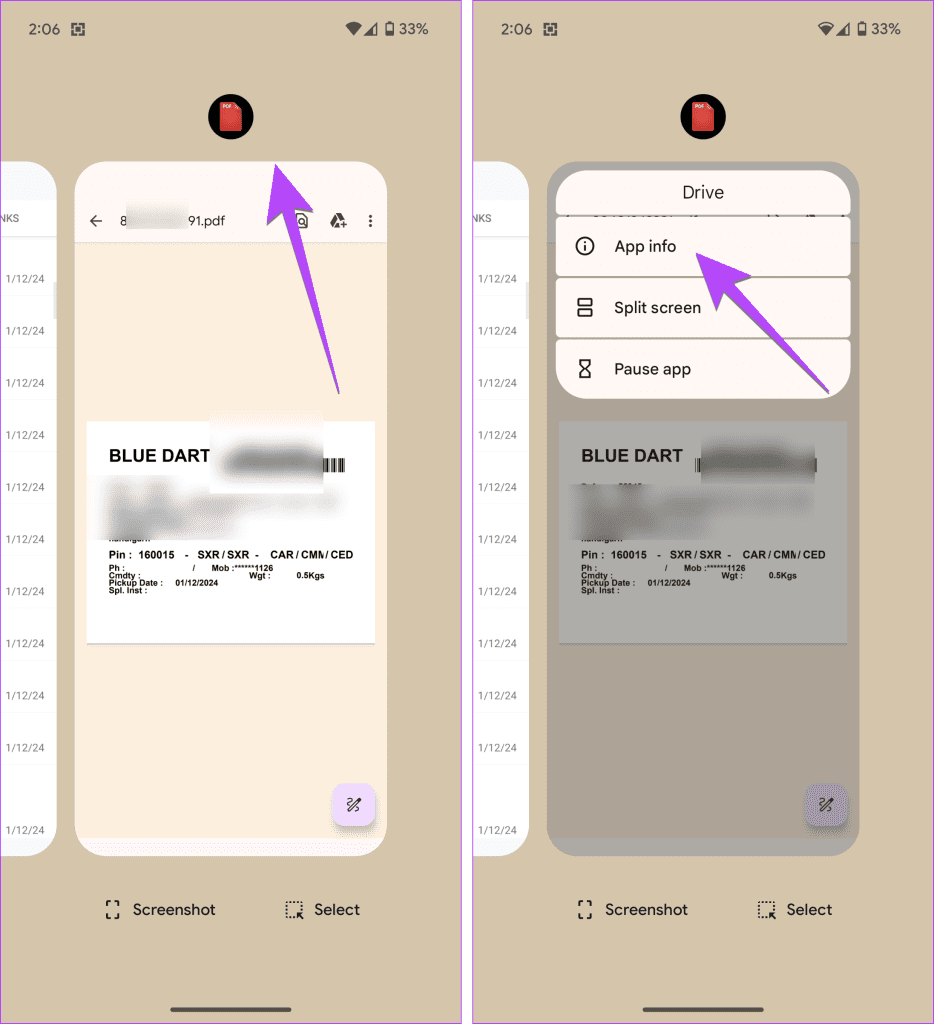
A bloated cache can cause issues. On Android, go to Settings > Apps > your PDF reader > Storage > Clear Cache. On iPhone, you may need to offload the app (Settings > General > iPhone Storage > select app > Offload App) and reinstall. This doesn’t delete your PDFs.
Step 3: Try a Different PDF Reader

If the built-in reader fails, install a third-party app like Adobe Acrobat or Google PDF Viewer. Sometimes the file is fine but the default reader can’t handle it. Opening the same PDF in another app often works immediately.
Step 4: Check If the File Is Corrupted
If you see garbled text, missing pages, or the file is tiny, it might be corrupted. A corrupt download is common—try re-downloading it from the source. If that’s not possible, you’ll need a repair tool. Check out our guide on damaged pdf solution for more signs.
Step 5: Repair the PDF Using an Online Tool
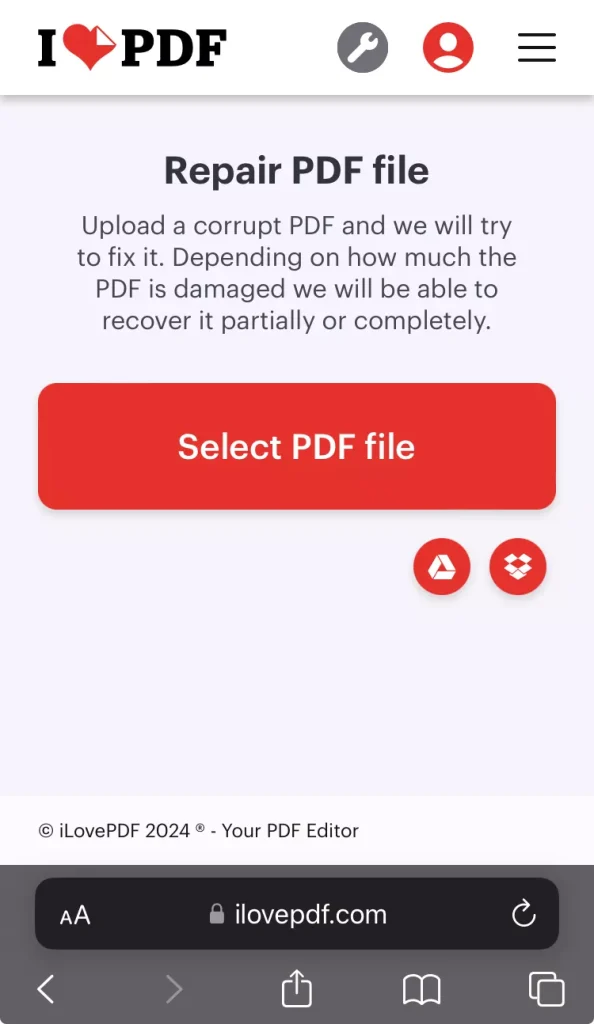
When all else fails, upload the file to a free online repair service. For example, PDFRepairs.click lets you drag and drop your file and fixes common corruption issues. You can repair pdf for free online in seconds. After repair, download the fixed version and open it on your phone.
If you need more advanced options, consider using pdf repair software that works offline. For files with missing images or text encoding, specific guides like how to recover damaged pdf can help.
Common Pitfalls
- Not clearing the cache correctly: on Android, some phones hide the clear cache button under ‘Storage’ or ‘Memory’—check carefully.
- Downloading a corrupt file again: always verify the download on a different device first.
- Ignoring app permissions: some PDF readers need storage access to open files. Check Settings > Apps > Permissions.
Where to Next
Now that your PDF is open, you might want to fix pdf links that don’t work or recover images from a damaged file. Explore our library for more step-by-step solutions to common PDF problems.




