So you’ve got a PDF that won’t open, throws an error, or looks like a mess of random characters. Don’t panic — this is super common, and most of the time you can fix it yourself without any fancy tools. Whether it’s a work contract, a medical report, or a school assignment, we’ll walk you through the steps to get your file back.
By the end of this guide, you’ll have a working PDF. If it’s a simple corruption, you might even be able to fix it in under a minute. We’ll cover everything from fixing a garbled PDF to recovering files after a crash. Let’s dive in.
What You’ll Need
- The corrupted PDF file (obviously!)
- A computer with internet access
- A Google account (free) — optional but helpful for one method
- Adobe Acrobat Reader or Pro (free trial for repair features) — also optional
Step 1: Identify the Problem
Before you start repairing, figure out what’s wrong. Try opening the file in your default PDF viewer. Common symptoms include: error messages like ‘File is damaged’, a blank page, scrambled text, or the program crashing. Knowing the symptom helps choose the right fix. For example, if you have an unreadable PDF, you might need a different approach than a file that won’t open at all.
Step 2: Use an Online PDF Repair Tool
The quickest fix is to upload your PDF to a free online repair service. Many sites let you drag and drop your file and download a repaired version. This works great for minor corruption. If the tool fails, don’t worry — try another method. One warning: avoid uploading sensitive documents to unknown sites. If your document is private, skip this step.
Step 3: Try Google Drive
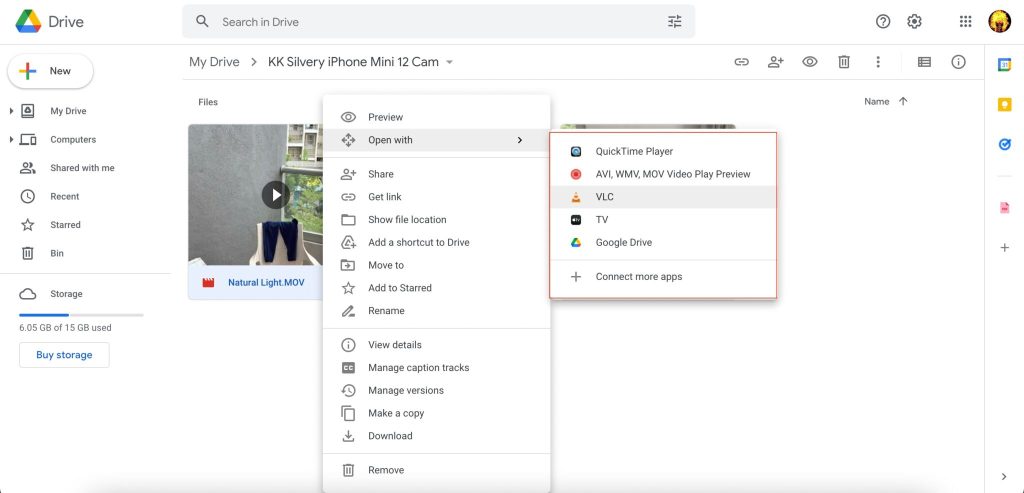
Google Drive can sometimes open corrupted PDFs that other readers can’t. Upload your file to Drive, then open it in Google Docs viewer. If it works, download it as a new PDF. This method is free and works for many types of corruption. It’s also a good way to recover a PDF without any software.
Step 4: Use Adobe Acrobat’s Built-In Repair
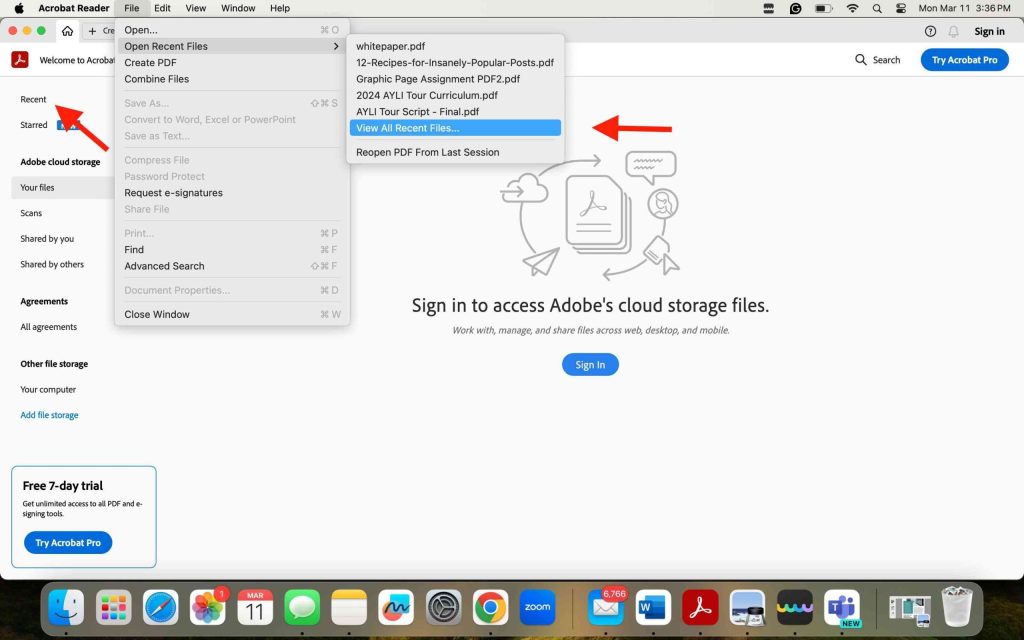
If you have Adobe Acrobat Pro (or the free trial), you can use its ‘Save As’ trick. Open the file (even if it errors) and go to File > Save As, then choose a new name. This forces Acrobat to re-encode the PDF. Sometimes just saving a copy fixes the issue. For more stubborn problems, use the ‘Optimize PDF’ tool under Tools. This is especially useful if you need to repair a PDF after a power outage.
Step 5: Recover from a Backup or Version History
Still no luck? Check if you have a backup of the file. Cloud services like Dropbox, Google Drive, or OneDrive often keep previous versions. Right-click the file and select ‘Version history’. You might find an older, uncorrupted version. If nothing else works, try third-party recovery software — but that’s a last resort.

Common Pitfalls
- Using too many online repair tools in a row — each one re-uploads and may degrade the file further. Stick to one method.
- Ignoring the file size — a huge PDF (over 100 MB) may fail with online tools. Try desktop software instead.
- Opening the file in a text editor — this can corrupt it further. Avoid opening PDFs in Notepad or similar.
Where to Next
If your PDF is still acting up, check out our guides on fixing specific issues. For a garbled PDF, try the steps in that article. If you need to recover a PDF without any software, the Google Drive method is a good start. And if you ever experience a power outage, learning how to repair a PDF after a power outage can save your work. Happy fixing!




