Ever opened a PDF only to see a blank screen, garbled text, or an error message that says ‘File is damaged and cannot be repaired’? You’re not alone. This guide is for anyone who has an unreadable PDF — whether it’s a work document, a scanned file, or a download that went wrong. By the end, you’ll have tried several proven methods to get your PDF readable again, from quick online fixes to more advanced command-line tricks. No deep tech skills required, just a willingness to follow along.
We’ll cover five main approaches: checking if it’s really corrupt, using online repair tools, using Adobe Acrobat’s built-in repair, converting the file, and finally using command-line tools like qpdf. These steps work for most common corruption issues. If you’ve already tried the basics like reopening or downloading again, you’re ready to dive in.
What You’ll Need
- The unreadable PDF file
- A computer with internet access
- A PDF reader (Adobe Acrobat Reader, Chrome, etc.)
- Optional: Adobe Acrobat Pro (for Step 3)
- Optional: A command-line tool like qpdf or pdftk (for Step 5)
Step 1: Verify the File Isn’t Just a Display Issue
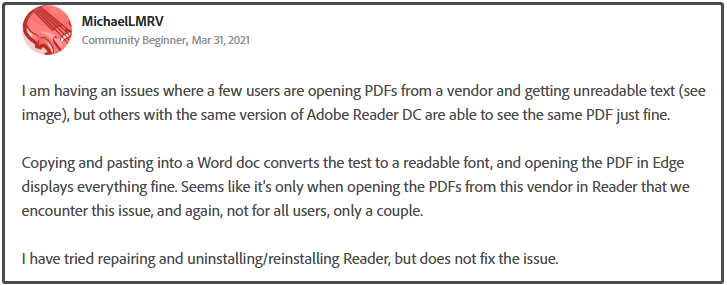
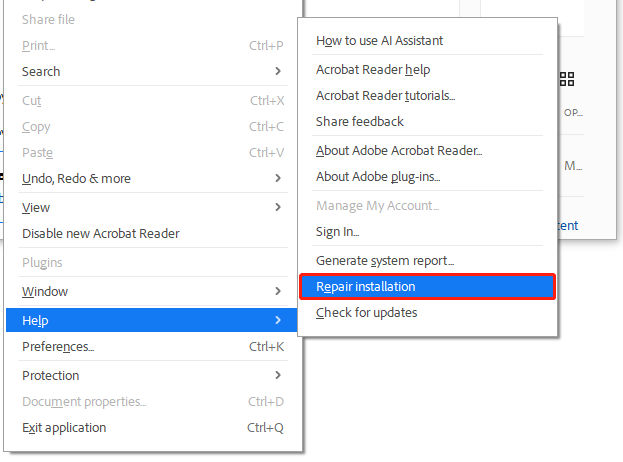
Before panicking, rule out easy causes. Try opening the PDF in a different reader — Chrome’s built-in PDF viewer, Adobe Acrobat Reader, or a dedicated app like Foxit. Sometimes the file is fine but the reader is struggling. Also, try disabling hardware acceleration in your reader settings, or update the reader to the latest version. If the file opens in one reader but not another, the issue is likely reader-specific.
Step 2: Use an Online PDF Repair Tool
If the file truly won’t open, try an online repair service. Websites like iLovePDF, Smallpdf, or PDF2Go offer free upload and repair options. Simply go to one of these sites, upload a PDF for repair, let the server process it, and download the fixed file. This works best for minor corruption that happened during download or email transfer. For privacy-sensitive documents, stick to offline methods.
If the online tool fails, move on to the next steps. Many free tools only handle simple errors, but they’re worth a shot first. This is essentially automatic PDF repair — no expertise needed.
Step 3: Use Adobe Acrobat Pro’s Built-in Repair
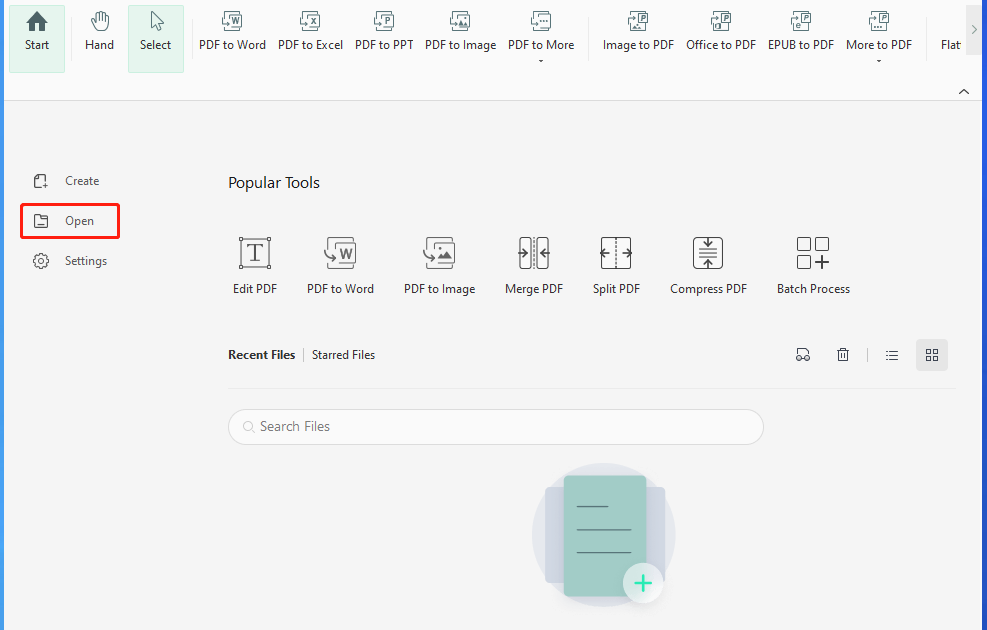
If you have Adobe Acrobat Pro (not just Reader), it has a hidden repair feature. Open Acrobat Pro, go to File > Open, and select your damaged PDF. Instead of just opening it, click the arrow next to the Open button and choose ‘Open and Repair.’ Acrobat will try to reconstruct the file. This often fixes structural issues like broken cross-references or missing objects. It’s a powerful tool for damaged PDF repair.
Step 4: Convert the PDF to Another Format and Back
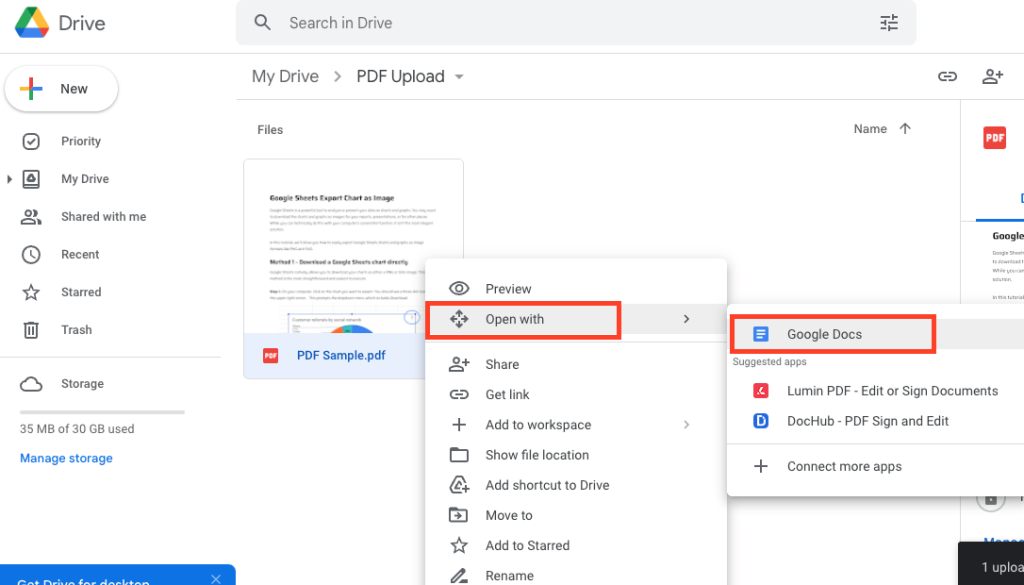
Sometimes corrupt data sits in the PDF structure but the content is still there. You can extract that content by converting the PDF to another format (like Word, HTML, or images) and then creating a new PDF from that. Use online converters or Acrobat’s Export feature. For example, open the PDF in Google Docs (upload it to Drive, then open with Docs) — it will attempt to convert it to text. Then download as PDF again. This works well if the corruption is in the file structure, not the content.
For large PDFs, this method may lose formatting, but you’ll at least get the text. If you need exact formatting, consider recovering a PDF without any software using the next step.
Step 5: Use Command-Line Tools (qpdf or pdftk)
For stubborn corruption, command-line tools offer deep repair. qpdf is free and can linearize or remove corrupted objects. Install it (or use online versions) and run: qpdf --linearize damaged.pdf output.pdf. Alternatively, pdftk can be used to decompress and reconstruct: pdftk damaged.pdf output fixed.pdf. These tools strip out bad data and rebuild the file. This step is especially effective for repairing large PDF files that online tools can’t handle.

Common Pitfalls
- **File size too large for online tools:** Many free repair sites limit uploads to 10-50 MB. If your PDF is bigger, use desktop software or command-line tools.
- **Privacy concerns:** Uploading sensitive documents to online services may violate data policies. Always use offline methods for confidential files.
- **Overwriting the original:** When downloading a repaired file, save it with a new name. If the repair fails, you’ll still have the original to try other methods.
Where to Next
If none of these steps worked, your PDF might be beyond repair. But don’t give up — check out our other guides on recovering lost data: try the damaged PDF repair method for severe cases, or if the file was lost after a crash, you might need to recover a PDF from Google Drive. For ongoing issues, consider using automatic PDF repair tools regularly. Good luck!




