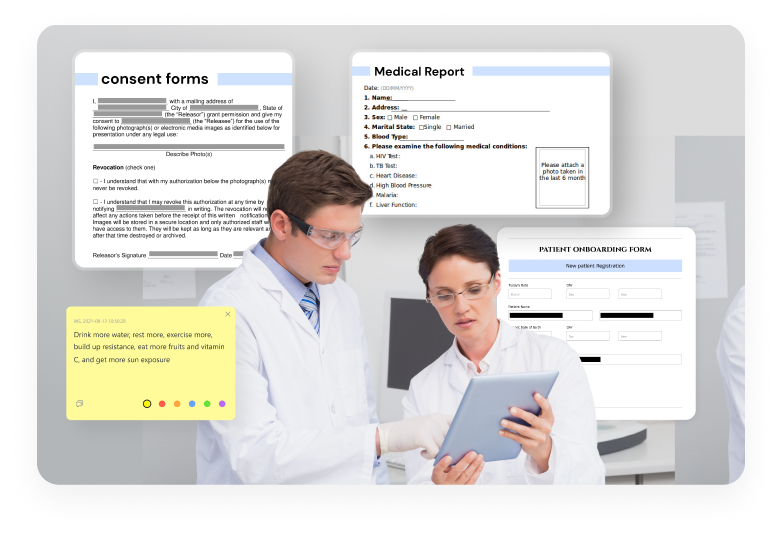
If you’re a healthcare professional, patient, or admin who relies on medical PDFs—lab reports, e-prescriptions, discharge summaries—you know the panic when one won’t open or looks garbled. This guide is for anyone who needs to fix a corrupted medical PDF fast, without losing critical data. By the end, you’ll have a working PDF with all text, images, and formatting intact.
Medical documents are sensitive, so we’ll focus on methods that preserve data integrity and security. Whether it’s a PDF that won’t open after a power outage or one with scrambled text, these steps cover the most common fixes. Let’s get your medical files back in shape.
What You’ll Need
- The corrupted medical PDF file (make a copy before attempting repairs)
- A computer or smartphone with internet access
- A PDF repair tool (we’ll use both free online services and desktop software like Adobe Acrobat)
- Optional: a backup if you have one (e.g., from Google Drive, email, or a previous version)
Step 1: Identify the Problem
First, figure out what’s wrong. Is the PDF not opening at all? Are you seeing garbled text, missing images, or broken links? This helps you choose the right fix. For example, if the file won’t open at all, it might be a header corruption; if text is scrambled, it could be an encoding issue. Check if the error message gives clues like ‘File is damaged’ or ‘Unsupported format’.
Step 2: Try Opening in a Different Viewer
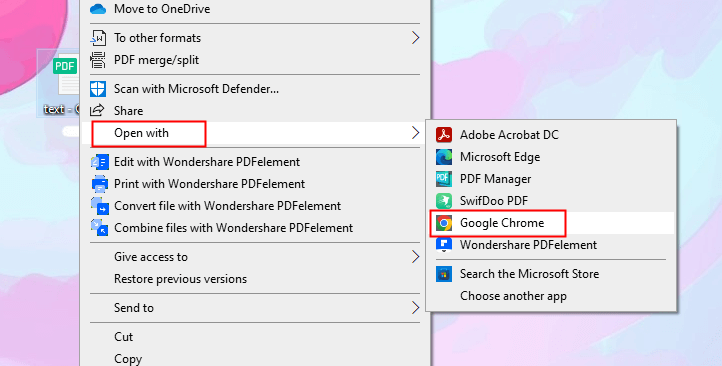
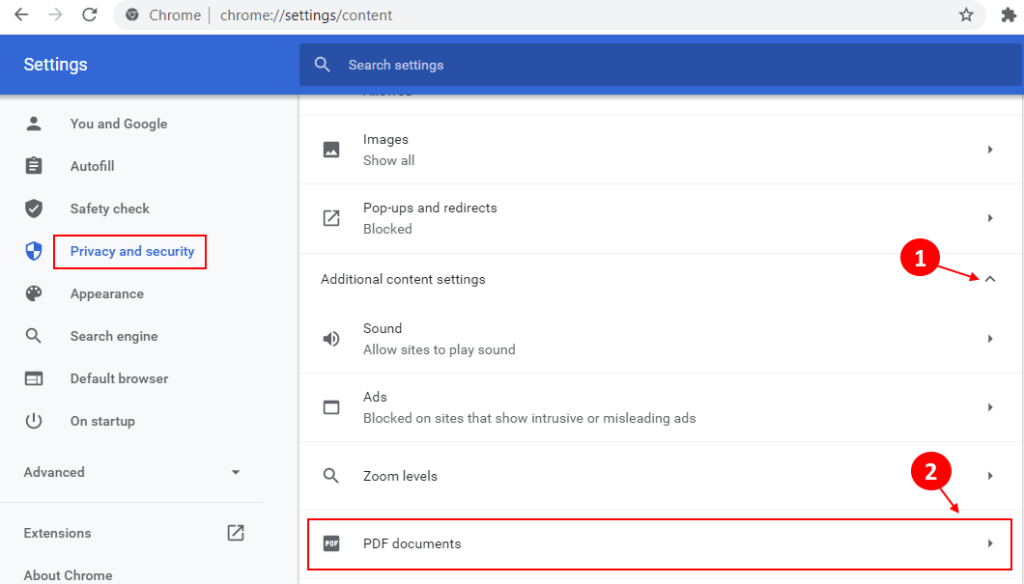
Before jumping to repair tools, try opening the PDF in a different application. Sometimes the issue is with your default viewer. Drag the file into a web browser (Chrome, Firefox, Edge) or use a dedicated reader like Adobe Acrobat Reader. If it opens fine, the problem might be with your original software. If it still fails, move to Step 3.
Step 3: Use an Online PDF Repair Tool
Online tools are quick and require no installation. Visit a trusted service like PDFRepairs.click and upload pdf to repair. Most tools support up to 100MB for free. Make sure you’re on a secure (HTTPS) connection, especially with medical data. The tool will attempt to rebuild the PDF structure. After processing, download the repaired file and check if it opens correctly.
Step 4: Use Adobe Acrobat (Desktop)
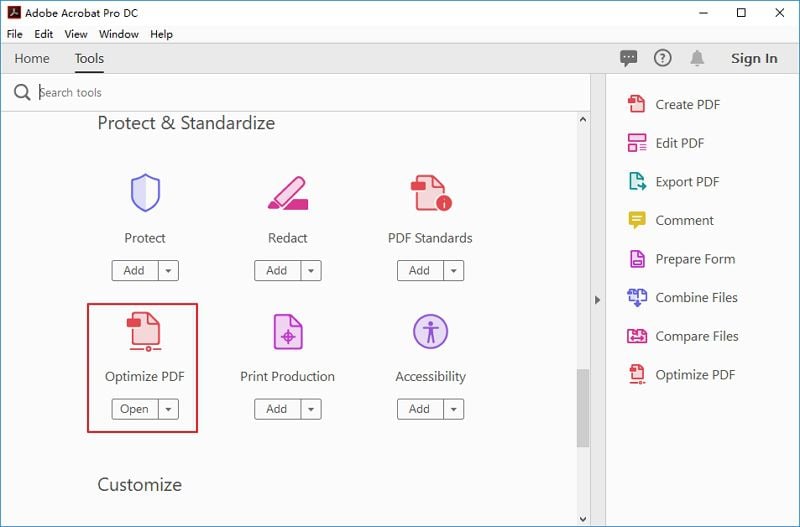
If you have Adobe Acrobat Pro, it has a built-in repair feature. Open Acrobat, go to ‘File’ > ‘Open’, and select the corrupted PDF. If it tries to repair automatically, great. Otherwise, go to ‘File’ > ‘Save As’ and choose ‘Optimized PDF…’ then click ‘OK’. This often fixes minor corruptions. For more stubborn issues, try ‘Save As’ > ‘Reduced Size PDF’ or use the ‘Inspect PDF’ tool. If you’re dealing with a file that broke after a crash, check out how to repair pdf after power outage for additional tips.
Step 5: Fix Specific Issues (Text, Images, Bookmarks)
If the PDF opens but has specific problems—like garbled text, missing images, or broken bookmarks—target those individually. For text encoding errors, refer to a dedicated guide on how to fix pdf text encoding. Missing images? See how to recover pdf images. For bookmarks that don’t work, you can repair pdf bookmarks using tools like PDFsam or Adobe’s bookmark editor. If the whole file is a mess, a repair garbled pdf approach might be needed.
Common Pitfalls
- Not making a backup first—always copy the original before any repair attempt. If you overwrite the file, you might lose the chance to try another method.
- Assuming all online tools are secure—medical data is sensitive. Only use reputable sites with HTTPS, and avoid uploading files with personal health information if possible. Consider using a desktop tool instead.
- Expecting a free tool to fix everything—some heavy corruption requires specialized software. For critical documents, you might need a paid service or professional data recovery.
Where to Next?
Now that your medical PDF is fixed, consider using a pdf diagnostics tool to prevent future issues. It can scan your PDFs for potential problems before they cause trouble. Also, check out our other guides like how to recover PDFs without software or automatic PDF repair for more advanced options. Keep your medical documents safe and accessible!




