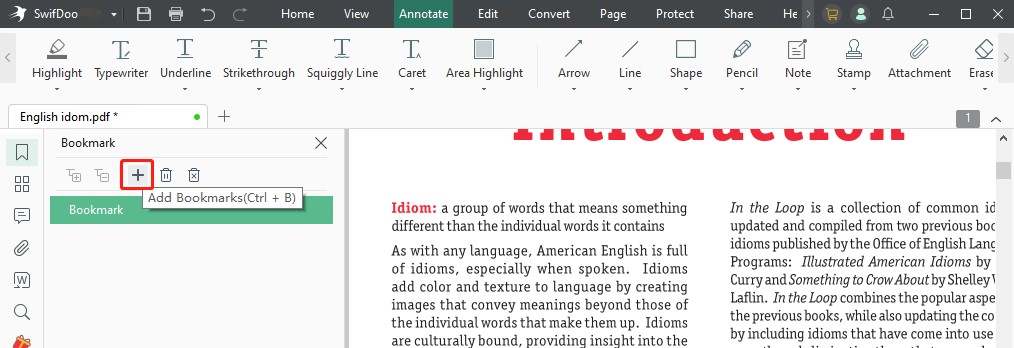
You know the drill: you open a massive PDF, ready to jump to chapter 3, but the bookmarks are either missing, broken, or pointing to the wrong page. It’s frustrating, especially when you’re studying or working with a report. This guide is for anyone who needs to get those bookmarks back in shape—whether you’re a student, a professional, or just someone who hates scrolling. By the end, you’ll have a fully functional bookmark outline that makes navigation a breeze.
We’ll cover three approaches: using Adobe Acrobat (the heavy hitter), Foxit Reader (a great free alternative), and an online tool for quick fixes. No prior experience needed—just follow along step by step. And if you run into other PDF hiccups, check out our guides on fixing PDF links or repairing office PDFs.
What You’ll Need
- The PDF file with bookmark issues (keep a backup!)
- Adobe Acrobat Pro or Standard (trial works) — or Foxit Reader (free)
- Optional: Internet connection for online tool (e.g., PDF24, Sejda)
- Patience — some fixes take a few tries
Step 1: Identify the Problem (Open the Bookmarks Panel)
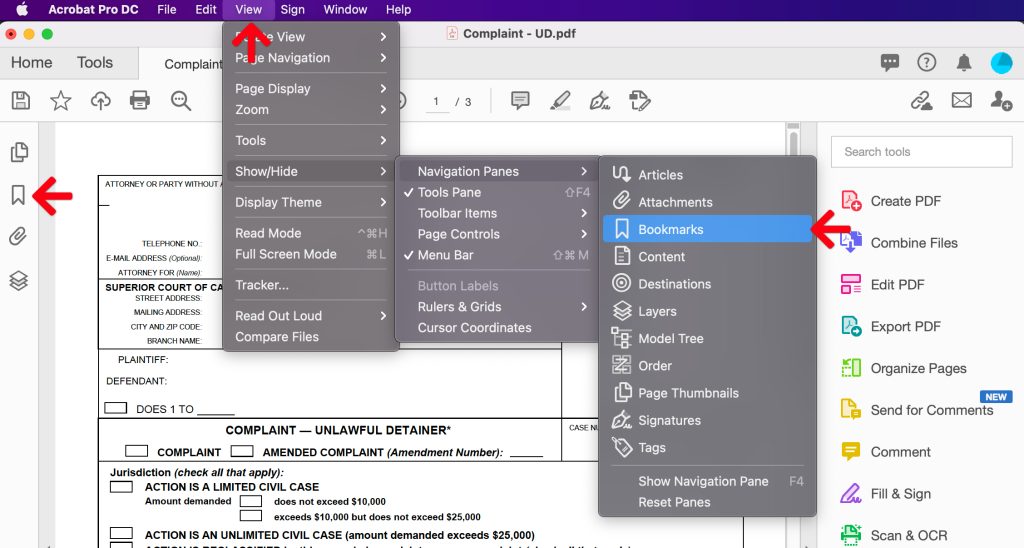
First, open your PDF in Adobe Acrobat (or Foxit). Look for the bookmarks icon on the left—it looks like a ribbon or a page with a bookmark. Click it to reveal the Bookmarks panel. If you see bookmarks but they don’t take you to the right place, or if the panel is empty, you’ve got a repair job. Note any patterns: maybe only a few are broken, or the whole tree is missing. This diagnosis will guide your next steps.
Step 2: Fix Broken Bookmarks in Adobe Acrobat
In Acrobat, right-click a broken bookmark and choose “Set Destination.” Scroll to the correct page in the document, then click “Set Destination” again in the pop-up. The bookmark now points to the right spot. Repeat for each misbehaving bookmark. For multiple broken ones, hold Ctrl (Cmd on Mac) to select several, then “Set Destination” works for all. This manual fix is quick if you have fewer than 20 bookmarks.
Step 3: Rebuild Missing Bookmarks with Acrobat’s Auto Bookmark
If your bookmarks are completely gone, Acrobat can rebuild them from the document’s heading structure. Go to the “Bookmarks” panel options menu (the three dots or hamburger icon) and select “Create Bookmarks from Structure.” Acrobat will scan headings (H1, H2, etc.) and generate new bookmarks. This works best if the PDF has tagged headings. If not, you’ll need to create them manually or consider fixing damaged PDFs first to restore the structure.
Step 4: Use Foxit Reader for a Free Fix
Foxit Reader is a free alternative that handles bookmarks well. Open your PDF in Foxit, click the “Bookmarks” tab on the left. Right-click a broken bookmark and choose “Properties.” In the pop-up, you can change the action to “Go to a page” and enter the correct page number. Foxit also lets you rearrange bookmarks by dragging. It’s lightweight and great for quick repairs.
Step 5: Online Tools for a One-Click Fix
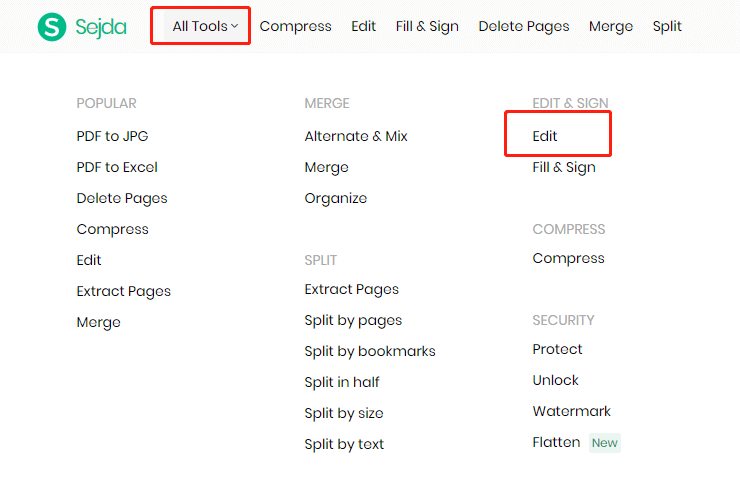
If you don’t want to install software, try an online tool like PDF24 or Sejda. Go to the site, upload your PDF, and look for a “Bookmark Editor” or “Repair Bookmarks” option. These tools often let you add, remove, or fix bookmark destinations in a table format. Because your file leaves your machine, avoid uploading sensitive documents. For secure fixes, stick with desktop apps.
Common Pitfalls
- Forgetting to save after editing – always hit Ctrl+S (Cmd+S on Mac) and confirm the PDF is saved as a new version.
- Untagged PDFs: The “Create from Structure” feature won’t work if the PDF lacks headings. In that case, you must add bookmarks manually or use an OCR tool first.
- Overwriting the original: Work on a copy. If something goes wrong, your original isn’t lost.
Even after bookmark repair, you might face other issues—like corrupted pages or missing images. If so, see our guides on recovering PDFs from Google Drive or repairing large PDFs for broader solutions.
Where to Next
Now that your bookmarks are back in action, you’re ready to navigate your PDF like a pro. Keep exploring our site for more PDF repair tips—whether it’s recovering lost annotations, fixing text encoding, or tackling other common problems.




