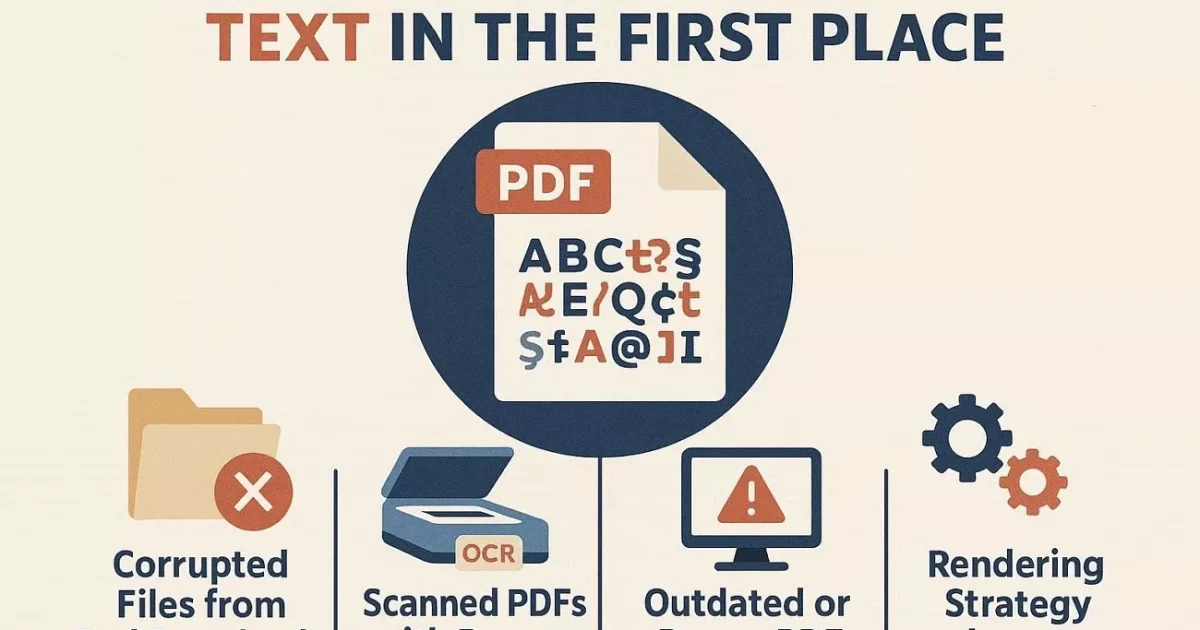
If you’ve ever opened a PDF and seen a jumbled mess of letters, missing images, or weird symbols, you know the panic of losing important data. Garbled PDFs happen more often than you’d think—corrupted downloads, interrupted transfers, or software glitches can turn a clean document into unreadable garbage. This guide is for anyone who needs to salvage a garbled PDF, whether it’s a work report, a scanned contract, or a personal file. By the end, you’ll have a readable document and a few tricks to prevent future corruption.
We’ll cover five proven methods, from simple viewer changes to online repair tools and manual fixes. You don’t need to be a tech wizard—just follow the steps in order. Most garbled PDFs can be recovered, and if one method fails, the next might work. Let’s get your PDF back to normal.
What You’ll Need
- The garbled PDF file (keep a backup copy!)
- An internet connection (for online repair tools)
- A PDF viewer like Adobe Acrobat Reader (free) or your browser
- Optional: Adobe Acrobat Pro (for advanced repair) or a PDF repair website
Step 1: Identify the Type of Garbling
Before diving into repairs, take a moment to examine your PDF. Is it just text that’s scrambled, or are images missing? Sometimes only a few pages are affected. This helps you pick the best fix. For example, if text looks like ‘éâ’ but images are fine, it’s likely an encoding issue. Open the PDF in a different viewer first—sometimes the viewer is the problem. Try Google Chrome, Microsoft Edge, or a dedicated PDF app.
Step 2: Try a Different PDF Viewer
Surprisingly, many garbled displays are due to viewer bugs. Right-click your PDF and choose ‘Open with’ > Google Chrome or Adobe Acrobat Reader. If the document looks fine in another viewer, your original viewer might need an update. If it’s still garbled, move to the next step.
Step 3: Use an Automatic PDF Repair Tool
The easiest fix is using a dedicated online repair service. Head to a trusted PDF repair website and upload your garbled file. The tool will scan for structural issues and rebuild the document. Most services are free for small files. After repair, download the new PDF and check if it’s readable. This method works for corruption from incomplete downloads or system crashes. If you need a more thorough fix, check out our guide on automatic PDF repair.
Step 4: Repair with Adobe Acrobat Pro
If you have Adobe Acrobat Pro, it has a built-in repair feature. Open the garbled PDF, go to File > Properties, and click the ‘Repair Document’ button (if available). You can also try File > Save As > Optimized PDF, then click ‘OK’ to rebuild the file. For more serious corruption, use the ‘Document’ menu > ‘Repair Document Structure’. This can fix many common issues like missing fonts or cross-references. If you’re dealing with a larger file, see our guide on repairing a damaged PDF file.
Step 5: Convert and Convert Back (Word Trick)
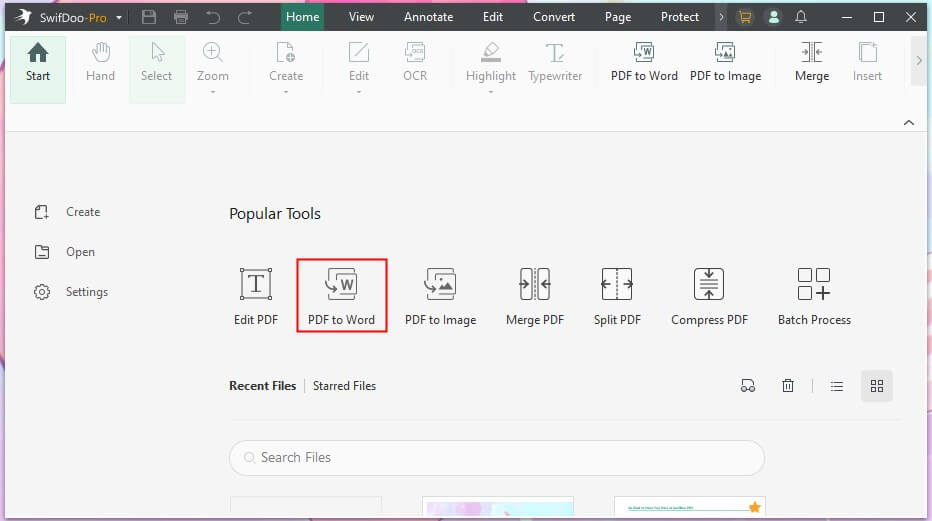
When all else fails, convert the garbled PDF to Word and then back to PDF. Use an online converter (like Smallpdf or Zamzar) or Adobe’s export tool. The conversion often strips out corruption and restores readability. After converting to Word, open the .docx, check for errors, then save as PDF again. This is a great damaged PDF solution for text-heavy files. Note: formatting may change, but you’ll recover the content. For images, try a dedicated image recovery approach like our recover PDF after a system crash guide.
Common Pitfalls
- Not keeping the original backup – always save a copy before attempting repairs. If a repair tool corrupts the file further, you’ll lose the original.
- Using untrusted repair websites that install malware. Stick to well-known services like those reviewed on our PDF repair website guide.
- Assuming all garbling is fixable – some PDFs are too damaged, especially from physical media errors. In that case, try to recover from another source.
Where to Next
Now that you’ve rescued your PDF, consider bookmarking a reliable repair tool for future emergencies. If you frequently get garbled PDFs, check out our step-by-step guide on fixing corrupted files. Also, learn how to prevent corruption by always using stable internet connections and updating your PDF software.




