You were on a roll, editing a critical PDF, when the lights flickered and everything went black. When your computer boots back up, you open the file only to see garbled text, missing pages, or a flat-out error message. If this sounds familiar, you’re in the right place. This guide is for anyone whose PDF got zapped by a sudden shutdown — whether you’re a student, office worker, or freelancer. By the end, you’ll have a fully readable PDF, or at least a solid plan to recover it.
We’ll walk through five proven methods: from quick built-in tricks to free online tools and dedicated repair software. No command-line wizardry or advanced tech skills required. Just follow the steps in order, and you’ll likely save your file without breaking a sweat.
What You’ll Need
- The corrupted PDF file (keep the original safe)
- A computer with internet access
- A PDF reader (Adobe Acrobat Reader, Foxit, etc.)
- Optional: backup copies or previous versions of the file
- Optional: a dedicated PDF repair tool (we’ll list options)
Step 1: Assess the Damage
Before diving into repair tools, open the PDF to see what’s actually broken. Try multiple readers: maybe Adobe Reader shows an error but your browser renders it fine. Note error messages like ‘File is damaged’ or ‘Cross-reference table missing’. This step helps you choose the right fix.
If the file opens but looks wrong, try printing it to a new PDF (File > Print > Save as PDF) — this can fix minor corruption. If it won’t open at all, move to Step 2.
Step 2: Try Built-in Repair Options
Quick fixes don’t cost a cent. If you have Adobe Acrobat Pro, go to File > Open, select the corrupted PDF, and click ‘Open as Copy’. Then save it with a new name. Another trick: File > Save As Other > Optimized PDF, and check the ‘Make compatible with’ option. This rebuilds the file structure. For free readers, try ‘Print to PDF’ as mentioned.
If that fails, move to cloud-based tools. For a more comprehensive automatic approach, check out our guide on automatic pdf repair.
Step 3: Use an Online PDF Repair Service
Several websites offer free PDF repair. Upload your file and they’ll attempt to reconstruct the data. Popular options include PDF24 Tools, Smallpdf, and ILovePDF. These are great for quick fixes, but be cautious with sensitive documents — check their privacy policies. If your file is confidential, skip to Step 4.
After upload, the service processes the file and lets you download the repaired version. It often works even when your local reader says ‘pdf file is damaged‘.
Step 4: Use Dedicated PDF Repair Software
For stubborn corruption, install a dedicated tool. Options like Wondershare Repairit, Stellar Repair for PDF, or Recovery Toolbox for PDF can handle severe issues. Install the software, select your file, and let it scan. Most offer a preview before saving. This is your best bet if online tools fail.
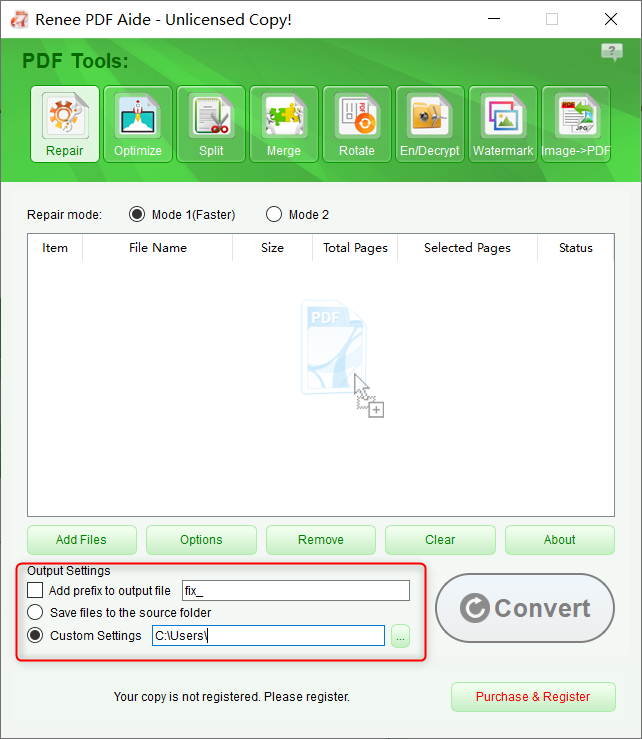
Many of these tools follow the same steps we outline in our damaged pdf repair guide. If you’re dealing with multiple corrupted files, batch processing can save time.
Step 5: Recover from Backup or Previous Version
Sometimes the simplest fix is to re-open an earlier version. If you use cloud storage (Google Drive, OneDrive, Dropbox), check version history. Right-click the file and select ‘Version history’ to find a pre-crash copy. Similarly, Windows File History or Mac Time Machine can retrieve an older version.
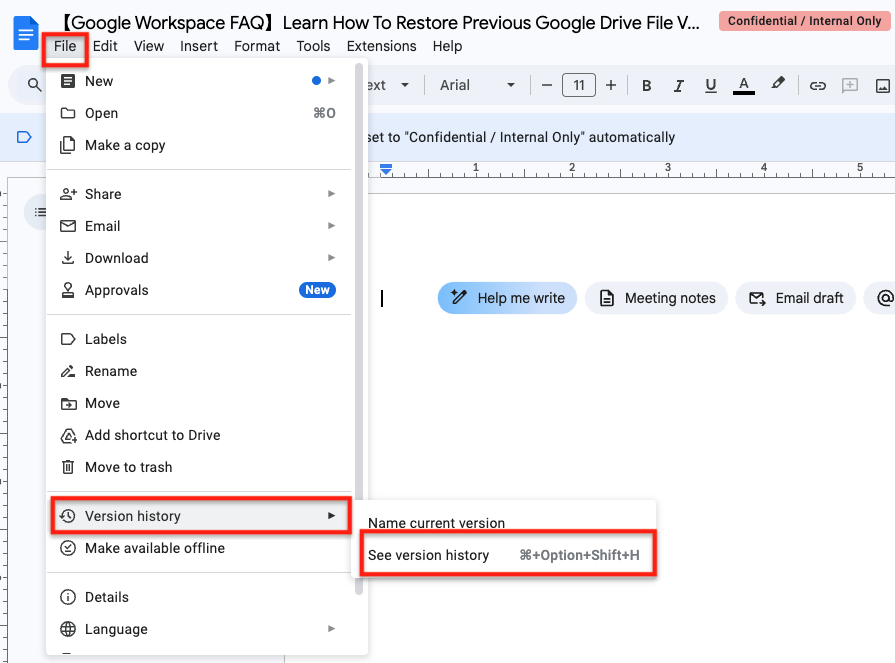
This method is especially useful if you had autosave enabled. For a full walkthrough, see our guide on how to recover pdf after system crash — the steps are very similar.
Common Pitfalls
- Saving over the original file with a failed repair attempt. Always work on a copy first.
- Using a free online tool that uploads your file to an unknown server — risk of data leakage. For sensitive docs, use offline software.
- Ignoring small signs of corruption and hoping they’ll go away. A tiny glitch can escalate, so fix it early.
Where to Next
Once you’ve recovered your PDF, consider backing up important files automatically. For future outages, you might want to look into damaged pdf solution tips to prevent data loss. Also, if you use Microsoft Office to create PDFs, our pdf repair for office documents guide can help with those specific files. Happy repairing!




